Videojet 6210 Operator Manual
4-14 Changing the Position or Appearance of the Print
Rev AB
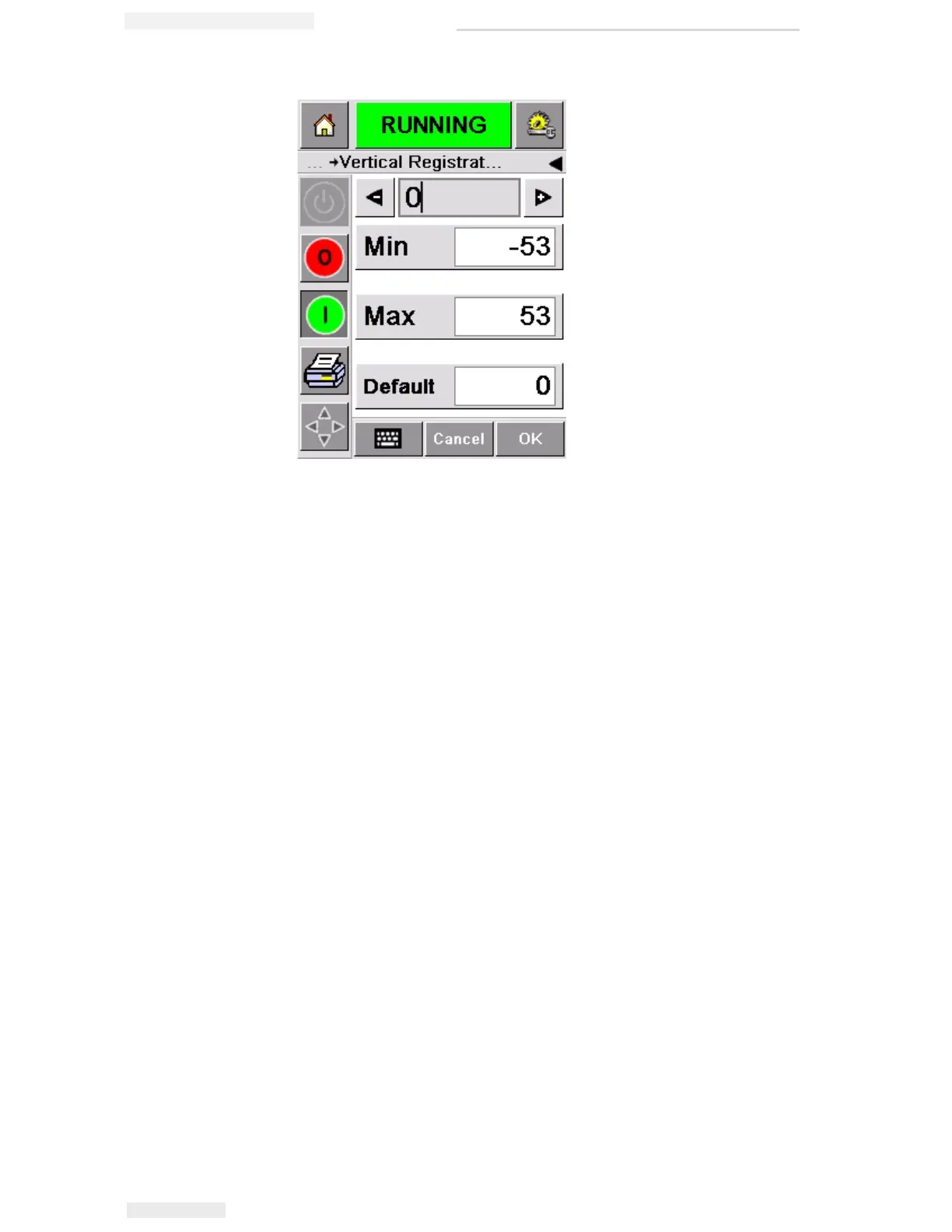
Alternatively, do one of the following to make changes in the
settings:
• Type a new value using the keypad.
• Touch the Min, Max, or Default buttons to select the minimum,
maximum, or default (standard) values.
6 Touch OK to save the settings.
7 Touch the Home button to return to the home page.
Note: The same adjustments can be made via the Print Registration
button on the home screen.
Changing the Print Orientation
You can change the orientation in which a job image is printed.
To change the print orientation, proceed as follows:
1 Touch the Tools button on the home page.
2 Touch the Setup button on the tools page.
3 Touch the Printhead button to open the printhead setup page.
4 Touch the Print Orientation bar to open the print orientation
settings page (Figure 4-17 on page 4-15).
Figure 4-16: Vertical Registration Settings



 To Next Page