Videojet 6210 Operator Manual
Rev AB Deleting a Job from the Jobs Database 4-19
Deleting a Job from the Jobs Database
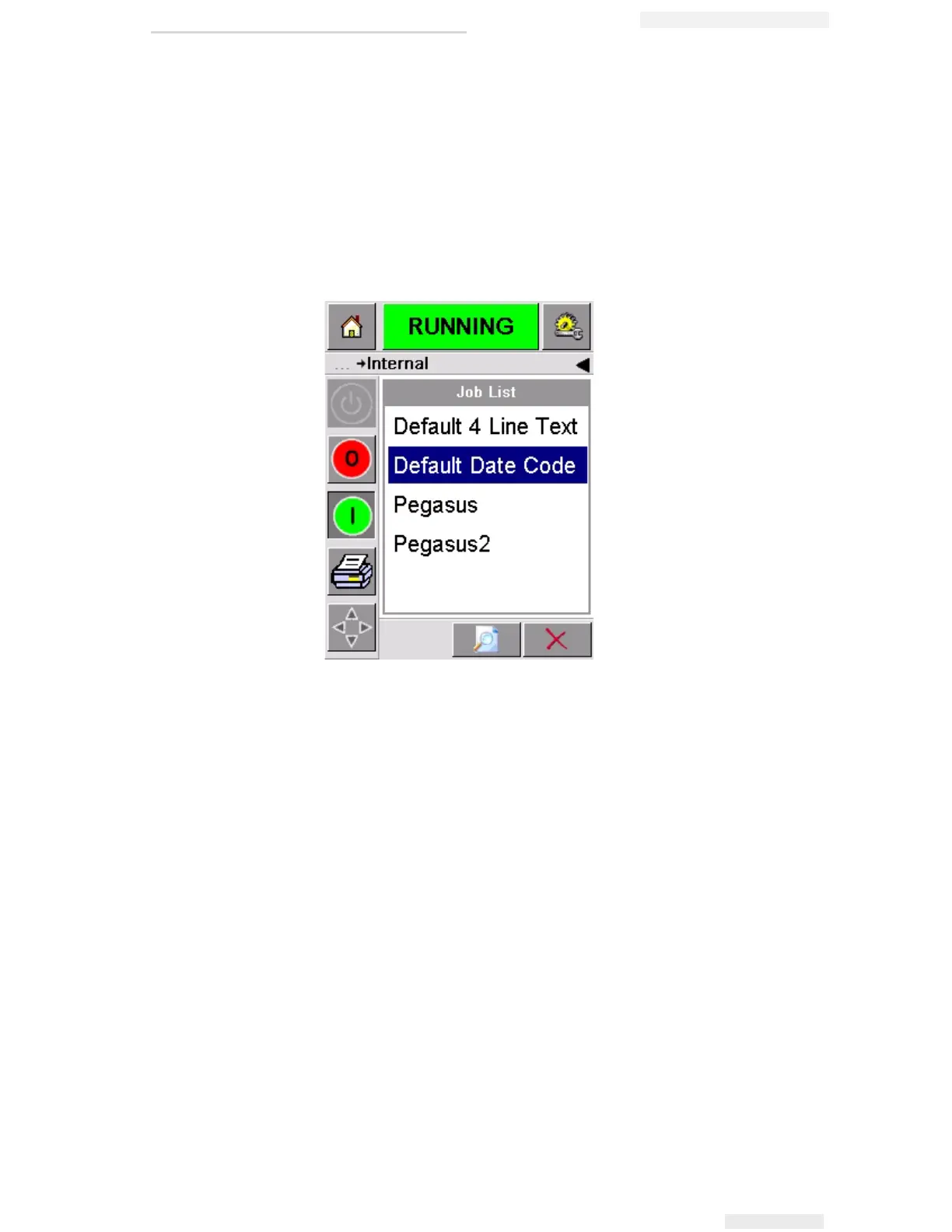
To remove jobs that are no longer required, proceed as follows:
1 Touch the Tools button on the home page.
2 Touch the Database button on the tools page to open the database
page. This page contains a list of all the available print jobs along
with details of the space available for the storage of new jobs
(Figure 4-20).
3 Touch the name of the job that you want to remove from the list of
jobs. The Delete and the Preview buttons will be activated.
4 Touch the Preview button to see the job image. Ensure that the job
is the one that you want to delete.
5 Touch the Delete button either on the job preview screen or on the
database screen.
6 Confirm the job to be removed (Figure 4-21 on page 4-20).
Figure 4-20: Database Data Window



 To Next Page