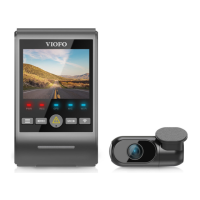
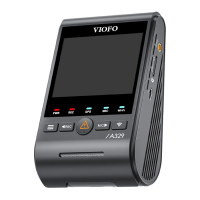
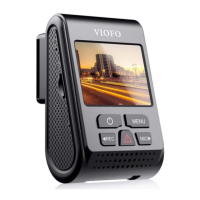
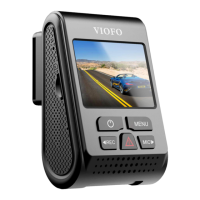
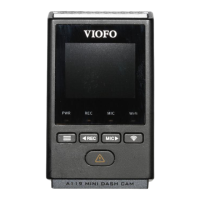
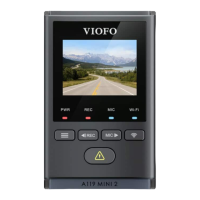
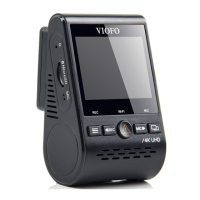
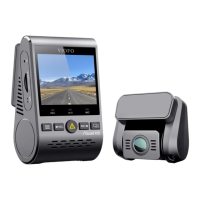
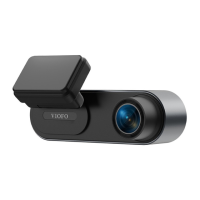
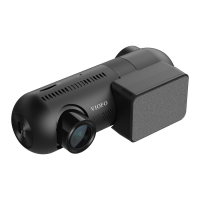
Power On / Off
1.
2.
3.
When you start the engine, the camera will turn on and
begin recording automatically.
When you turn off the engine or unplug the charging
cable from the power adapter, the camera will stop
recording and turn off.
Short press [ ] button to power on the camera.
Long press [ ] button to power off the camera.
20
21
Note:
• The above settings can be modified anytime from
the settings menu.
• After restoring device to factory settings, the initial
setup interface will also be triggered upon startup.
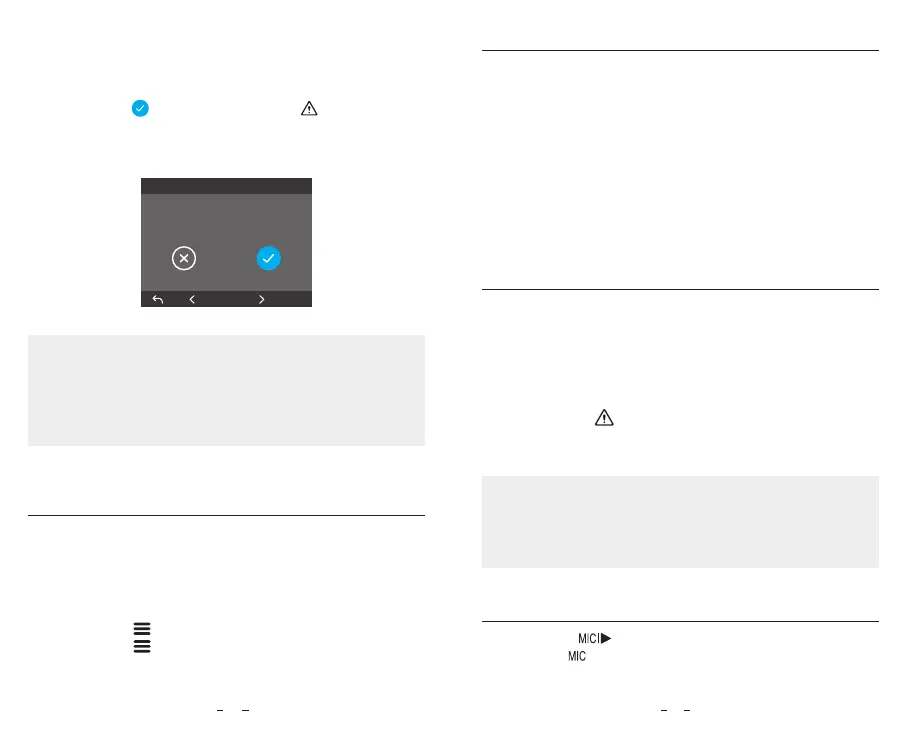
⑤ Format microSD Card
Memory card must be formatted before first use.
Select the [ ] and press the OK [ ] button to
confirm formatting the memory card. After successful
formatting, the camera will automatically restart and
power on.
Format microSD Card
OK
All data will be deleted
Emergency Recording
Automatic emergency recording
1.
Loop Recording
Insert a microSD card into the camera’s card slot and
automatic loop recording will begin once the camera
detects power.
Time frame for each video file is 1 / 2 / 3 / 5 / 10 minutes.
When there is insufficient space on the microSD car,
loop recording will automatically overwrite the oldest
files (one by one).
Loop recording files are saved to microSD card:
\DCIM\Movie.
1.
2.
3.
4.
Manual emergency recording
Note:
2.
When the G-sensor is activated by a collision, the
current footage will be locked automatically to avoid
being overwritten by loop recording.
Collision detection sensitivity can be adjusted in
settings under the “G-sensor” option. Locked files are
saved to microSD card: DCIM \ Movie \ RO
Pressing the [ ] button during a recording will lock
the current file being recorded. Once locked, the file
will not be overwritten by the loop recording feature.
Disable / Enable Audio Recording
Pressing the [ ] button once to turn off / on audio
recording, [ ] LED light will be off / solid Blue.


 To Next Page