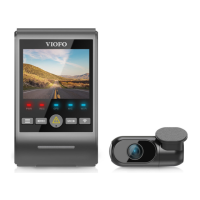
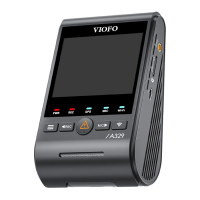
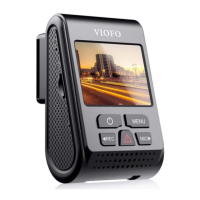
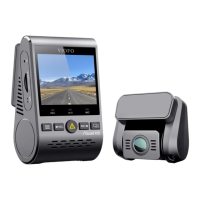
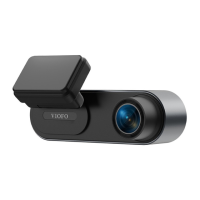
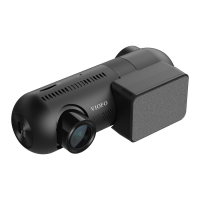
1. Front Camera:
3840x2160P 30fps
2560x1440P 30fps
1920x1080P 30fps
2. Front Camera + Rear Camera:
2160P30+1440P30
1440P30+1440P30
1080P30+1080P30
3. Front Camera + Interior Camera:
2160P30+1080P30
1440P30+1080P30
1080P30+1080P30
4. Front Camera + Rear Camera + Interior Camera:
2160P30+1440P30+1080P30
2160P30+1080P30+1080P30
1440P30+1440P30+1080P30
1080P30+1080P30+1080P30
30 31
Video Settings
Dashcam Settings
You can set the dashcam settings according to your
needs and preferences using the camera or the VIOFO
App. To enter the settings menu, please stop recording
first.
• Video Bitrate
:
Low / Normal / High / Maximum.
You can set the bitrate for video. High bitrate may
improve the quality and smoothness of the video,
especially when recording fast motion or high contrast
scenes. Using high bitrate mode may decrease the
amount of recording time available on your memory
card. Using low bitrate will save space and record for
longer time.
• Resolution
:
• Loop Recording
: 1 / 2 / 3 / 5 / 10 Minutes.
Recording will begin automatically after powering on
with a microSD card in the device. Each recorded file is
one minute long as a default and the old footage will be
replaced when microSD card storage is full.
• Exposure Value (Front / Rear / Interior):
Adjusting the value of the EV (Exposure Value) properly
can create better footage under different light sources.
It ranges from -2.0 to +2.0. You can adjust the EV for the
front, rear and interior cameras separately. The default is
set at 0.0.
• HDR (High Dynamic Range)
:
Off / On / Auto HDR Timer. The default setting is Off.
The multi-exposure HDR technique helps automatically
balance the lighting in over bright and over dark
areas to avoid over exposure issues.
• G-Sensor
:
The G-sensor measures shock forces and locks the
video recorded at the time. The settings from “low to
high” determine the amount of force needed to lock
the file from being overwritten. We recommend that
you set it at low.
• Stamp:
Choose to imprint the information on the recorded video.
Date Stamp / GPS Speed Stamp / GPS Coordinates
Stamp / Custom Stamp / License Plate Stamp / Logo
Stamp / Brand Model Stamp.
• Record Audio
:
Turn on and off the microphone. This can also be
changed during recording by pressing the
microphone button [ ].


 To Next Page