1 2
3
6
8 9 10
7
11 12 13
4 5
2023/08/30
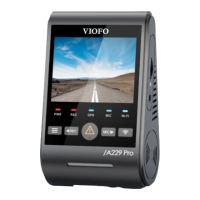
• Step 1: Use the phone to connect A229 Pro Wi-Fi. When
the phone is connected with the dashcam, the LED light on
the camera shows solid blue.
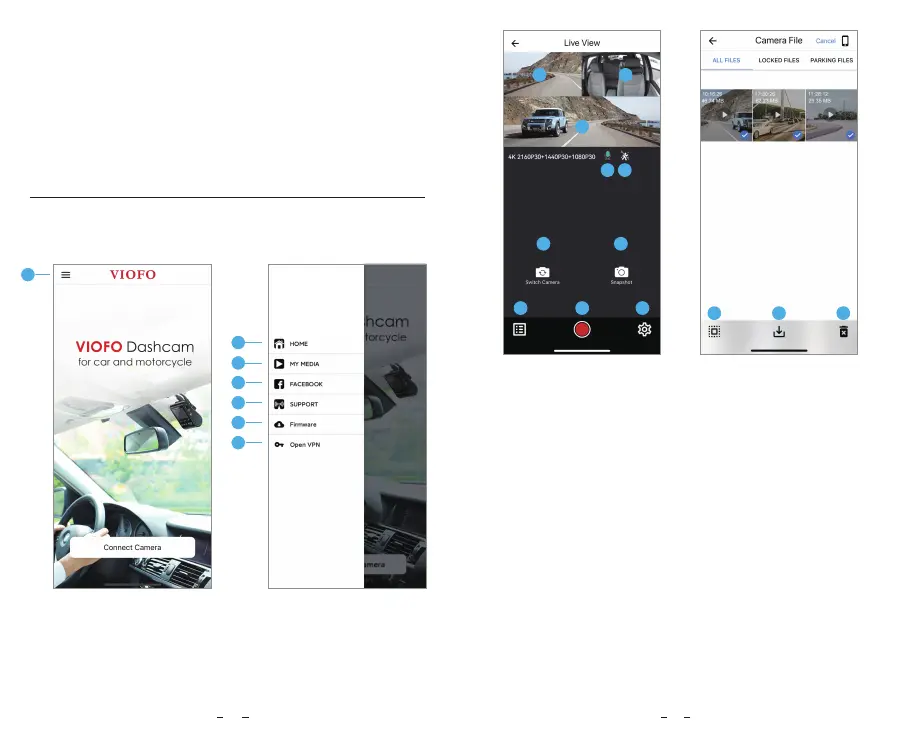
• Step 2: Open VIOFO app and choose "Connect your
camera" to use your phone to control the dashcam.
• Step 3: Now you can see the live view of both cameras.
You can change the settings and check the files on the app.
Choosing "Connect your camera" to use your phone to
control the dashcam.
APP Layout Overview
Preview Video
1 - Rear Camera Live Video
2 - Interior Camera Live Video
3 - Front Camera Live Video
4 - Audio Recording Status
5 - Motion Detection Status
6 - Switch Camera Video Source
7 - Take a Video Snapshot
8 - Go to Video File Lists
9 - Start / Stop Recording
10 - Go to Dashcam Settings
11 - Video File Lists
12 - Download Video Files
13 - Delete Video Files
26
27
1
5 - Official Support
6 - Firmware Update
7 - VPN connection
1 - Menu
2 - Home Page
3 - Downloaded Video
4 - VIOFO Official Facebook Page
2
3
4
5
6
7


 To Next Page