Use the arrow buttons [ ] to select the desired
video and press the button [ ] to play.
1. Auto Event Detection
The camera will automatically record a video sequence
while a moving object is being detected during parking
mode. It will stop recording when no new movement is
detected.
There are three options for parking mode.
2. Time Lapse Recording
Time lapse records a video at low frames at 1 / 2 / 3 / 5 /
10 fps, it keeps recording continuously without audio
recorded.
3. Low Bitrate Recording
This mode uses low bitrate to record video and audio,
and uses small file sizes for continuous recording.
Parking Mode
Note: Parking mode provides surveillance of your
parked vehicle only when the engine is off and the
USB Type-C Hardwire Kit is used to provide continuous
power.The Hardwire Kit also protects your car battery
from being drained. We recommend buying the
VIOFO HK4 ACC hardwire kit cable for parking mode
recording.
Note: For your PC with a microSD slot, you can directly
insert the memory card into it.
Note: Audio cannot be recorded in time-lapse mode.
Long press the Wi-Fi button to enable Wi-Fi. Connect
Wi-Fi on your phone first. Open VIOFO app and choose
"Connect your camera" to use your phone to control
the dashcam. You can play and manage files through
the APP. You can check the app introduction refer to
[ Review and Control on Smartphone ].
Playback Video on VIOFO APP
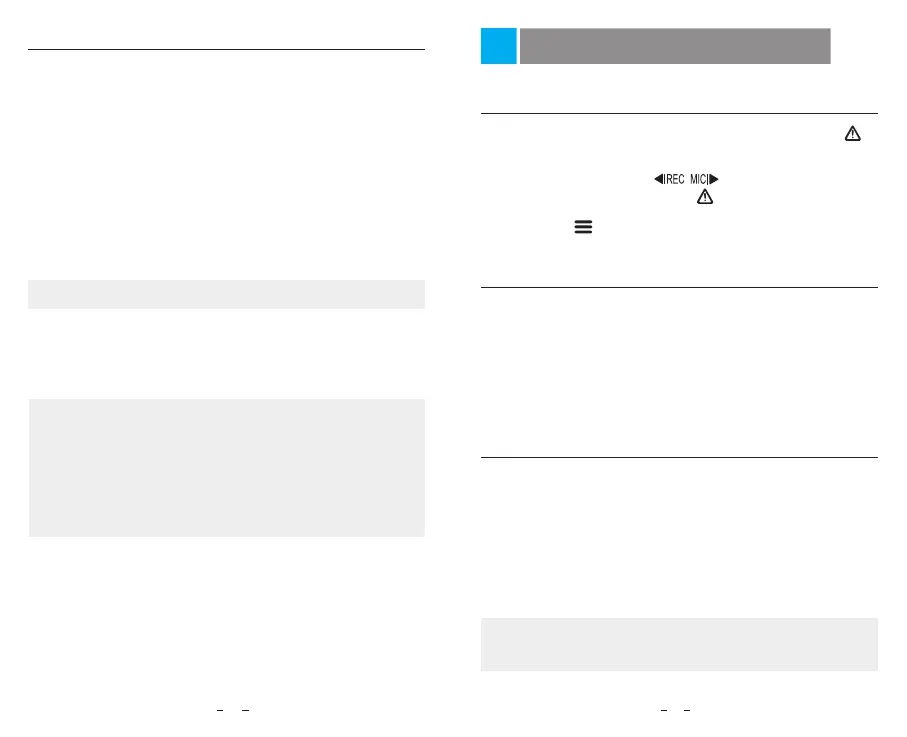
Playback Video on Dashcam
Playback Video on PC
1. Remove memory card from dashcam.
Before removing the memory card, make sure you have
switched off the Dashcam.
2. Insert the memory card into a microSD card adapter or
card reader connected to your PC.
3. Open the DCIM folder, using VLC or another video
player to playback the video.
Playback and Manage Videos
Press the [ ] button to exit.
1.
2.
3.
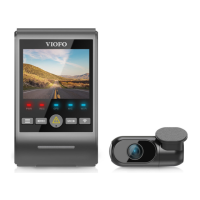
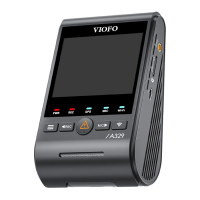
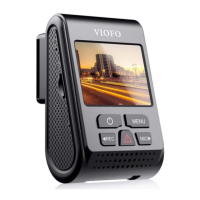
Under standby mode (not recording), long press [ ]
button to enter the playlist.
22
23


 To Next Page