EN-35
Deleting Still Images/Video Clips
1. Turn on the power by pressing and holding the button.
2. Toggle the button to go to [SELECT MODE].
3. Select [IMAGE/MOVIE] with the zoom lever and press the button.
4. Select the still image/video clip that you want to erase with the zoom
lever.
You may select the still image/ video clip that you want to erase from
the thumbnail display.
5. Press the button.
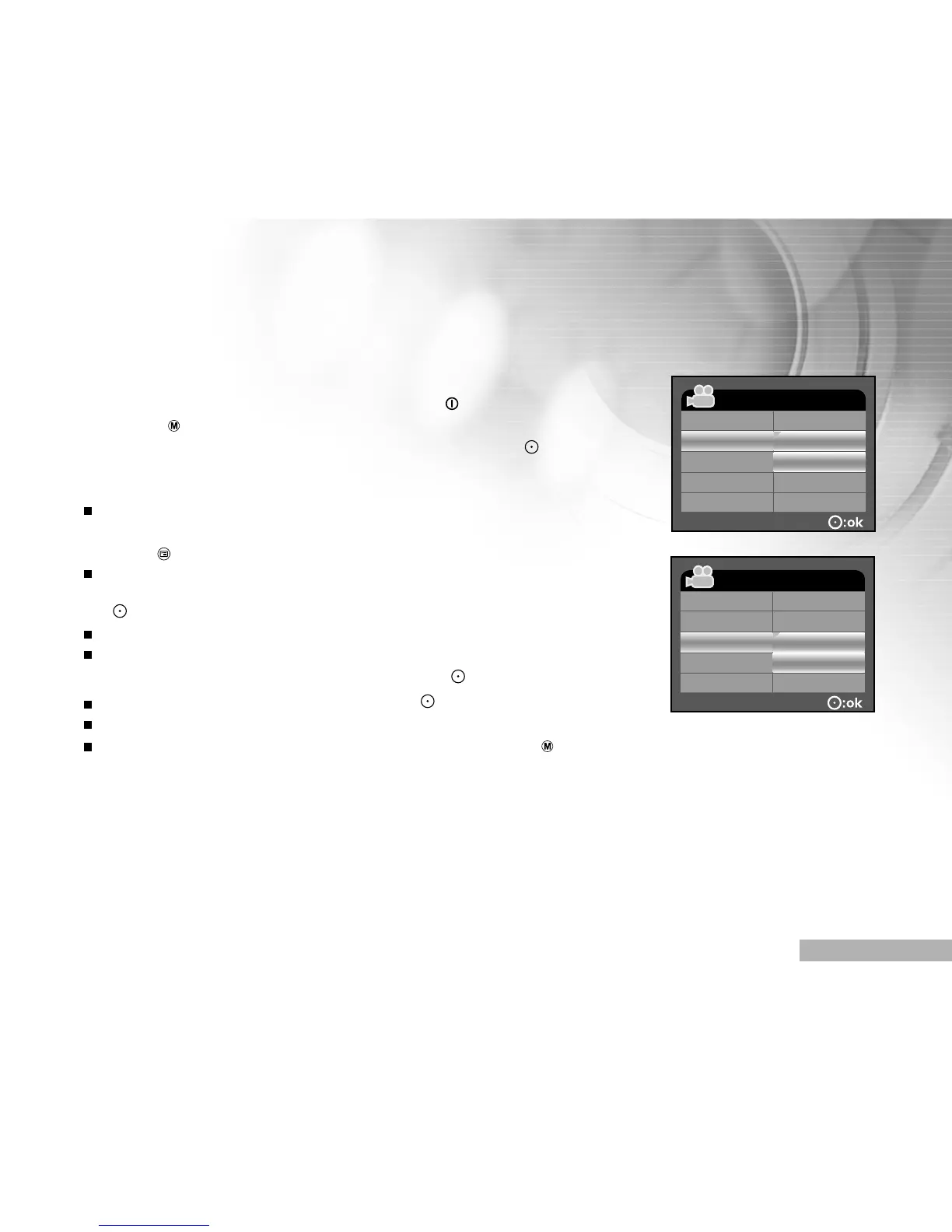
The PLAYBACK MENU is displayed.
6. Select [DELETE FILE] or [DELETE ALL] with the zoom lever, and press
the button.
DELETE FILE: Delete the current still image/video clip.
DELETE ALL: Delete all still images/video clips.
7. Select [YES] with the zoom lever, and press the button.
To not delete, select [NO], and press the button.
If all video clips/images are deleted, [NO FILE!] pops up.
If you want to turn back to the photography mode, press the
button.


 To Next Page