EN-36
CONNECTING TO A PICTBRIDGE COMPLIANT PRINTER
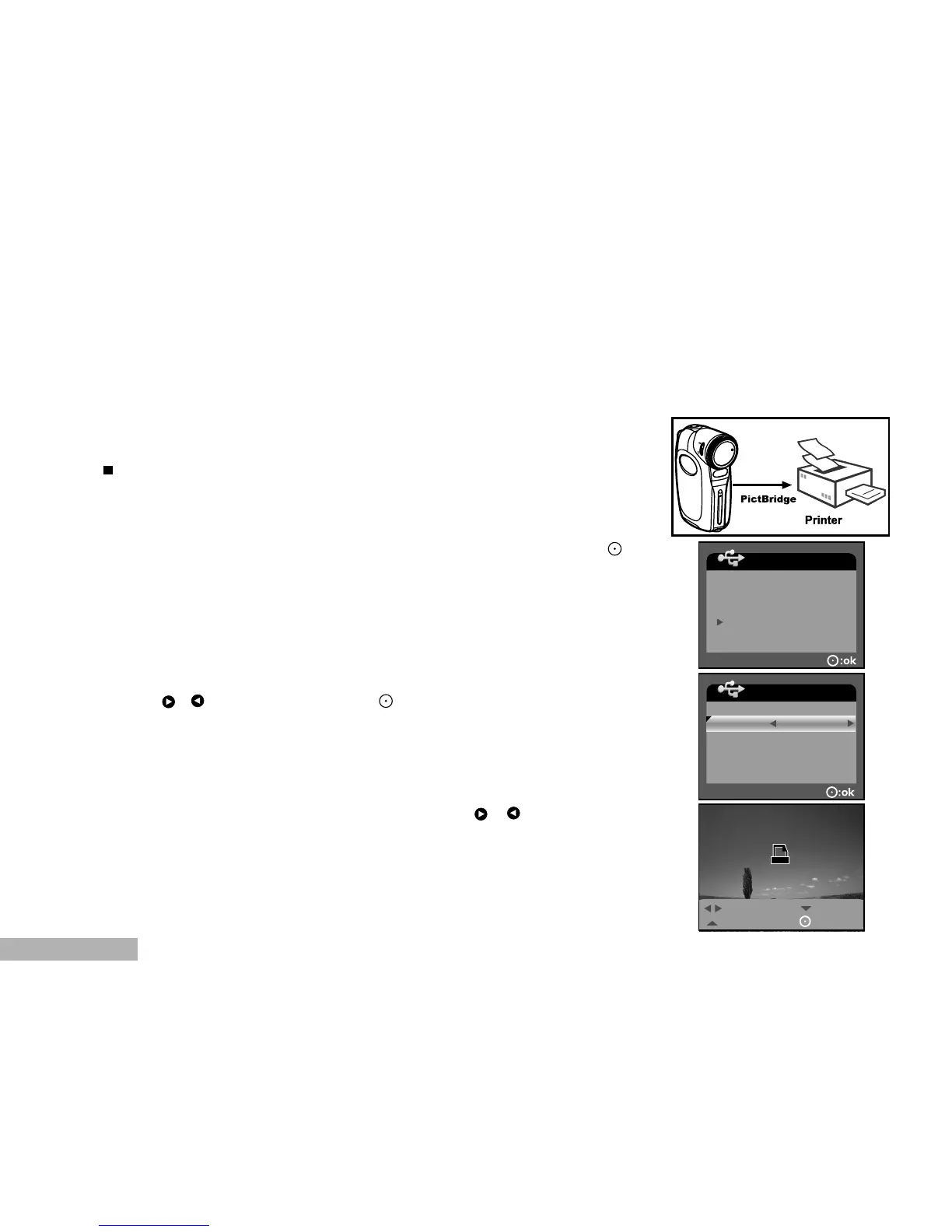
IF a printer that support PictBridge is available, images can be printed by connecting the digital video camera
directly to the PictBridge-compatible printer without using a computer.
1. Connect the digital video camera to the printer using the USB cable.
2. Turn on the printer and digital video camera.
The [USB MODE] screen appears on the screen.
3. Select [PICTBRIDGE] with the zoom lever, and then press the
button.
4. Select [SIZE] or [BORDERLESS] with the zoom lever and select its print type
with the / buttons. Then press the button to confirm the selection.
[SIZE]: You may select the desired item according to the
type of printer being used.
[BORDERLESS]: You may select the desired item according to the
type of printer being used.
5. Select the image that you want to print with the / buttons, and
then use the zoom lever to set more detailed print settings.


 To Next Page