EN-37
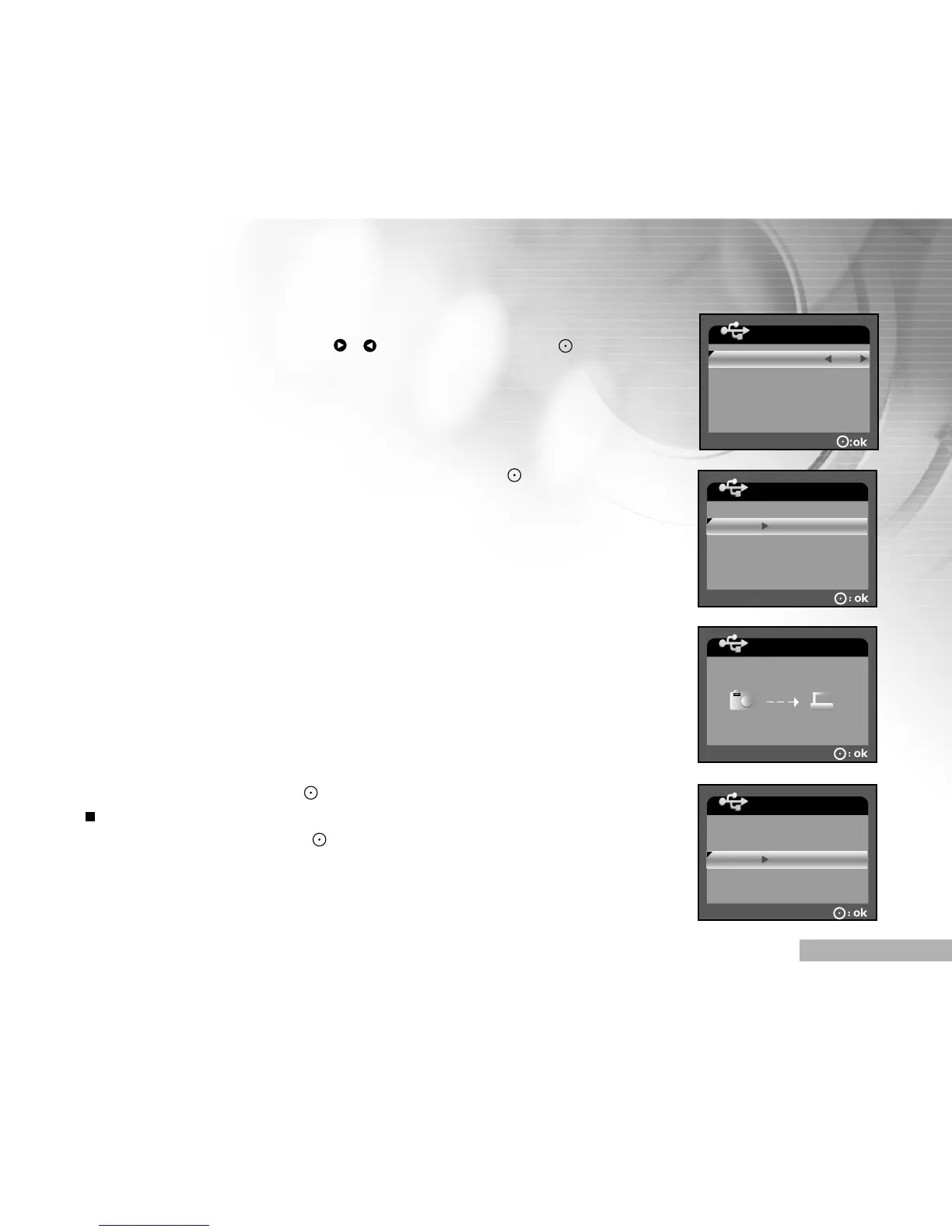
6. Select [PRINT NUMBER], [DATE] or [FILE NAME] with the zoom lever
and change their settings with the / buttons. Then press the to
confirm the selection.
[PRINT NUMBER]: Select the number of frame to be printed up to 10.
[DATE]: Select [WITH] to print the image with date imprint.
[FILE NAME]: Select [WITH] to print the image with file name.
7. Use the zoom lever to select [PRINT]. Then press the button to
confirm the print settings and start printing.
8. The printing starts and the figure shown on the right hand side appears
until the printing is complete.
9. To cancel printing, press the while the printing is proceeding.
A selection screen appears. Use the zoom lever to select
[CANCEL]. Then press the button to cancel printing.
USB MODE
CANCEL
PRINT
USB MODE
USB MODE
CONTINUE
CANCEL


 To Next Page