VIVOTEK - A Leading Provider of Multimedia Communication Solutions
User's Manual - 115
Live View Dialog Settings
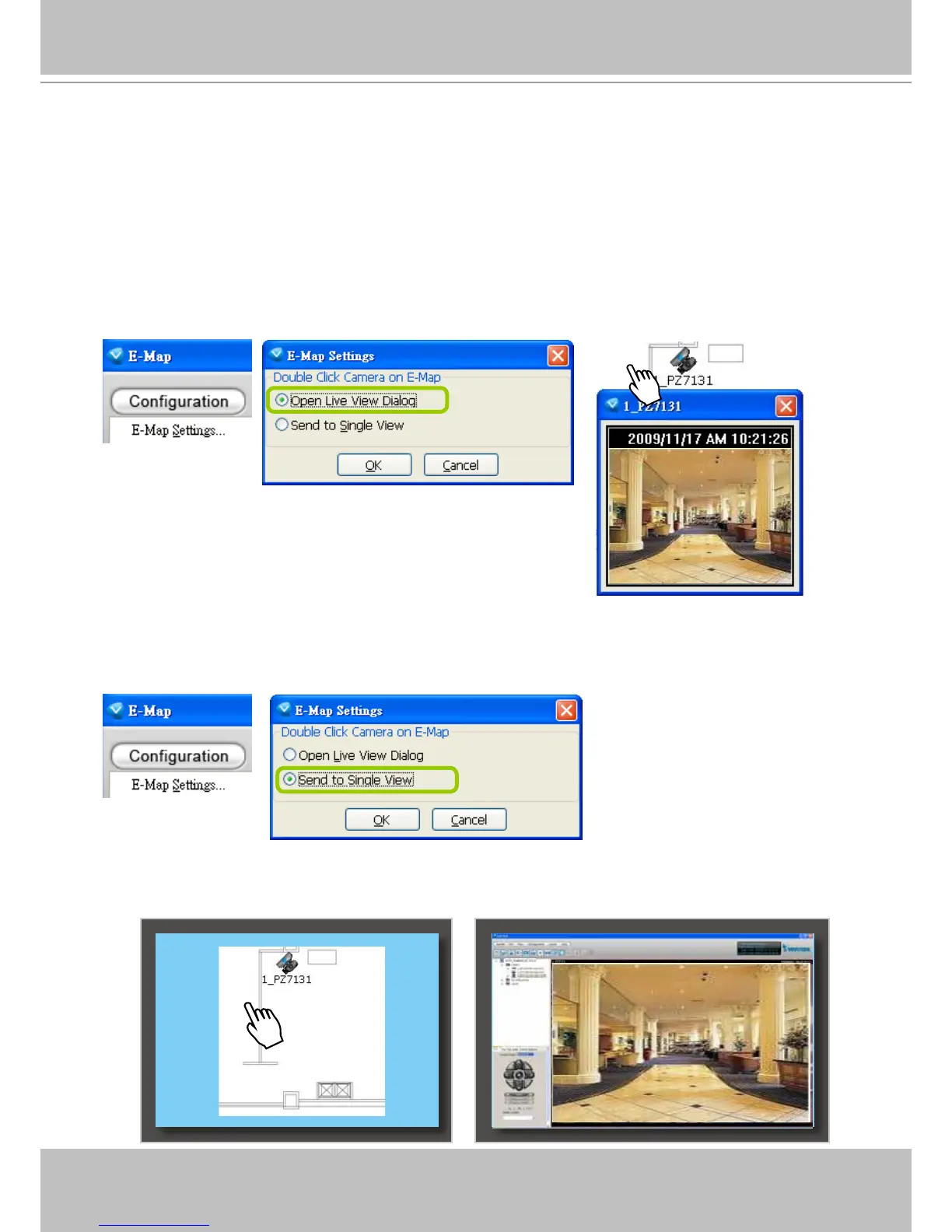
Click Configuration > E-map Settings to open the E-map Settings dialog, then you can
choose to Open Live View Dialog or to Send to Single View when you double-click the device
deployed on the E-map.
Open Live View Dialog
Select Open Live View Dialog: When you double-click the device icon on the E-map or when an event
triggers, a live view dialog will pop up beside it. It is the default setting in E-map Settings window.
Send to Single View
Select Send to Single View: When you double-click the device icon on the E-map, it will open a single
view on the VAST LiveClient.
If you have set up dual monitor, it will be automatically sent a single view to the second monitor.
Monitor 1 Monitor 2



 To Next Page