VIVOTEK - A Leading Provider of Multimedia Communication Solutions
44 - User's Manual
How to Change the VAST LiveClient Layout
Changing the Layout of the Live Video Monitoring Window
VIVOTEK VAST LiveClient supports up to 32-CH simultaneous video viewing on a single
monitor and allows you to change the layout of the live video monitoring window based on the
number of inserted devices.
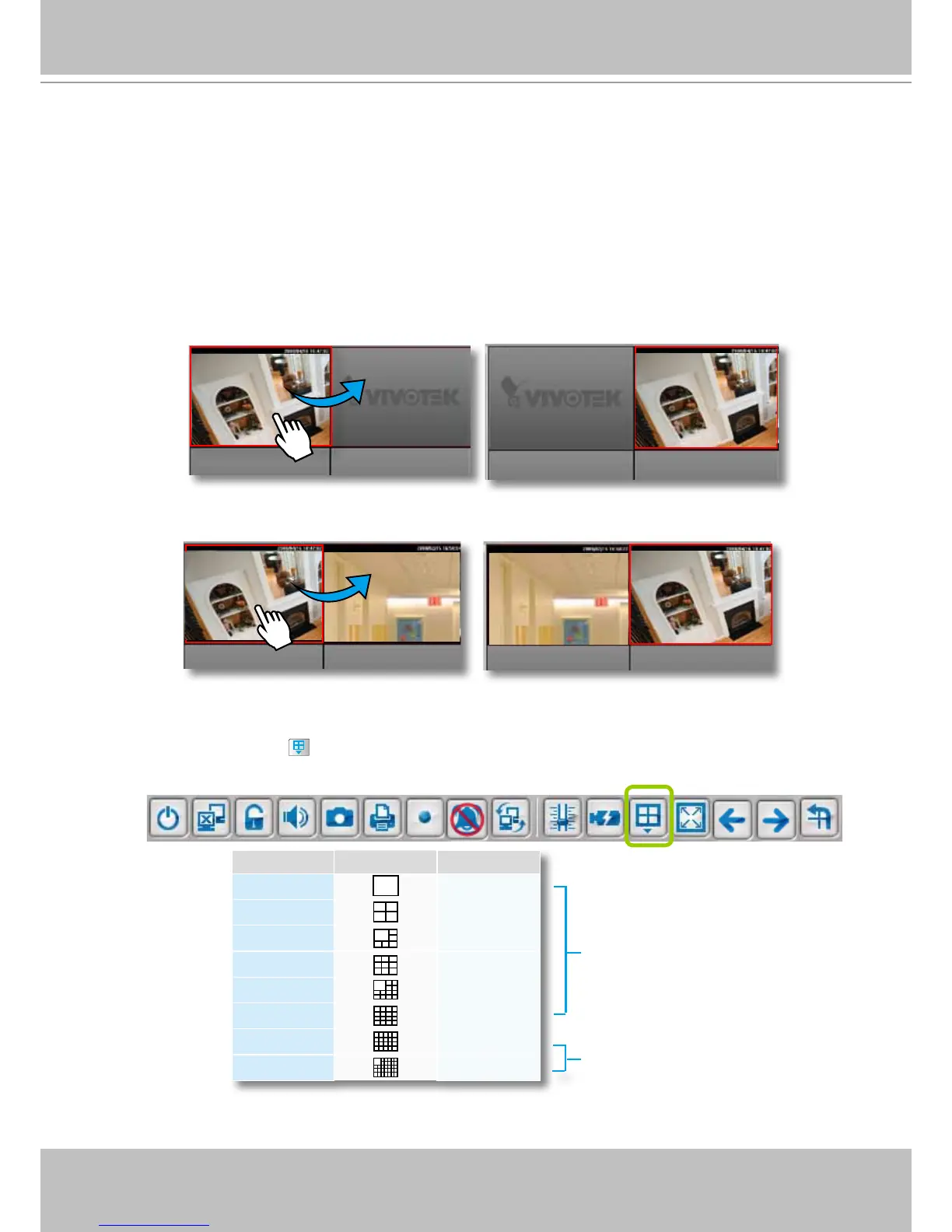
Switch Video Channels
To move a video channel to another empty video cell, drag-and-drop the view to the target video cell.
To switch two different channels, drag-and-drop one view to the other, then the two different channels
will be switched to the opposite.
Congure Layout Mode
Click the Layout button on the quick access bar. Select a desired layout mode, and the layout
window will be changed accordingly. Below we illustrate 8 types of layout modes and the corresponding
page numbers:
Some layout modes (1 x 1, 2 x 2, 1 + 5, 3 x 3, 1 + 12, 4 x 4) will divide all video channels into several
pages.
Layout mode Description Video page
1 x 1
32
2 x 2
8
1 + 5
4
3 x 3
3
1 + 12
2
4 x 4
2
5 x 5
1
1 + 31
1
More than 1 video page;
rotation function is enabled
Only 1 video page;
rotation function is disabled



 To Next Page