MY CAR
}}
* Option/accessory, for more information, see Introduction.
15
MY CAR paths
MY CAR is a menu source where settings can
be made for many of the vehicle's functions such
as setting the clock, door mirror settings, locks,
etc.
The current menu level (path) is shown at the top
of the center console screen. The following is an
example of how the paths to the menu system's
functions are displayed:
Settings Vehicle settings Lock settings
Doors unlock Driver door, then all.
The following is an example of how to search for
a function and change a setting using the steer-
ing wheel keypad:
1.
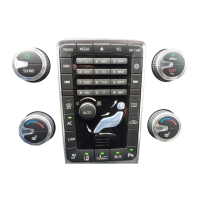
Press the MY CAR button on the center
console.
2. Press the thumb wheel on the steering
wheel keypad.
3.
Turn the thumb wheel to scroll to e.g.,
Settings and then press the thumb wheel
to open a list of sub-menus.
4.
Scroll to the desired sub-menu, e.g.,
Vehicle
settings and press the thumb wheel to open
a new list of sub-menus.
5.
Scroll to
Lock settings and press the thumb
wheel to open a new sub-menu.
6.
Scroll to
Doors unlock and press the thumb
wheel to open a drop-down menu with set-
tings that can be selected.
7. Turn the thumb wheel to scroll among the
settings All doors and Driver door, then
all and press the thumb wheel to select a
setting.
8. Conclude by backing out of the menus one
at a time by briefly pressing EXIT or by
pressing and holding EXIT.
The procedure is the same using the center con-
sole controls OK/MENU, EXIT and TUNE.
Related information
•
MY CAR menus (p. 15)
MY CAR menus
MY CAR is a group of menus where settings
can be made for many of the vehicle's functions
such as setting the clock, door mirror settings,
locks, etc.
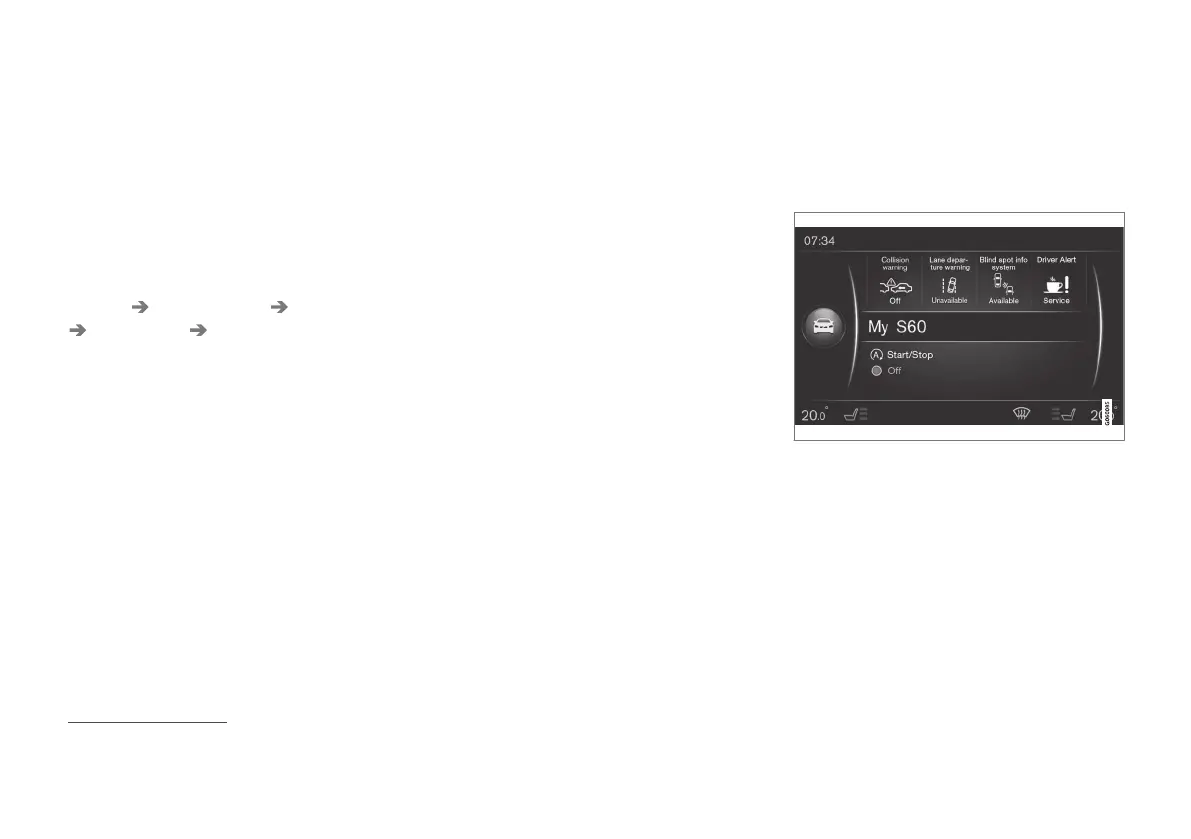
Example of a normal view in MY CAR
Press the MY CAR button on the center console
to display the normal view for MY CAR. This view
shows the status of some of the vehicle's driver
support systems in the upper section of the
screen along with the status for the Start/Stop*
function in the screen's lower section.
Pressing OK/MENU gives you access to the
My
Car menus with the following alternatives:
•
My S60
1
•
Trip statistics
1
Differs according to model.


 To Next Page