04 Voice recognition
04
22
Use the voice command
Entering information in the navigation system
using the voice command is simple because
the screen lists the frequently occurring com-
mands to use in the current situation.
Starting
A voice command is started as follows:
1. Press the steering wheel button for Voice
control - the screen then lists examples of
possible commands.
Commands in different ways
The command "Navigation > Set address"
can, for example, be spoken as:
•
Say "
Navigation", then wait for the
response from the system in the form of
suitable alternatives on the screen
- continue selecting and say e.g. "Set
address".
or
•
Say the whole command in one
sequence: - "
Navigation Set address".
Some simple tips
•
To give a command: - Give a short press
on the steering wheel's voice button and
then speak naturally after the tone.
•
To answer: - Speak after the tone that fin-
ishes the question.
•
The voice recognition system asks sev-
eral times for an answer. If the driver does
not answer then the session is conclu-
ded.
•
The dialogue with the system can be
speeded up: - Interrupt the system's
speech with a short press on the steering
wheel's voice button, wait for a tone and
then start to speak.
•
The driver can obtain help during a dia-
logue by saying "
Help" after the tone.
NOTE
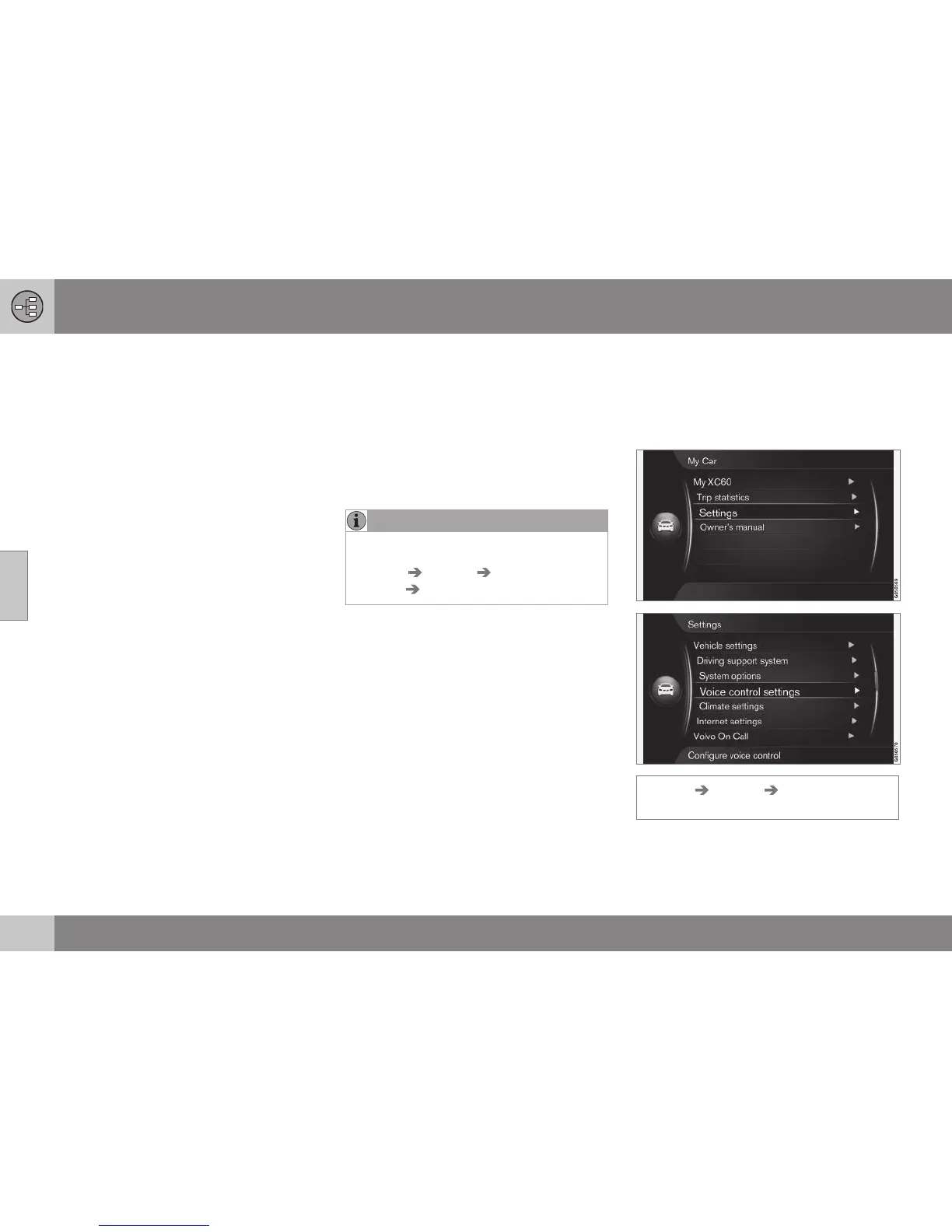
A complete list of quick commands is
available in the menu system MY CAR -
MY CAR Settings Voice control
settings
Command list.
Volume
Adjust the audio volume of the voice recogni-
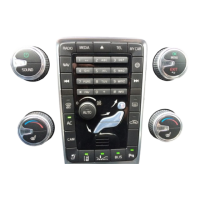
tion system with the centre console's VOL
knob while the system is speaking.
Related information
•
Help functions and settings for voice rec-
ognition (p. 22)
•
Language options for voice recognition
(p. 24)
Help functions and settings for voice
recognition
Practice using the voice recognition function
with exercise programs. Set the voice profile
for a specific driver by creating a user profile.
MY CAR Settings Voice control
settings


 To Next Page