||
08 Specify a destination
08
48
Then enter the GPS coordinates as follows:
1. Position the cursor on the digit/character
to be changed by turning TUNE and
press OK - the character window
changes contrast and becomes "active".
2. Turn TUNE to type/enter the digit/charac-
ter and finish with OK - the character win-
dow becomes "deactivated".
3. Move the cursor to the next character
location to be changed and repeat steps
1 + 2.
4. When both coordinates have been
entered, turn TUNE and highlight one of
the following options + OK in order to
store the position or add it to the itinerary:
•
Set single destination - adds the posi-
tion of the coordinates on the map as a
destination.
•
Add as waypoint - adds the position of
the coordinates on the map as an inter-
mediate destination in the itinerary.
•
Information - shows information availa-
ble about the position.
•
Save - stores the position in the memory
as Stored location or as Home.
Related information
•
General information about entering a des-
tination (p. 41)
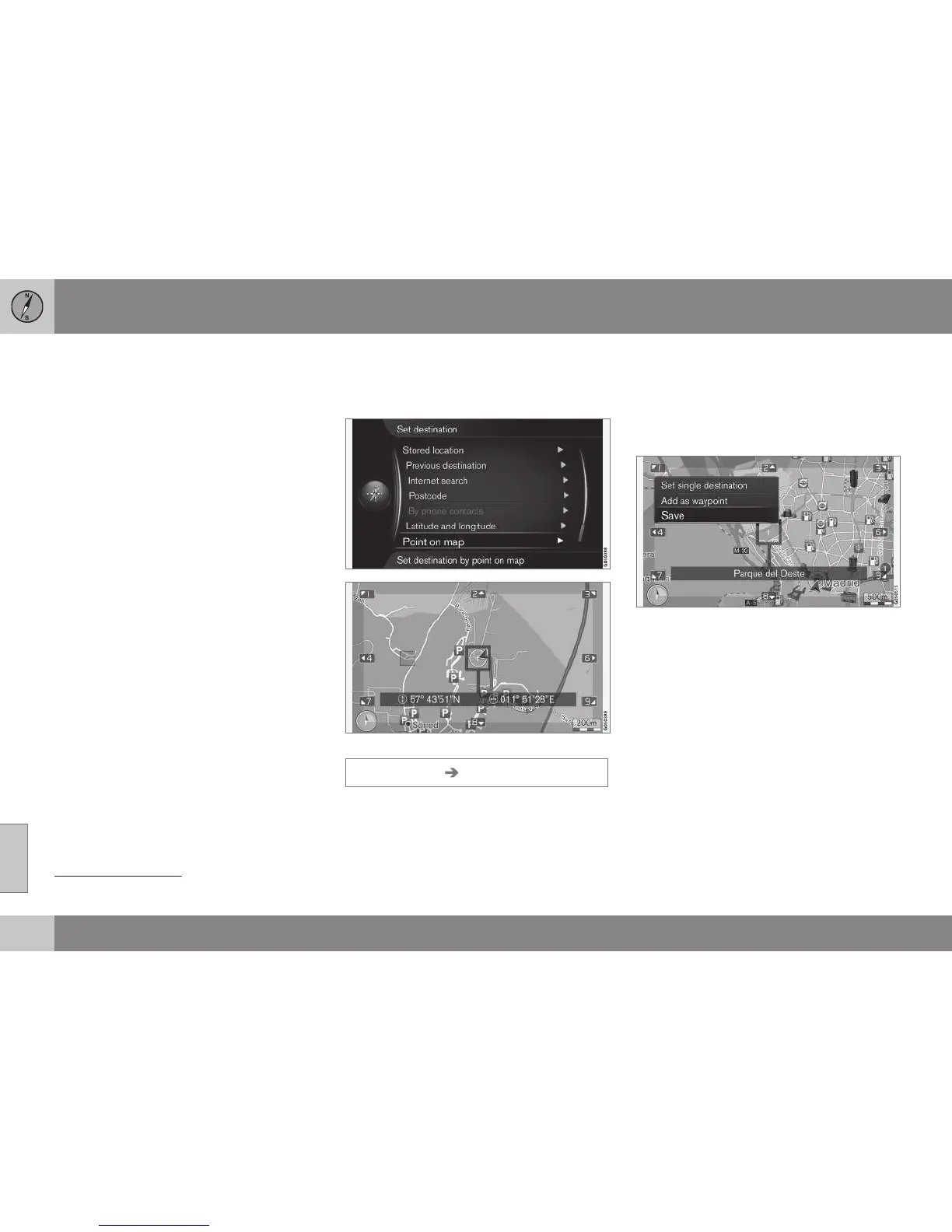
Search via Point on the map
Enter destination by means of searching via
point on map.
Cursor position shown with GPS coordinates
8
.
Set destination Select point on map
Shows maps with current location pointed
out by a cursor.
•
Turn TUNE to change the scale.
1. Move the crosshair using the centre con-
sole's numerical keys: [6 MNO] moves to
the right, [8 TUV] moves down, etc., see
(p. 36).
2. When the desired location has been
found - Press OK.
Cursor position shown with name
8
.
Then select between the following options
and activate with OK:
•
Set single destination
•
Add as waypoint
•
Save
Using the Save option the destination is
stored as a symbol/icon on the map if the
Stored location on map function is
selected. See more under the heading in sec-
tion "
Map options" Map options (p. 63).
Related information
•
General information about entering a des-
tination (p. 41)
8
Select whether the cursor's position shall be shown with name or GPS coordinates, see the heading "Information about current position" in section "Map options" (p. 63).


 To Next Page