IMPACT
®
4000
38 39
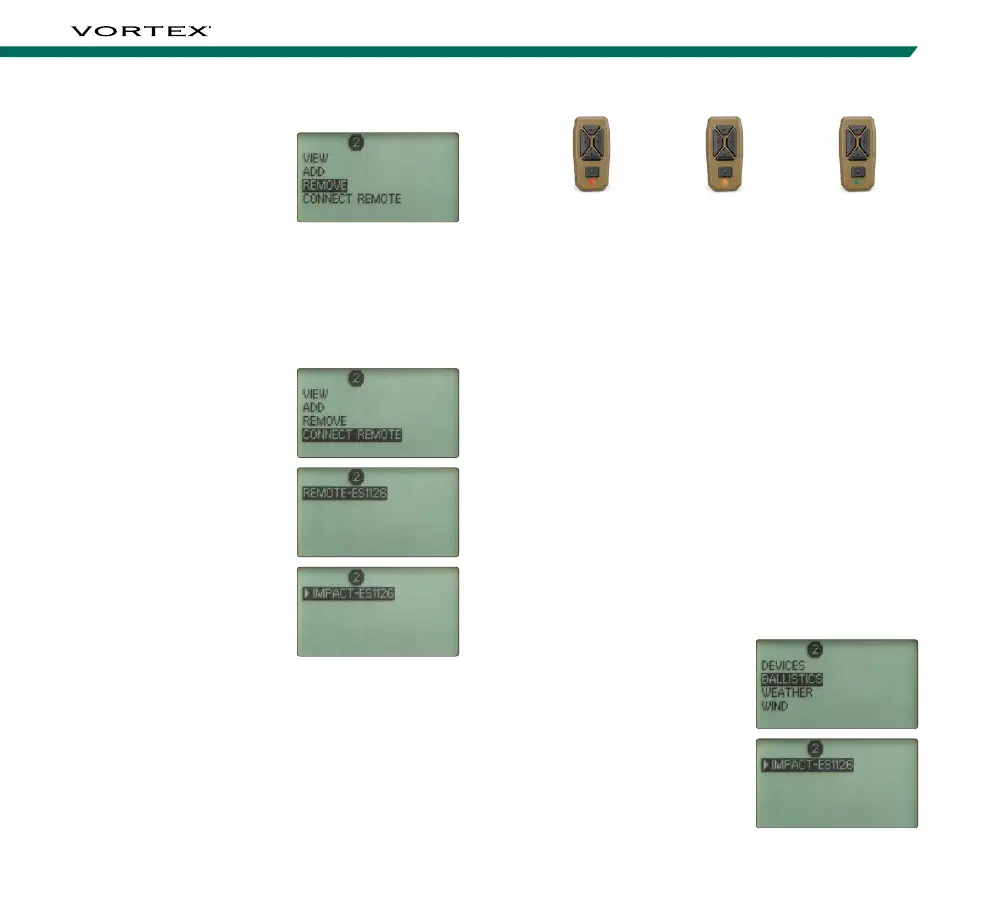
Blinking Red
Not On a Network
Blinking Orange
• On a Network
• Not Connected to
Blinking Green
• On a Network
• Communicating
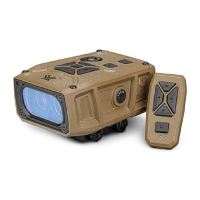
Note: When the Bluetooth
®
Remote blinks red, it is not on
a network. When it blinks orange, it is on a network, but not
connected to any other device. When it blinks green, it is
on the network and communicating with another device on
the network.
Note: You are not able to connect the remote to control the
GeoBallistics
®
App.
To manually disconnect the Bluetooth
®
Remote from
the Impact
®
4000, but keep it on the network, press
and hold the remote’s “Left Arrow Button” and “Right
Arrow Button” together for three seconds.
The Bluetooth
®
Remote can also be disconnected from
the network manually by pressing and holding the
remote’s “Up Arrow Button” and “Down Arrow Button”
together for three seconds.
Ballistics
Once you have connected
your devices to your network,
select “Ballistics” on the
Connected Devices Menu
and select which device’s
on-board solver you’d like
to provide ballistics. The
selected device will be
denoted with an arrow.
Remove
The Remove screen is where
you can remove devices from
your network. Select the
device you wish to remove
from the network.
Note: You can remove your Impact
®
4000 device from your
network. You would need to do this if you are shooting with a
friend and wish to join their network or if you sell or lend your
Impact
®
4000 to someone else.
Connect Remote
The Connect Remote
screen is where you can
control which device your
Bluetooth
®
Remote is
paired to. Before doing so,
you must make sure to add
the Bluetooth
®
Remote
to your network via the
Add screen. Select your
remote, and then select
which device you’d like to
connect your remote to.
Connected devices will
be denoted with an arrow.
Return to the Connected
Devices Menu to select
which source you’d like to
provide which information.


 To Next Page