IMPACT
®
4000
30 31
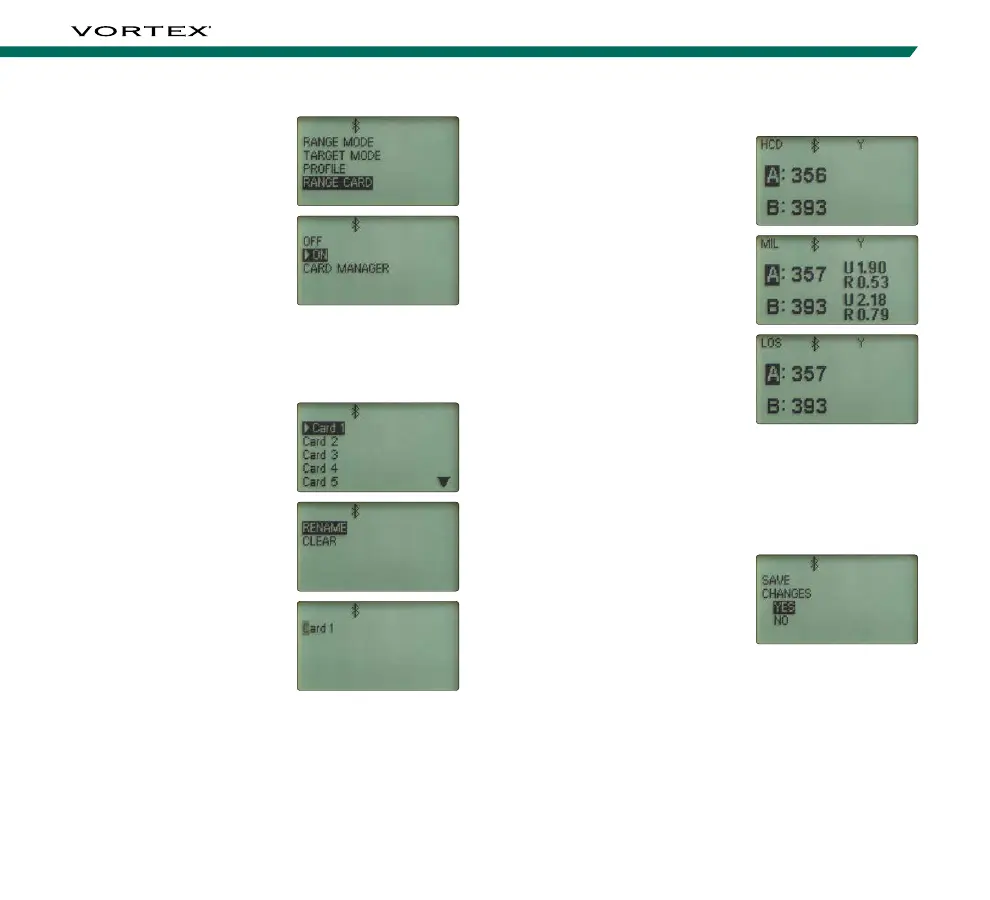
Building a Range Card
Line up your riflescope to
your target and press the
“Measure” button to range.
The measured range will
show up as A. You can
change this range until you
are satisfied with the
distance by pressing the
“Measure” button to range
again or changing it
manually by pressing the
“Right Arrow” button to
select the range and adjust
the distance using the up
and down arrow buttons. If
you are satisfied with your
range, move onto the next
target by pressing the
“Down Arrow” button to
move to letter B. Continue
these steps until all the
targets are entered.
To save the Range Card,
press the “Settings” button
and select “Yes” when asked
to save changes.
Note: The Range Card will save the target distance,
inclination, and direction. If you update your wind or
weather parameters, your range card ballistic solutions will
automatically update accordingly.
Range Cards
A Range Card can help
provide quick and accurate
ballistic solutions that can
be used again and again.
The Impact
®
4000 has
the capability to store ten
Range Cards. Within each
Range Card, ten targets
can be stored.
To build a Range Card, navigate to and select “Range
Card” on Setup Menu. On the Range Card screen,
select “ON” to turn on the Range Card feature.
To select which Range Card
you’d like to edit, toggle to
and select “Card Manager”.
Select which card you’d like
to edit. To rename the
Range Card, press the
“Right Arrow” button and
select “Rename”. Use the
left and right arrow buttons
to select which character to
change and the up and
down arrow buttons to
toggle through the keyboard
options. After renaming the
Range Card, press the
“Settings” button to exit the
menu and return to the
Range Ready screen.


 To Next Page