www.wansview.com
46
5.5 Local Seng
5.6 Scheduled Recording
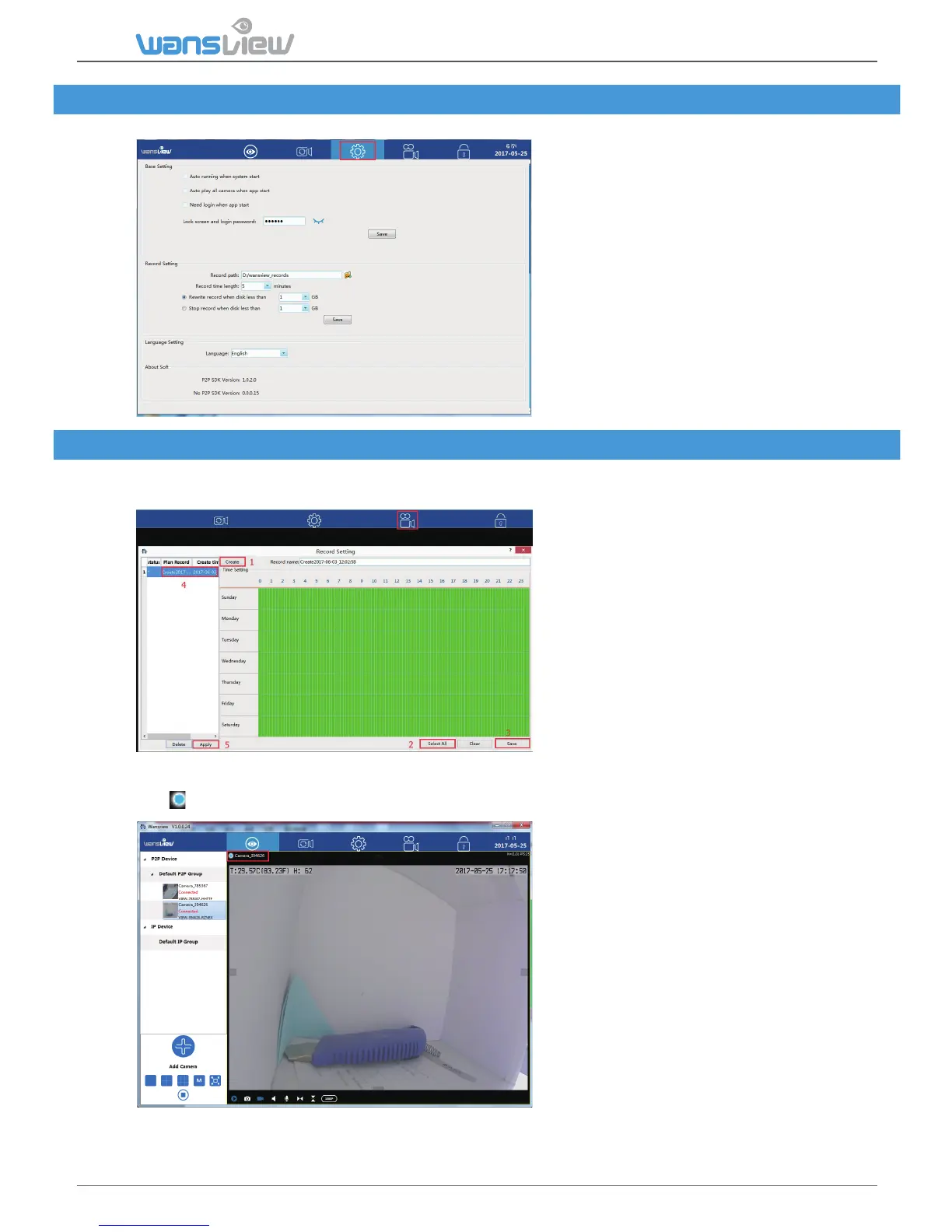
About soware:
Basic seng:
User can set up lock screen password in
case you won’t let others to see the
video.
Record seng:
User can set the Record path, and each
recorded video can be set from 5-60
minutes.
Recorded video can be overwrite or
stopped if the computer disk storage is
not enough.
Language seng:
The language can be switched from
English and Chinese.
More Languages will be added very soon
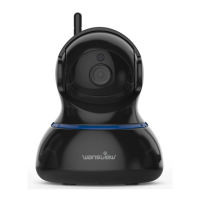
1: Click “Create” to create a Record
name, it will give you a name
automacally(combinaon of date and
me), user can edit the name.
2: Select me: User can “select all” if
want to record 24/7, and clear it to
choose a specific me by dragging or
single-click the me interval.
3: Save: Save the record name and me
interval you set up.
4: Double-click the Record name to
choose it as the record plan.
5: Apply: Click “Apply”, a * will appear in
front of the Record plan, it means the scheduled recording is working.
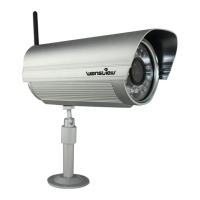
The icon will be shown on live video screen, it means the camera is recording automacally)
Before recording to your local computer, please make sure you set up the Record Path on the
“Local Seng”. Then follow the below steps to set up the recording:


 To Next Page