9
MIC – Edit 2
FX I NS E R T
GE Q 1
Reverb 2Delay 2
Delay 1Modul 2
Reverb 1
Modul 1
L /RGROUP3GROUP2GROUP1 AUX4AUX3AUX2
PREPREPREPRE
POSTPRE
GROUP4
PRE
50 5050 5050 5050 50
0.0 dB0.0 dB0.0 dB0.0 dB0.0 dB0.0 dB0.0 dB0.0 dB0.0 dB
0 0 0 0 0 0 0 0 0
GE Q 2
0 0 0 0 0 0 0 0 0
AUX1
PRE
0.0 dB
MIC 3-E dit
Edit
E Q
COMP C OP Y
LINK
MIC3&4
POST
Phase
Φ
PAN
50 50
Rename
ON
48V
Delay
8.3 ms
Gain
10dB
L R
5
6
7
5. FX/GEQ Insert
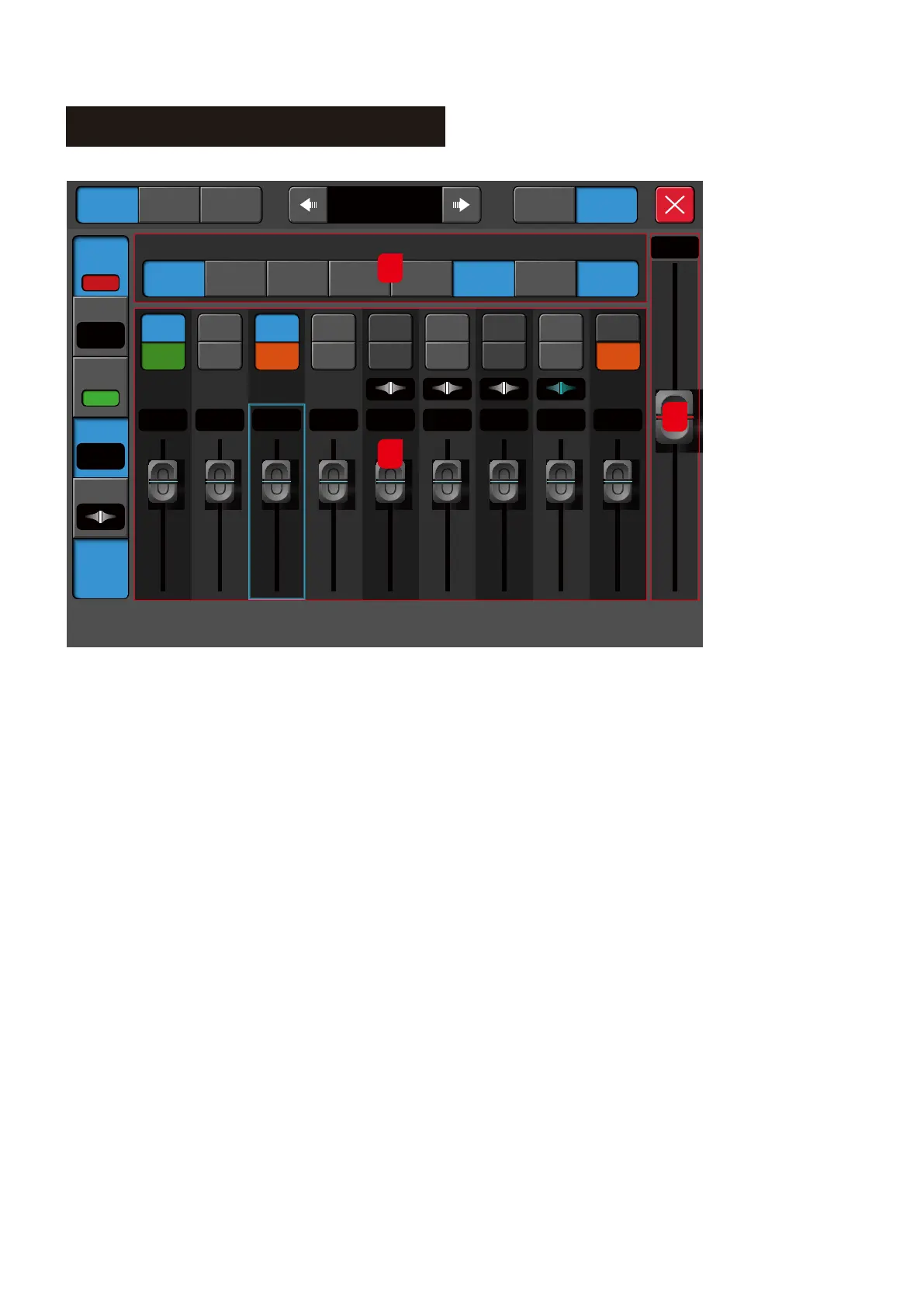
5.1. This area shows the options to insert the effect module.
inserting the effect module into the current channel before
the equalizer, and allowing only one effect module to be inserted
into the input channel. Two effect modules are allowed for the
output channel. When the selected module has been occupied by
another channel, a popup window with the message "This module
is only allowed to be used once and has been used**. Please confirm
whether to force this module?"
5.2. Tap twice on the effect module to enter the effect configuration page.
6. Buss Send
This section displays the status of the parameters sent to the buss by the input channel.
This includes the On/Off button, the send level, the pan level, and the pre-fader or
post-fader setting.
7. Multi-purpose On-Screen Fader
7.1. dB Text Value.
The channel’s input/output signal level. Tap twice to quickly set the input/output level to 0dB.
7.2. On-screen Fader.
The on-screen fader on the right section of the screen is a multi-purpose on-screen fader for a
variety of parameter value adjustments.



 To Next Page