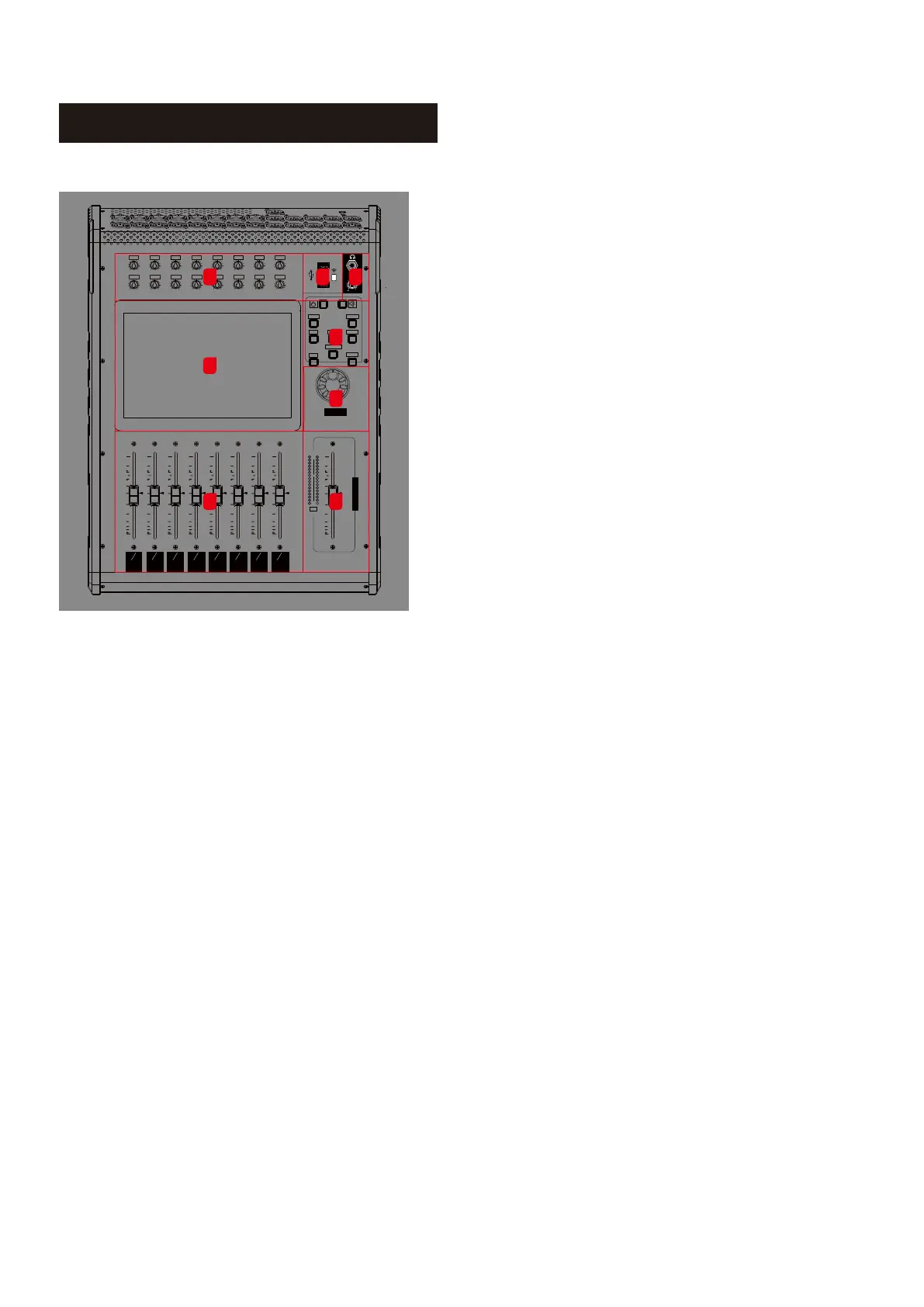
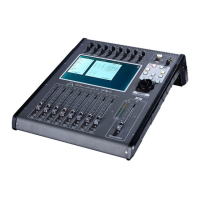
Front Panel
BUS-1
SEND-1
1
9
2
10
3
11
4
12
5
13
6
14
7
15
8
16
BUS-2
SEND-2
BUS-3
SEND-3
BUS-4
SEND-4
BUS-5&6
SEND-5
BUS-7&8
SEND-6
BUS-9&10
SEND-7
BUS-11&12
SEND-8
10
0
5
5
10
20
30
40
50
60
10
0
5
5
10
20
30
40
50
60
10
0
5
5
10
20
30
40
50
60
10
0
5
5
10
20
30
40
50
60
10
0
5
5
10
20
30
40
50
60
10
0
5
5
10
20
30
40
50
60
10
0
5
5
10
20
30
40
50
60
10
0
5
5
10
20
30
40
50
60
SIG
MIX
DIGITAL MIXING CONSOLE
PEAK
R
L
0
MIXOUTPUT
10
0
5
5
10
20
30
40
50
60
ADJUST
PRESS FOR FINE
1
GAIN
2
GAIN
3
GAIN
4
GAIN
5
GAIN
6
GAIN
7
GAIN
8
GAIN
60dB
0
60dB
0
60dB
0
60dB
0
60dB
0
60dB
0
60dB
0
60dB
0
60dB
0
60dB
0
60dB
0
60dB
0
60dB
0
60dB
0
60dB
0
60dB
0
9
GAIN
10
GAIN
11GAIN 12GAIN
13GAIN 14GAIN 15GAIN 16GAIN
SYSTEM DEFINED
IN 9-16IN 1-8 OUT 1-8
PLAY/PAUSE
SENDS
MASTER
+10
-
1 2 3
5
6
7 8
4
1. Gain: These are analogue gain controls. The gain setting will
remain unchanged regardless of scene changes.
2. USB: Record/play, scene import/export, system update, WI-FI
dongle for iPad remote control networking.
3. Headphones: Headphone jack and the headphone volume
control.
4. Menu Buttons
4.1. Power On/Off button
a. Press and hold for three seconds to turn the system on or off.
b. Press and hold for one second to lock/unlock the screen and
faders.
4.2. Mute button
Press to activate the mute function. There will be no response
if there are no mute groups set.(Default Mute All)
4.3. System Setup button.
Press to enter the Setup page for System, Channel, Patch, EQ, FX,
GEQ and lots more.
4.4. User Define Layer button.
When User Layer is defined, pressing this button will display the defined layer on the screen. Nothing happens if no
user layer has been defined.
4.5. Layers buttons.
Quick page navigation button to navigate between inputs channel 1 to 8, 9 to 16 and the output channel.
4.6. Buss Send Fader Follow button
Fader follow button allows the user to quickly perform buss send to the channel with the fader.
4.7. USB Music Play/Pause button.
Quick play or pause button. Tap twice to enter the USB Player menu.
4.8. Master Output button.
Displays the Master LR channel strip on the screen.
5. Display screen.
10.1" 1280 × 800 Pixel IPS Touchscreen
6. Rotary encoder
A multi-function purpose encoder controls the selected parameter.
7. 100mm Motorised Faders
8. Master Output Motorised Fader
The main Output Fader adjusts the volume of the master output.
3



 To Next Page