11
MIC – EQ Library
COMP C OP Y
LINK
MIC3&4
MIC 1-E Q
Edit
E Q
COMP C OP Y
LINK
MIC3&4
MIC 1-E Q
Edit
E Q
20 40 60 80 100 200 300 400 500 600 800 1K 2K 3K 4K 5K 6K 8K 10K 20K
+18
+12
+ 6
- 6
-12
-18
0
2
3
4
Freq:22Hz
Gain:-18.0dB
Q :3.0
1
QGainFrequency
20 H z 0. 0 d B 3. 0
Library
1 2
3
4
Bypass
Flat
0.0 dB
20 H z
Rename
New
Delete
Import
Export
Load
S ave
2016.11.28 00:01:26
Library
1
Library
2 2016.11.28 00:01:26
NO
1
2
3
Sel Time
4
5
6
2016.11.28 00:01:26
Library 3
Library
4 2016.11.28 00:01:26
2016.11.28 00:01:26
Library
5
Library
6 2016.11.28 00:01:26
Library 3
Library 3
1
3
2
2.2. New.
Tap the New button. A pop-up window will appear for the name of the new EQ library.
This will save the current setting to the newly created EQ library.
2.3. Rename.
Select the library from the list, then tap on the Rename button. A popup window will
appear asking for the New Name
2.4. Import.
Insert a USB stick to the mixer front-panel USB port. Tap the Import button and import the saved
EQ library from the USB stick. NOTE - If the EQ library name already exists, it will be replaced with
the newly imported library.
2.5. Export.
Insert a USB stick to the mixer front-panel USB port. Select the EQ library from the list then tap the
Export button to export the selected EQ library to the USB stick.
3. Load/Save EQ Library.
3.1. Load Existing Library.
Select the library from the list then tap on the Load button.
3.2. Save/Update Library.
Select the library from the list then tap on the Save button to overwrite it with the current EQ setting.
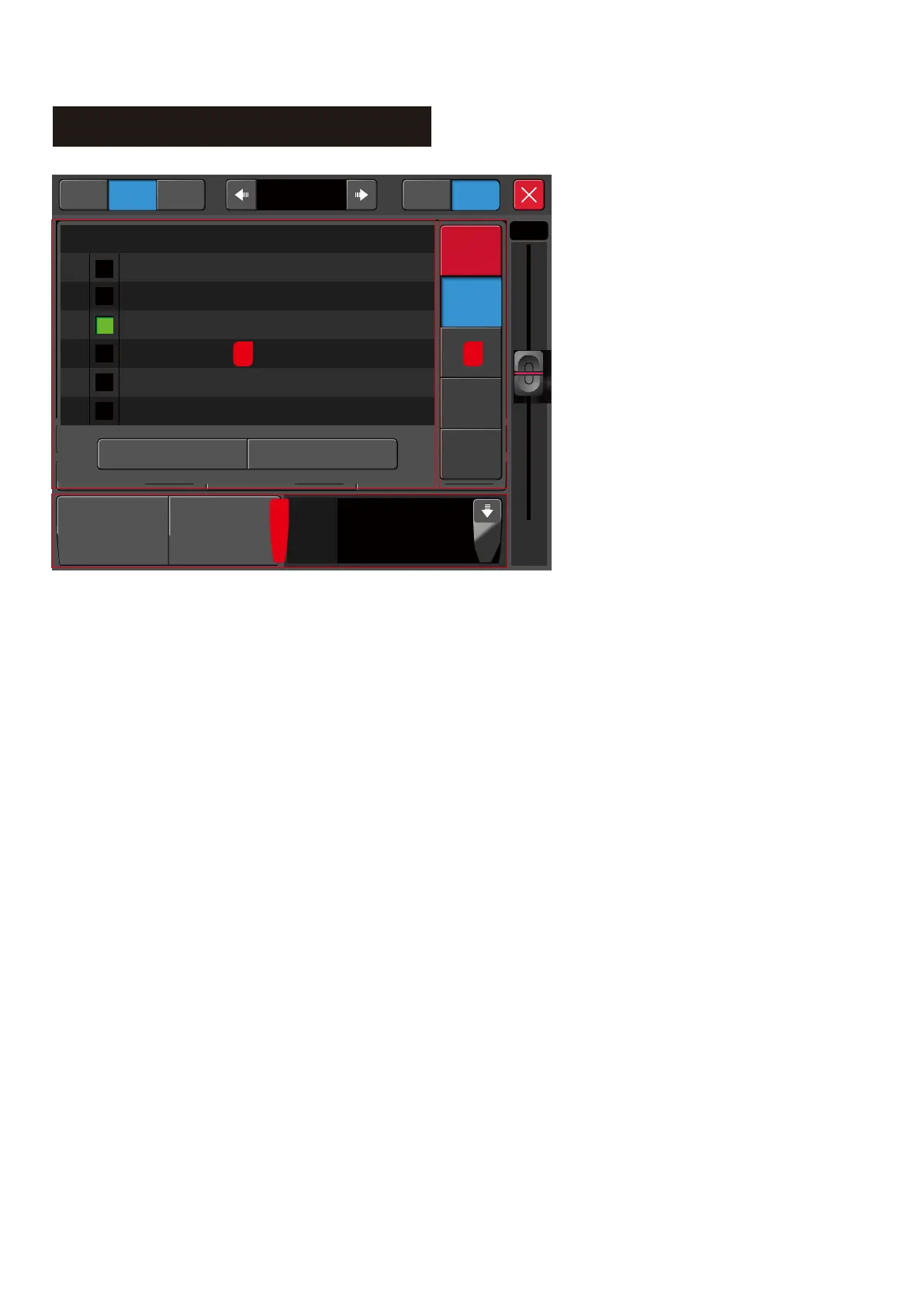
EQ Library Page:
This page contains a list of the functions
and library files for the PEQ library.
1. EQ library file list.
The equalization library contains the
serial number, selection,name, and
time of creation/ update.
2. EQ library function module.
2.1. Delete library file.
When a library file is selected, Tap the
"Delete" button and see a popup dialogue
box "Do you want to delete this library
file? " Click "Yes" to delete or "No" cancel
the operation.



 To Next Page