10
MIC – EQ
20 40 60 80 100 200 300 400 500 600 800 1K 2K 3K 4K 5K 6K 8K 10K 20K
+18
+12
+ 6
- 6
-12
-18
0
2
3
4
Freq:22Hz
Gain:-18.0dB
Q :3.0
1
QGainFrequency
20 H z 0. 0 d B 3. 0
1 2
3
4
Bypass
Flat
0.0 dB
COMP C OP Y LINK
MIC3&4
MIC 1-E Q
Edit
E Q
40 H z
Library
1
32
5
4
7
6
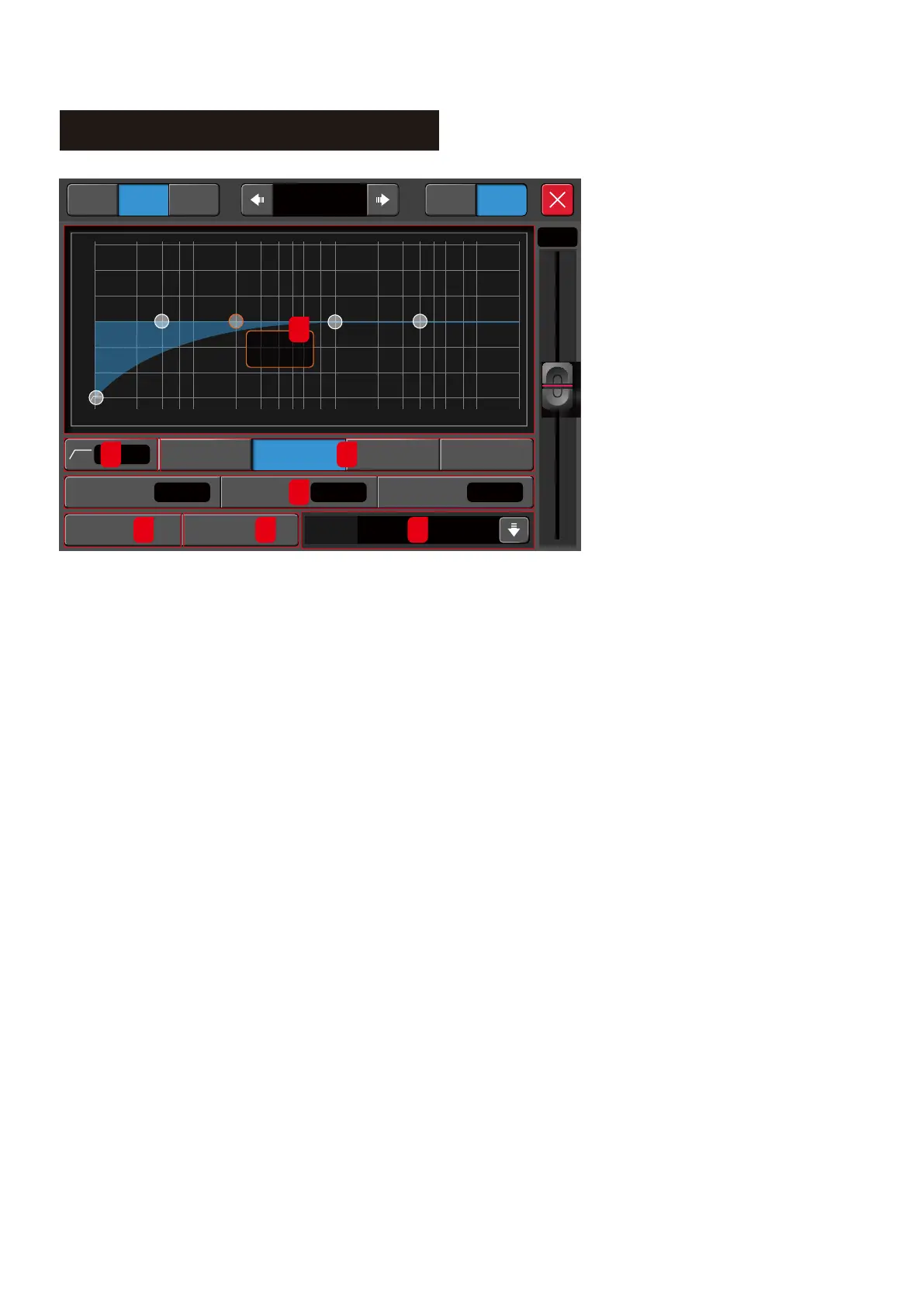
1. 4 Bands PEQ Graph.
The EQ Graph has 4 draggable selection
points.This allows the user to quickly
adjust the selected band Frequency
and Gain to anestimated position. The
user can then use theon-screen fader or
the large Rotaryencoder to fine-tune
adjust it respective Frequency, Gain,
and Q value.
2. High Pass Filter.
Tap to enable/disable the high pass filter. The default is off.
Use the on-screen fader on the right or the physical Rotary
encoder to adjust the frequency of the high-pass filter (press
and holdthe Rotary encoder for fine tuning). The frequency
range is 16Hz to 400Hz. The default is 16Hz. This filter is very
important for cutting out the low-frequency noises coming in
from a stage. If the signal source has no low-frequency information,
it is wise to use a high pass filter.
3. 4-Band PEQ buttons
Click to select the band and the frequency, gain and Q (width) value.
4. EQ Parameter Setting
Adjust the Frequency, Gain and Q (width) value. Tap to select then use the on-screen fader or
the physical Rotary encoder to adjust the value.
Gain – Range +/-18dB. The default is 0dB
Frequency – Range from 20Hz to 20kHz for the 4 bands of EQ. The default frequencies for High Band is 4kHz,
High-Mid Ban is 1kHz, Low-Mid band is 200Hz and Low band is 60Hz.
Q – Q value range from 0.5 to 10.0. The default value is 0.
5. ByPass
Tap to ByPass the PEQ. Default is Off.
6. Flat
Tap this Flat button to reset the Graph setting back to flat position. Default is Off.
7. EQ Library
Tap the drop-down arrow to view the saved EQ library and enter into the EQ Library Setup page.



 To Next Page