14
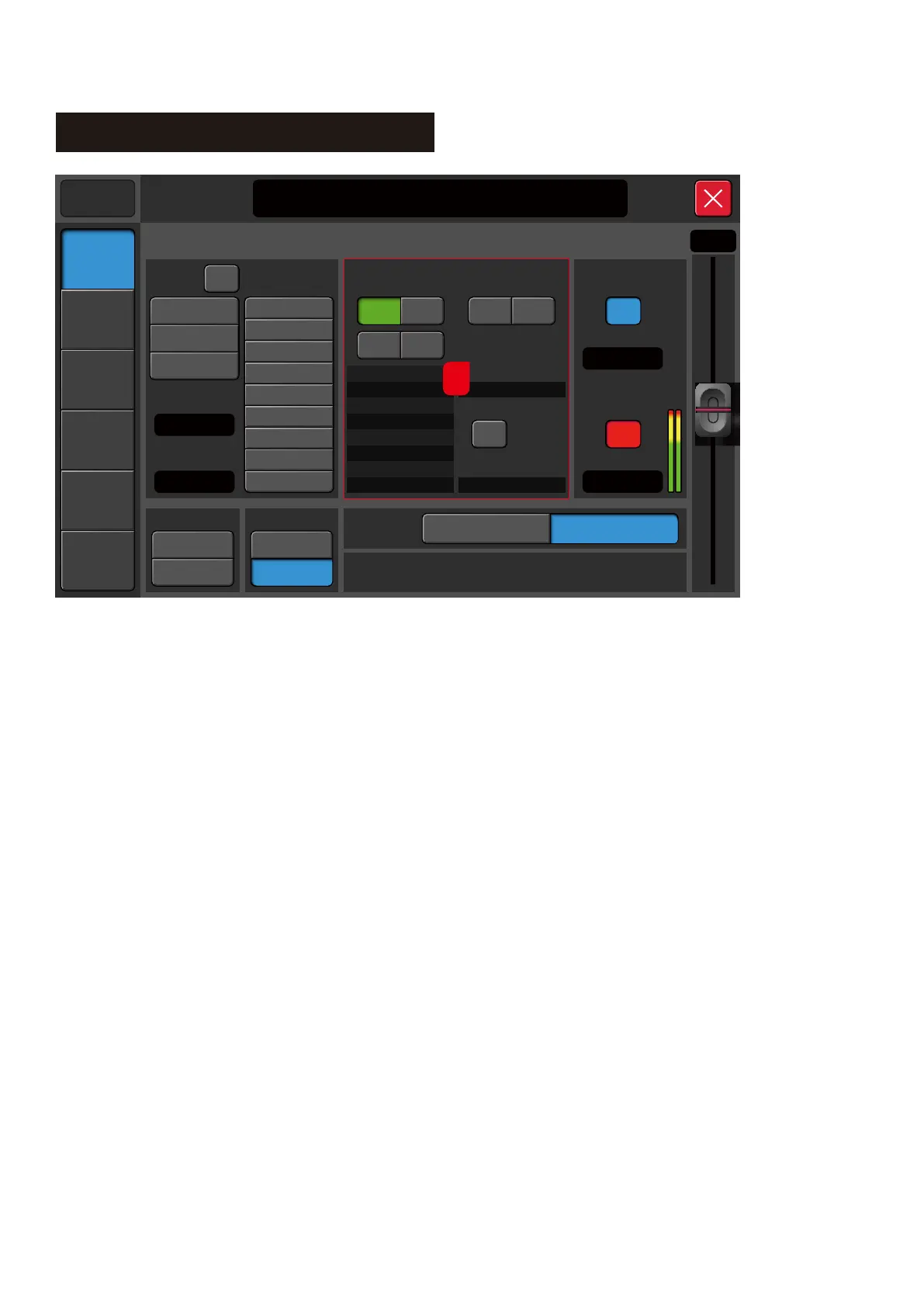
Setup-WiFi
APK: 3. 0IP Address:192.168.20.1
System
Language
Bright
ChineseMaintenance
English
Home Screen
Manual
Meters
Setup
Scenes
System
Player
21:20:30 2016/12/18
Music Show
OF F S ave
AP/Hotspot
SSID
Password
OFF
Wi - Fi
ON
Update
Link
Delete
-20.0 d B
Trim
-20.0 d B
Oscillator
Frequency
Level
OFF
1.00 k Hz
White noise
Pink noise
Sine wave
-20.0 d B
Destination
AUX1
AUX2
AUX3
AUX4
GROUP1
GROUP2
GROUP3
GROUP4
L&R
Monitor/Phone
Level
Mute
0.0 dB
+
_
PFL
8
8. Wi-Fi Section
8.1. Before setting up the connection between the iPad
and the mixer please make sure that the WIFI dongle
has been plugged into the mixer's USB port. The remote
control (Wi-Fi) distance depends on the power (coverage)
of the wireless router.
1- Click the Wi-Fi On/Off button to enable or disable the
Wi-Fi feature. Then select your network from the list.
2-Enter the password for the selected network.
8.2. AP Mode Connection Setup
In an area where there is no Wi-Fi coverage AP mode can be used. Tap the AP/Hotspot On/Off
button to enable or disable AP mode. Once the AP is On the system will display the default SSID
name and a blank password. Change the SSID name and password to setup the AP/Hotspot.
iPAD Setting
1. Download the Wharfedale Pro M16 app from the iPAD OS app store.
https://apps.apple.com/gb/app/m16-mixer/id1474073087
2. Ensure the iPad is connected to the same network as per the mixer setting - or select the AP SSID
name set in the mixer.
3. Launch the app and scan for the mixer. Tap the connect button when mixer is found.
Optionally, the user can enter the IP address to connect to the mixer if there are more than one
device is found.



 To Next Page