15
Setup - Scene
2016.11.28 00:01:26New - Show 1
New - Show 2
Music Show
2016.11.28 00:01:26
2016.11.28 00:01:26
NO
1
2
3
Export Music Show Time
21:20:30 2016/12/18
Music Show
Manual
Meters
Scenes
System
Player
Setup
Load
S ave
Copy
Rename
New
Delete
Import
Export
1
2
3
When a scene is selected tap the Delete button to delete it.
A popup the dialog box with “Confirm whether
to delete the scene” will show. Tap “Yes” to
confirm the deletion or “No” to cancel the operation.
2.2. New
Tap the New button to create a scene with the current configuration.
2.3. Copy
Copy the selected scene with another new scene name.
2.4. Rename
Rename the selected scene.
2.5. Import
a. Tap the Import button and you will see a popup window displaying a list of available scenes on the
plugged-in USB drive.
b. Choose the file from the list to import. A success or failure dialog box will pop up to show the import status.
c.The system will add a text of "-USB" to the end of the file if an existing scene name is found in the system.
2.6. Export
Ensure the "Export" box is ticked in the selected scene list then tap the Export button to confirm the export of
the selected scenes. A dialog box will pop up to show the export status.
3. Load/Save
3.1. Load
Tap the scene name from the list to selected it - then tap the Load button to load the selected scene.
3.2. Save
Save the current configuration to the selected scene.
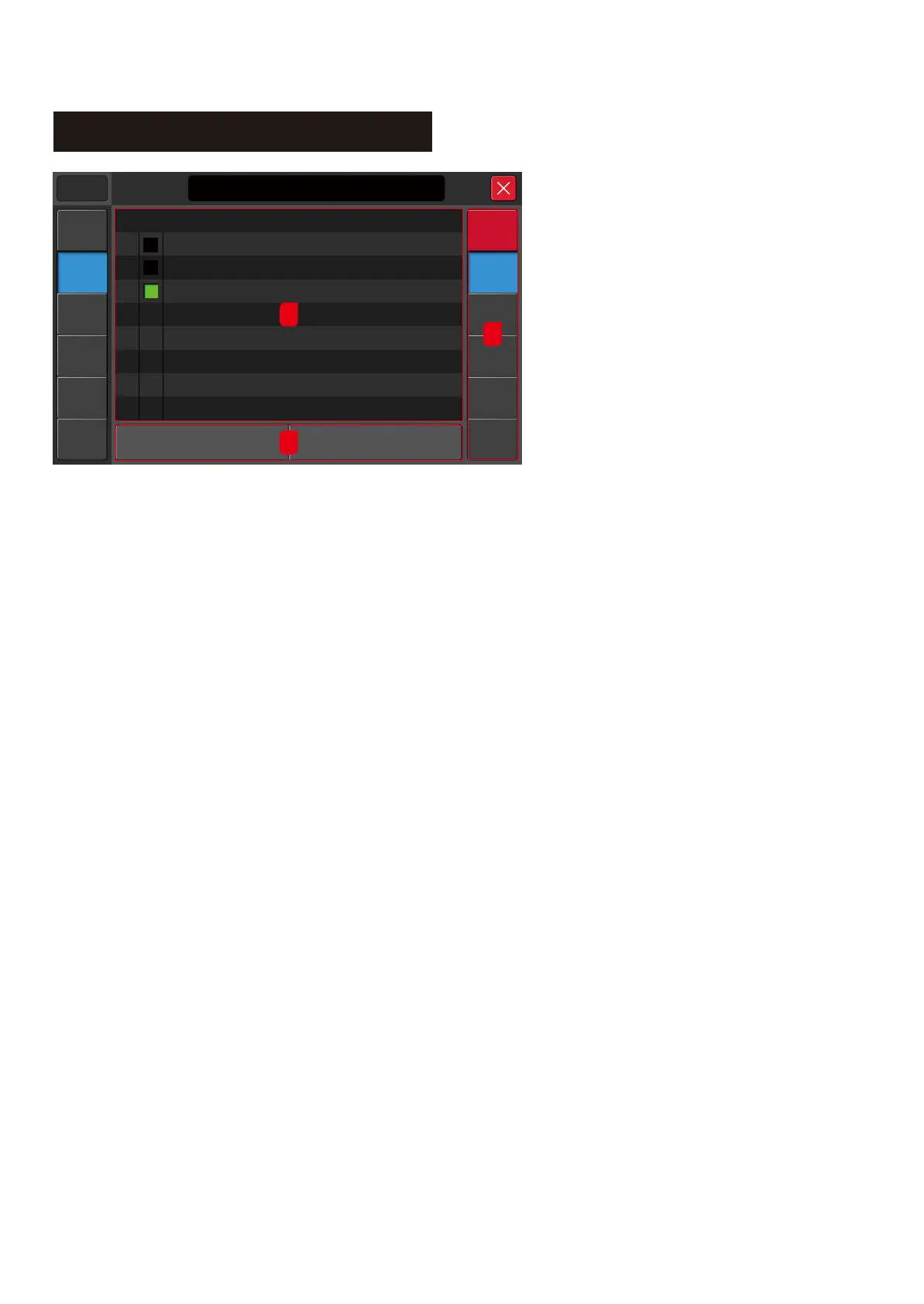
Scene Page
1. Scene List
The scene list contains the serial number,
selection, name,creation or update time.
Tap the list to select the scene.
2. Scene function module
2.1. Delete



 To Next Page