5-4
n
Whirlpool Smart All-In-One Washer & Dryer
CONNECTIVITY
WPS Connectivity Instructions
Setup
IMPORTANT: Proper installaon of the washer/dryer prior to
use is the consumer responsibility. Be sure to read and follow
the Installaon Instrucons that came with the washer/dryer.
Automac Setup Instrucons –
WiFi Protected Setup (WPS)
You will need:
n A home wireless router supporng WiFi, 2.4Ghz with WPA2
security. If you are unsure of the router’s capabilies, refer
to the router manufacturer’s instrucons.
n The router to be on and have a live internet connecon.
n The 10-character SAID code for the appliance. The SAID
code is either printed on a label on the appliance or can be
found on the LCD screen. Refer to “General Informaon”
secon of this manual for the locaon.
NOTE: If the home wireless router is not equipped with a WPS
buon, please check the user manual of the router to conrm
if it is WPS capable. If not, alternate setup instrucons are at
www.whirlpool.com/connect.
1. Router Setup
47
IMPORTANT: Proper installation of your washer/dryer prior to use is your responsibility. Be sure to read and follow the Installation
Instructions that came with your washer/dryer.
Automatic Setup Instructions – Wi-Fi Protected Setup (WPS)
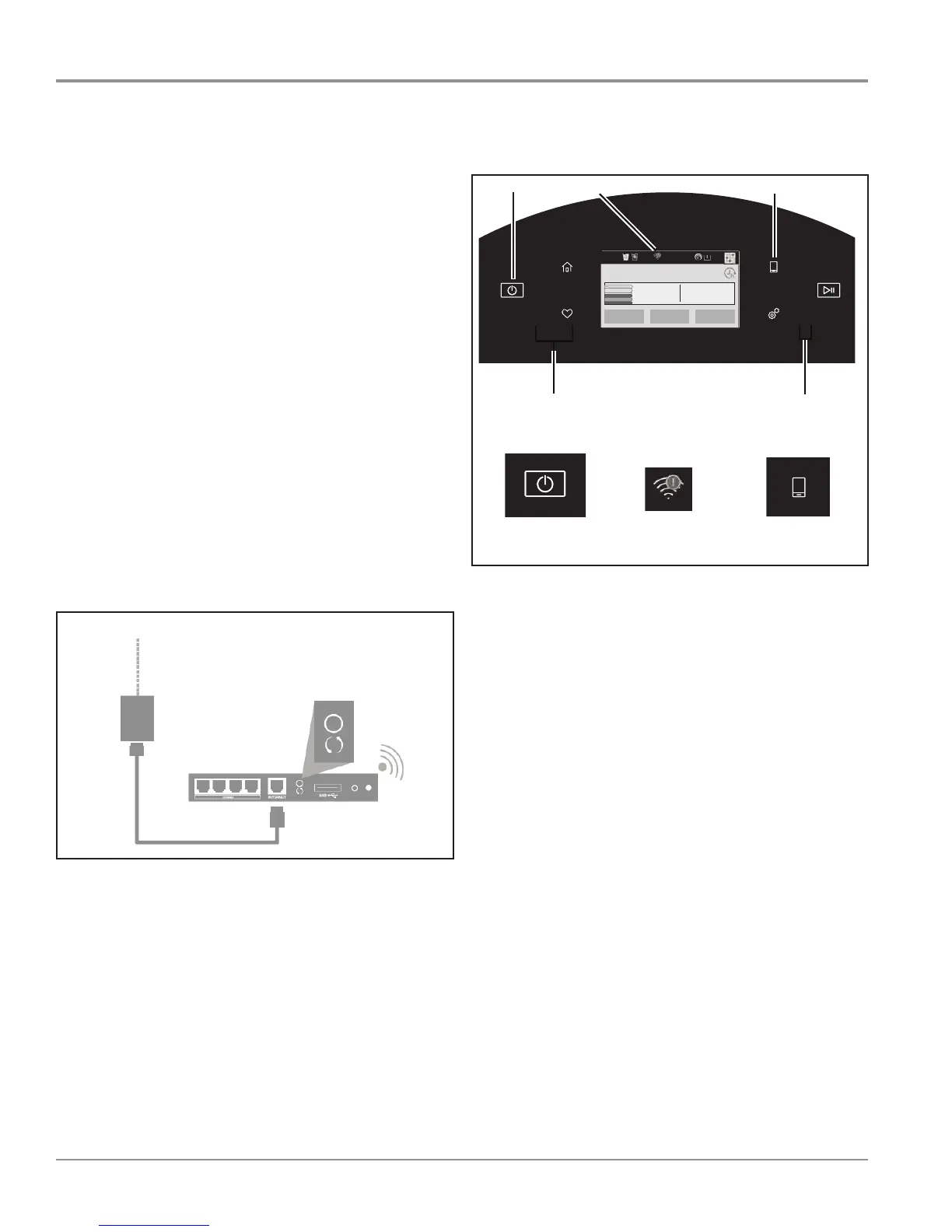
Press the WPS button on the router. An indicator light will
begin blinking.
HELPFUL TIP: The WPS function on your router is active
for 2 minutes. Complete the next step within that timeframe
or you will need to reinitiate WPS.
1.
Router setup
INTERNET
WI-FI PROTECTED
SETUP (WPS)
HOME WIRELESS
ROUTER
Touch the POWER button (A) to turn on the washer/dryer,
then touch the CONNECTED button (C).
The Wi-Fi status indicator (B) on the washer/dryer control panel
will blink slowly while your washer and router attempt
to connect. The Time/Status display (D) will show a “sensing
animation.” This can take up to 2 minutes.
If the connection is successful, the Wi-Fi status indicator will
come on and remain lit.
If Your Washer/Dryer Doesn’t Connect
If your washer/dryer and router fail to connect after 2 minutes,
the Wi-Fi status indicator (C) will blink rapidly for 2 seconds
and then turn off. Refer to the “Troubleshooting — Connectivity”
section of this Use & Care Guide and Installation Instructions,
check any connection instructions for your speci c router, and
refer to alternate instructions at www.whirlpool.com/connect.
2.
Washer/dryer setup (time sensitive step)
Setup
You will need:
• A home wireless router capable of Wi-Fi Protected Setup
(WPS). The router should be on and have a live Internet
connection.
• The Smart Appliance ID (SAID) from your washer/dryer.
This is located on a sticker inside the washer/dryer door.
NOTE: If your home wireless router is not equipped with a WPS
button, please check the user manual of your router to con rm
if it is WPS capable. If not, alternate setup instructions are at
www.whirlpool.com/connect.
ACB
Temperature
WARM
Spin Speed
EXTRA FAST
Auto Dry
Dry
What to Wash
REGULAR
How to Wash
NORMAL
4:28
3:15
A
C
C
B
B
May need to add verbiage about 180° signal radiation pattern for
connectivity, per Brian Evens
Press the WPS buon on the router. An indicator light will
begin blinking.
HELPFUL TIP: The WPS funcon on the router is acve for 2
minutes. Complete the next step within that meframe or you
will need to reiniate WPS.
2. Washer/Dryer setup (time sensitive step)
47
IMPORTANT: Proper installation of your washer/dryer prior to use is your responsibility. Be sure to read and follow the Installation
Instructions that came with your washer/dryer.
Automatic Setup Instructions – Wi-Fi Protected Setup (WPS)
Press the WPS button on the router. An indicator light will
begin blinking.
HELPFUL TIP: The WPS function on your router is active
for 2 minutes. Complete the next step within that timeframe
or you will need to reinitiate WPS.
1. Router setup
INTERNET
WI-FI PROTECTED
SETUP (WPS)
HOME WIRELESS
ROUTER
Touch the POWER button (A) to turn on the washer/dryer,
then touch the CONNECTED button (C).
The Wi-Fi status indicator (B) on the washer/dryer control panel
will blink slowly while your washer and router attempt
to connect. The Time/Status display (D) will show a “sensing
animation.” This can take up to 2 minutes.
If the connection is successful, the Wi-Fi status indicator will
come on and remain lit.
If Your Washer/Dryer Doesn’t Connect
If your washer/dryer and router fail to connect after 2 minutes,
the Wi-Fi status indicator (C) will blink rapidly for 2 seconds
and then turn off. Refer to the “Troubleshooting — Connectivity”
section of this Use & Care Guide and Installation Instructions,
check any connection instructions for your speci c router, and
refer to alternate instructions at www.whirlpool.com/connect.
2. Washer/dryer setup (time sensitive step)
Setup
You will need:
• A home wireless router capable of Wi-Fi Protected Setup
(WPS). The router should be on and have a live Internet
connection.
• The Smart Appliance ID (SAID) from your washer/dryer.
This is located on a sticker inside the washer/dryer door.
NOTE: If your home wireless router is not equipped with a WPS
button, please check the user manual of your router to con rm
if it is WPS capable. If not, alternate setup instructions are at
www.whirlpool.com/connect.
ACB
Temperature
WARM
Spin Speed
EXTRA FAST
Auto Dry
Dry
What to Wash
REGULAR
How to Wash
NORMAL
4:28
3:15
A
C
C
B
B
May need to add verbiage about 180° signal radiation pattern for
connectivity, per Brian Evens
Touch the POWER buon (A) to turn on the washer/dryer,
then touch the CONNECTED buon (C).
The WiFi status indicator (B) on the washer/dryer control
panel will blink slowly while the washer and router aempt
to connect. The Time/Status display will show a “sensing
animaon.” This can take up to 2 minutes.
If the connecon is successful, the WiFi status indicator will
come on and remain lit.
If The Washer/Dryer Doesn’t Connect
If the washer/dryer and router fail to connect aer 2 minutes,
the WiFi status indicator (C) will blink rapidly for 2 seconds
and then turn o. Refer to the “Troubleshoong Guide” in
this secon on page 5-6, check any connecon instrucons
for your specic router, and refer to alternate instrucons at
www.whirlpool.com/connect.




 To Next Page