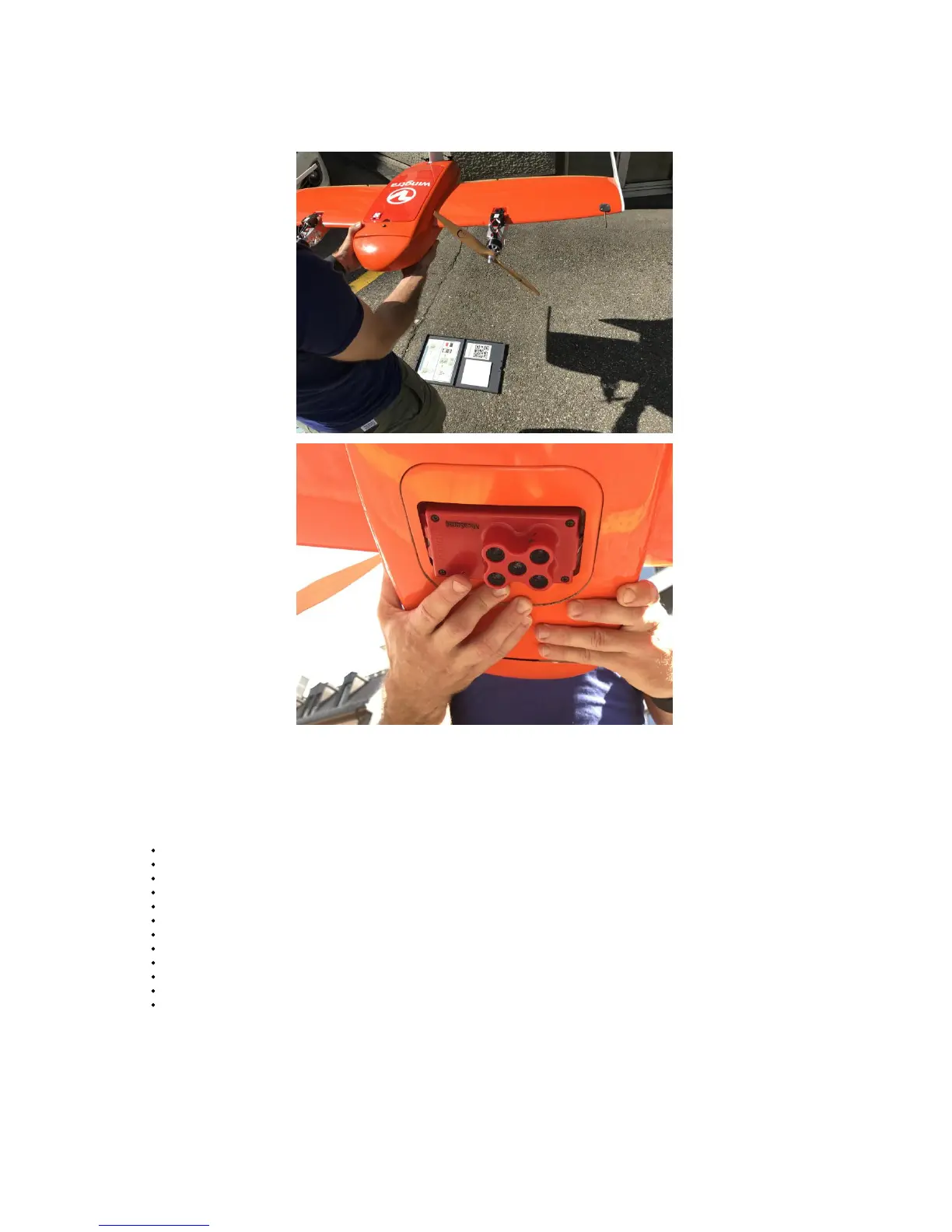
2. Place the reflactance tag leveled onto the ground
3. Power on WingtraOne, lift it up, and hold it with camera facing downwards ~1m over the reflactance tab. Make sure to hold WingtraOne leveled and do not cover the
reflectance tag with a shadow from you or the WingtraOne.
4. Trigger at least one image of the reflectance tag by pressing the button on the front of the camera. Place WingtraOne back on ground
Further Information
For further information about RedEdge camera please refer to Micasense RedEdge Manual
Executing a Flight with WingtraOne RedEdge
Remove transportation Cover from Camera
On WingtraPilot Welcome Menu, create a new flight plan and select "Micasense RedEdge" as camera.
Plan flight plan as described in Mission Planning
Follow the preflight checklist:
On preflight check nr. 7 (Configure Camera), save flight plan and configure RedEdge using Chrome (see Configure RedEdge camera)
On preflight check nr. 11 (Calibrate RedEdge), take a calibration image (see Calibrate RedEdge camera)
Camera status LED should be falshing green
Fly the mission
After landing perform the following two steps before depowering WingtraOne:
Take again a calibration image by holding WingtraOne over the reflectance tag and clicking the small button on front side of Rededge.
Depower Rededge by holding the small button on front side of Rededge for 3 seconds.
Retrieve SD-card from RedEdge and access your flight images



 To Next Page