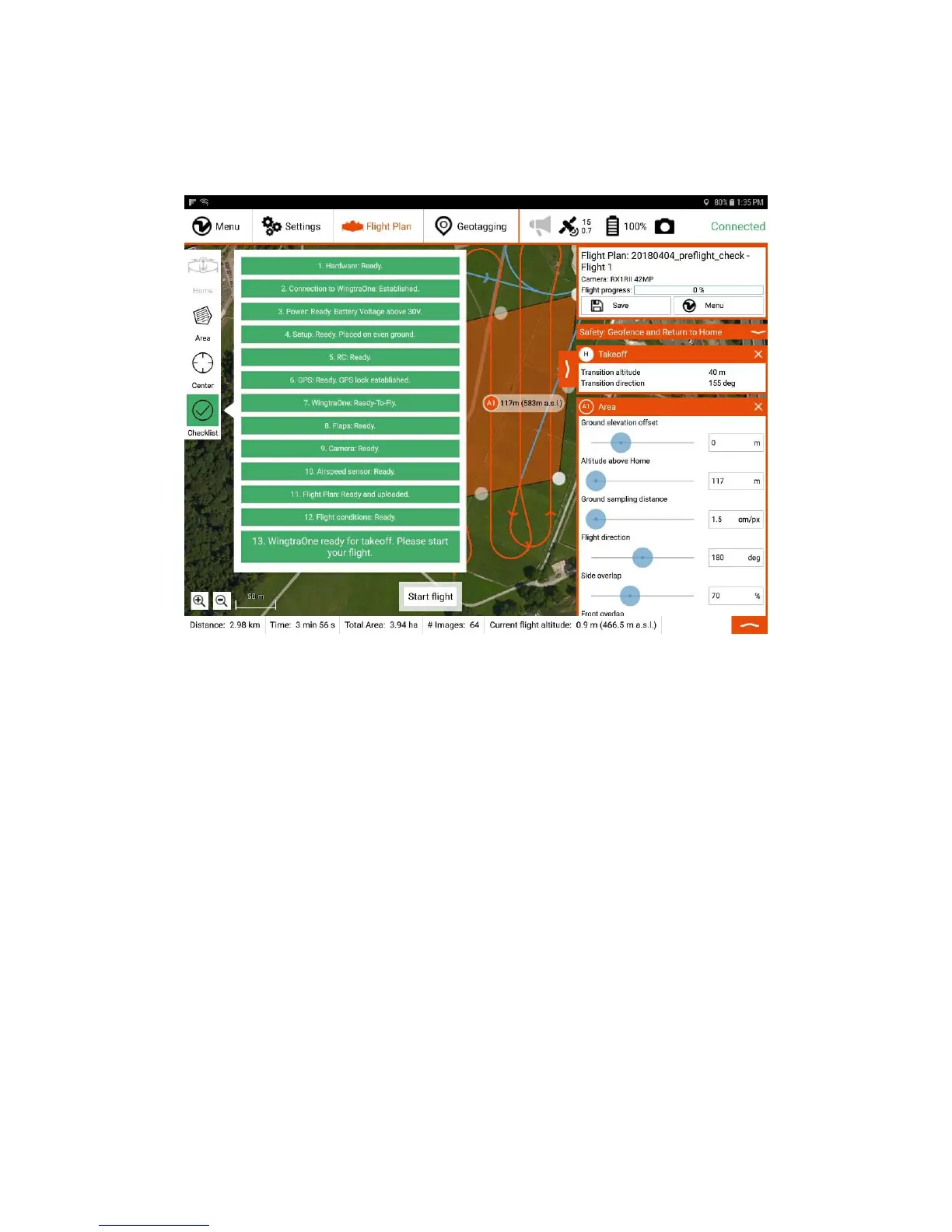
Preflight Checklist
You are guided through the process of setting up your WingtraOne by the preflight checklist within WingtraPilot. The checklist slightly differs depending on the sensor and
WingtraOne ID you are flying with. See here for RedEdge specific preflight checks.
As the operator, you have to go through the preflight checklist within WingtraPilot before you can start the flight. If any of the preflight checks fails (e.g. sensor failure), the
respective preflight check turns red and starting the flight is not possible. Below you can find an explanation for every checkpoint in the preflight checklist and
troubleshooting advice if a check fails.
1. Hardware: Distance sensor clean? Propellers not damaged and well attached? Camera lid removed?
Check if the distance sensor is dusty or is covered by something (snow, tape, ...). The distance sensor is located at the tail of WingtraOne, next to the middle stand. If it is
not clean or if you are not sure if it is clean, take the time to clean it with a clean blanket.
Visually check if propellers are not damaged and well attached. Try by hand to unscrew the propeller: hold motor with one hand and the propeller with the other hand and
try to open it - the red propeller has a normal right-handed thread, the green propeller has a left-handed thread. If the propeller unscrews by hand, tighten the nut with the
torx or hex-wrench tool as much as you can. See the maintenance chapter for how to replace a propeller if damaged.
Remove the camera protection lid. Put it in the Pilot Box, it is easy to lose.
Confirm by clicking the checkpoint in the checklist. Do not fly if any part of WingtraOne is damaged.
2. Connect telemetry link to tablet and power on WingtraOne.
This point in the checklist is an automated test. Connect the telemetry to the tablet at the entry on the right of the home button. WingtraPilot automatically connects to
WingtraOne as soon as the telemetry is connected to the tablet and WingtraOne is powered on. If automatic connection can not be established, you can manually connect
to your vehicle in the Settings tab by clicking on the "Telemetry" button on the left side. On the bottom, click on "Add". Select Type "Serial" and Baud Rate "57600" and
click "ok". If you still cannot connect, reboot and make sure that you have attached the telemetry and powered on WingtraOne.
3. Check battery voltage
This is an automated test. WingtraPilot checks whether the battery voltage is above 30V. If the voltage is below 30V take-off is prevented and you have to switch batteries.
4. Check even takeoff position
This is an automated test. WingtraPilot checks whether WingtraOne is standing on even ground. Move WingtraOne if the check is red. If WingtraOne is level and the
check stays red, repower WingtraOne.
5. Turn on the remote control (RC)
Switch on the RC on the On/Off button in the middle of the RC. After switching it on, it automatically connects to WingtraOne and you can see the RC battery charge and
the signal strength of the connection on the top left of the RC screen.



 To Next Page