before your takeoff and stop after you landed. Normally you will get 3 files (with endings .h, .n, and .o) and WingtraHub will use all 3 of them. As logging interval we
recommend a value between 1s and 10s. The base location needs to be provided in WGS84 coordinates with ellipsoidal height (altitude above ellipsoid). In case you
know your base location in local coordinates, make sure to use an exact transformation between your coordinate system and WGS84, ellipsoidal.
The images will be tagged in WGS84 coordinates with ellipsoidal height. Together with the tagged images, WingtraHub will save a geotags.csv file and a geotagging
report for every project. The geotags.csv file contains the following columns: image_name, lat, lon, alt, 0, 0, 0, horizontal accuracy, vertical accuracy. PPK geotagging is
not adding attitudes to the csv file, this is why you will see 3 columns with value zero. Due to the high-precision position information, the final accuracy in the map is best if
no attitude information is used while processing.
Step by Step PPK Software Setup (WingtraHub)
Step 1: Download WingtraHub and Tutorial
Click the button above to download WingtraHub and the tutorial data. Unzip the downloaded folder in which you will find the .exe file and a folder called WingtraProjects.
You can leave it in your downloads folder and delete after finishing the tutorial or save it locally in case you want to rerun the tutorial on a later point in time.
WingtraHub requires Windows OS 10.
Step 2: Install WingtraHub
Unzip the download and double click the WingtraHub.exe file. You may grant permission for an untrusted source.
Step 3: Insert One-time License Activation USB Stick and PPK License Dongle
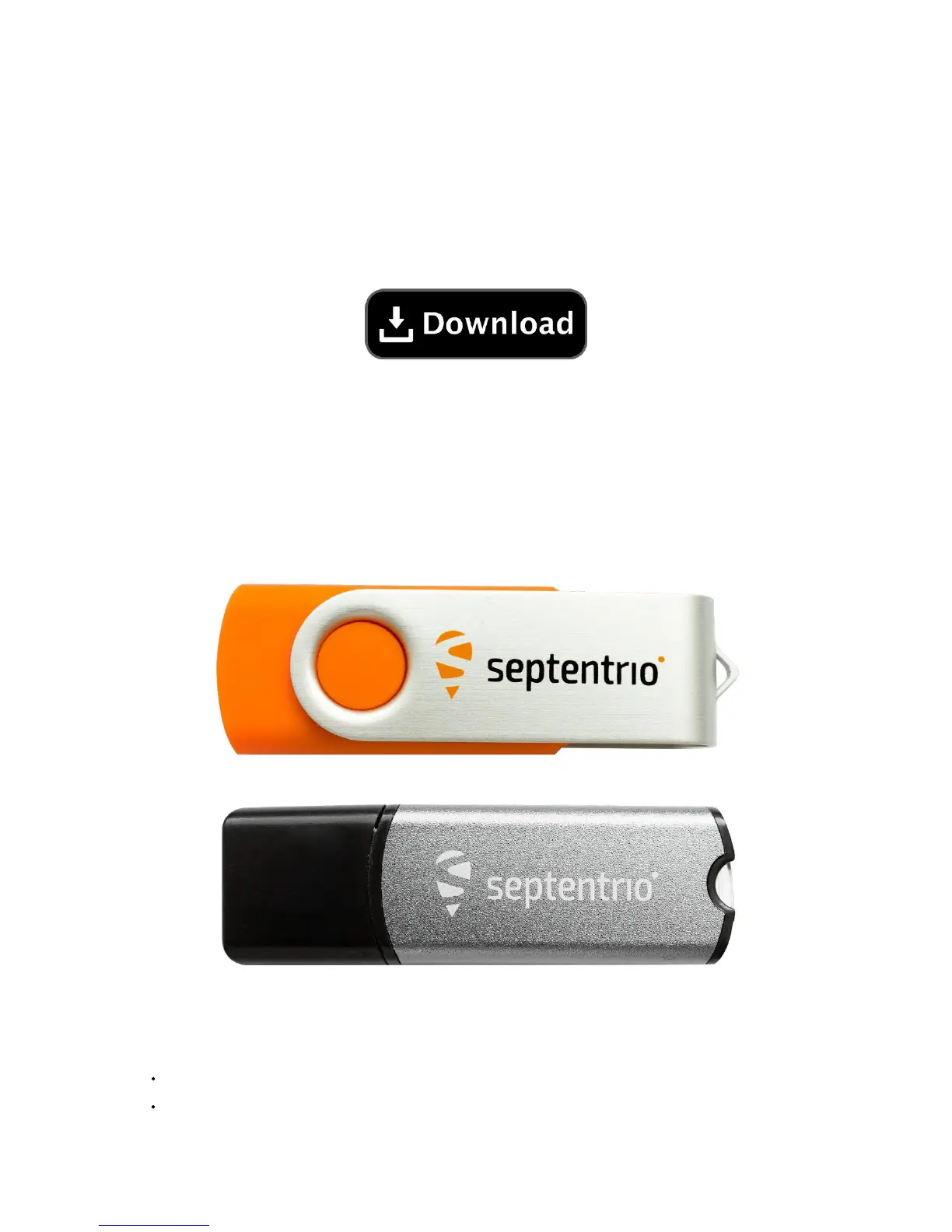
Insert the two USB sticks of your PPK kit to your computer. The orange One-time License Activation USB Stick will only be needed for the setup and can be removed after
this tutorial. The grey PPK License Dongle needs to be inserted to your machine whenever you process PPK data. Dongle and license file are paired - make sure you use
the pair of your PPK kit together.
Step 4: Tutorial & Activation
Process the sample map to finalize the setup and learn to process WingtraOne PPK data. Note that the provided images are thumbnails only. The sample project in full
resolution is available here (4.5GB).
Start WingtraHub and select the downloaded WingtraPilotProjects folder which contains the tutorial project. WingtraHub will display all projects within your
WingtraPilotProjects folder. Select the sample project and click "next" to reach the processing page.
On the lower-left corner click on "Select license file". Browse to the USB stick (only one USB stick will be visible) and select the file within the LICENSE folder.



 To Next Page