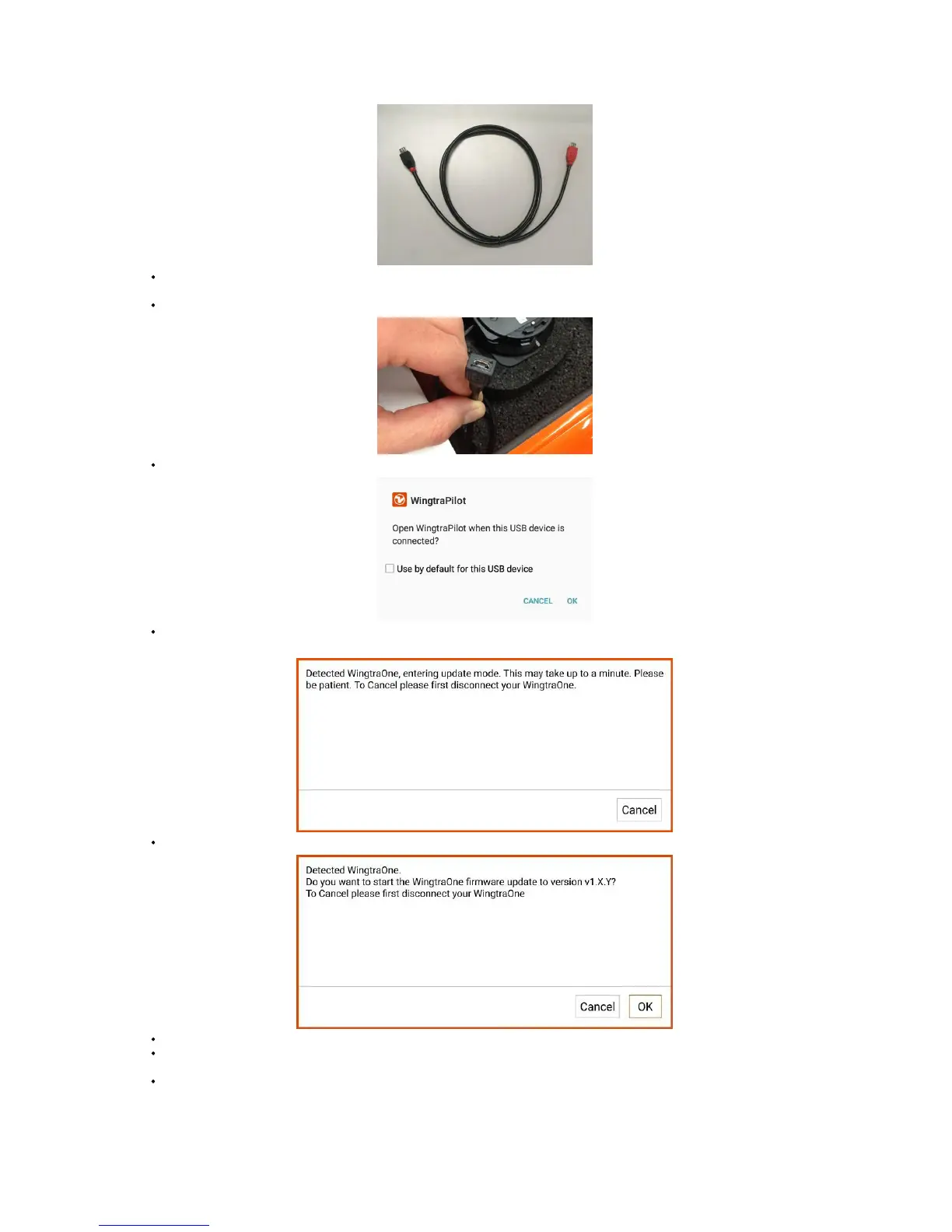
For version A, Connect the end of the connector which is marked with "OTG" to your tablet and the other end to the microusb port on WingtraOne (shown in the
picture below).
For version B, Connect the red end of the connector to your tablet and the other black end to the microusb port on WingtraOne (shown in the picture below).
If there is a dialog asking for permission, check “Use by default for this USB device” and "OK".
It can take some time until the "update mode" is established. In case the following dialog appears, be patient and wait for a minute. In case you want to cancel, first
disconnect the cable from WingtraOne.
When the update dialog box appears, click "OK" to start the update.
Wait for up to 2 minutes as WingtraOne firmware is being updated. The progress bar will show you the status of the update.
You will receive a message “Update completed” and hear the buzzer of WingtraOne. The dialog box asking for permission to the USB port may pop up again. Select
again “Use by default for this USB device” and click “Ok”.
Disconnect the microusb connection and close WingtraPilot
If update of WingtraOne fails, please disconnect the WingtraOne, restart the WingtraPilot app and try the update process again. In case it fails again, submit a support
request.



 To Next Page