1143100 SmartPAC PRO User Manual
190 Chapter 6 – Using DiProPAC Die Protection (Optional)
Viewing and Changing Sensor Settings
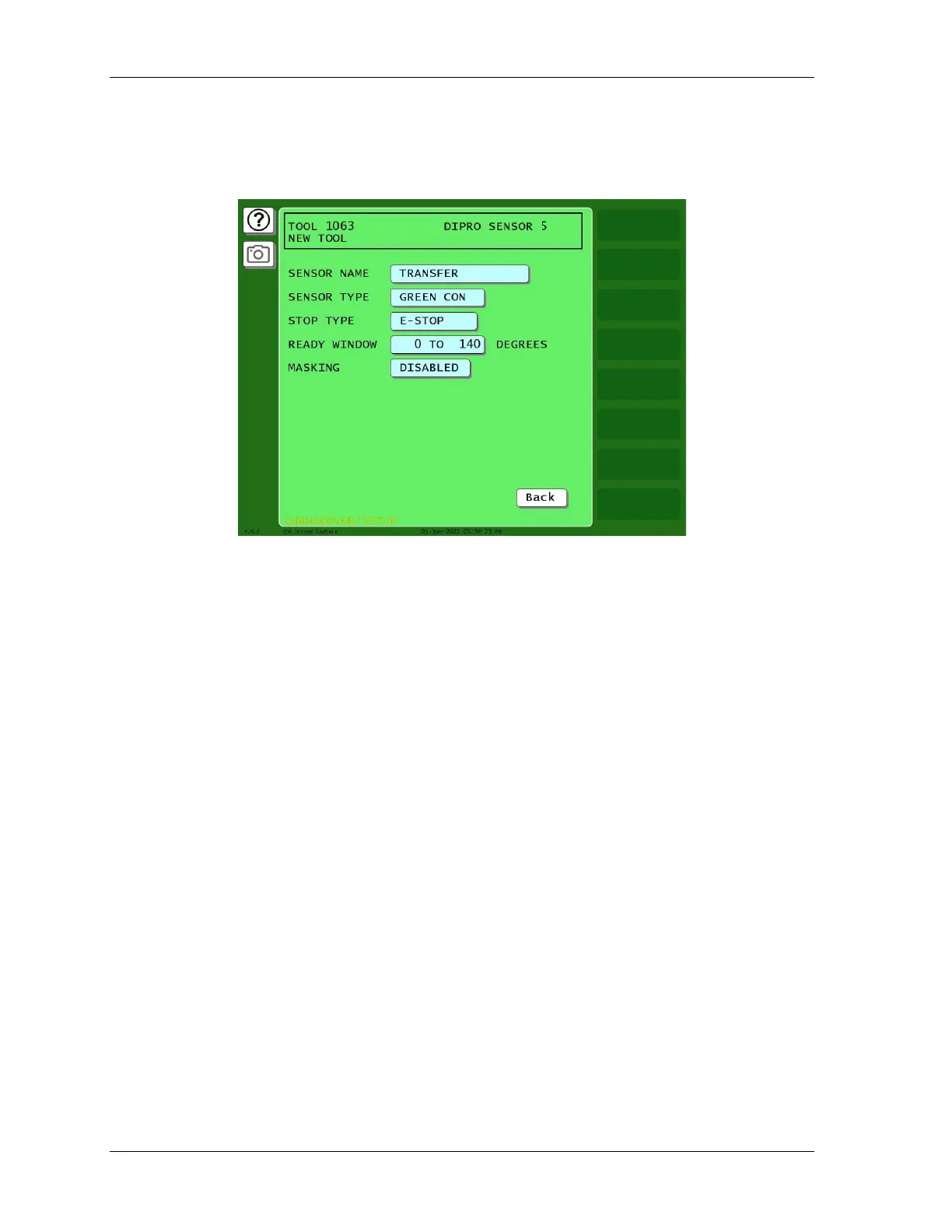
When you finish making settings for a sensor, you are taken to a screen like the one shown in Figure
6-34, which displays all the settings for the sensor.
Figure 6-34. Sensor Program Screen
This screen is also displayed whenever you select a previously programmed sensor on the Die
Protection Sensor Menu.
To change sensor settings, do the following:
1. On the Die Protection Sensor menu, Figure 6-27, press the setting you want to change. The screen
on which that setting is programmed displays. For example, if you select the SENSOR NAME
setting, the Sensor Name List screen displays, Figure 6-23, page 180.
2. Change the setting on the displayed screen, and press back when you are finished to return to the
Sensor Program screen.
3. Repeat steps 1 and 2 for each setting you want to change.
4. Press Back when you have finished to return to the Die Protection Sensor Menu.



 To Next Page