SmartPAC PRO User Manual 1143100
Chapter 1 – Introduction to SmartPAC PRO 33
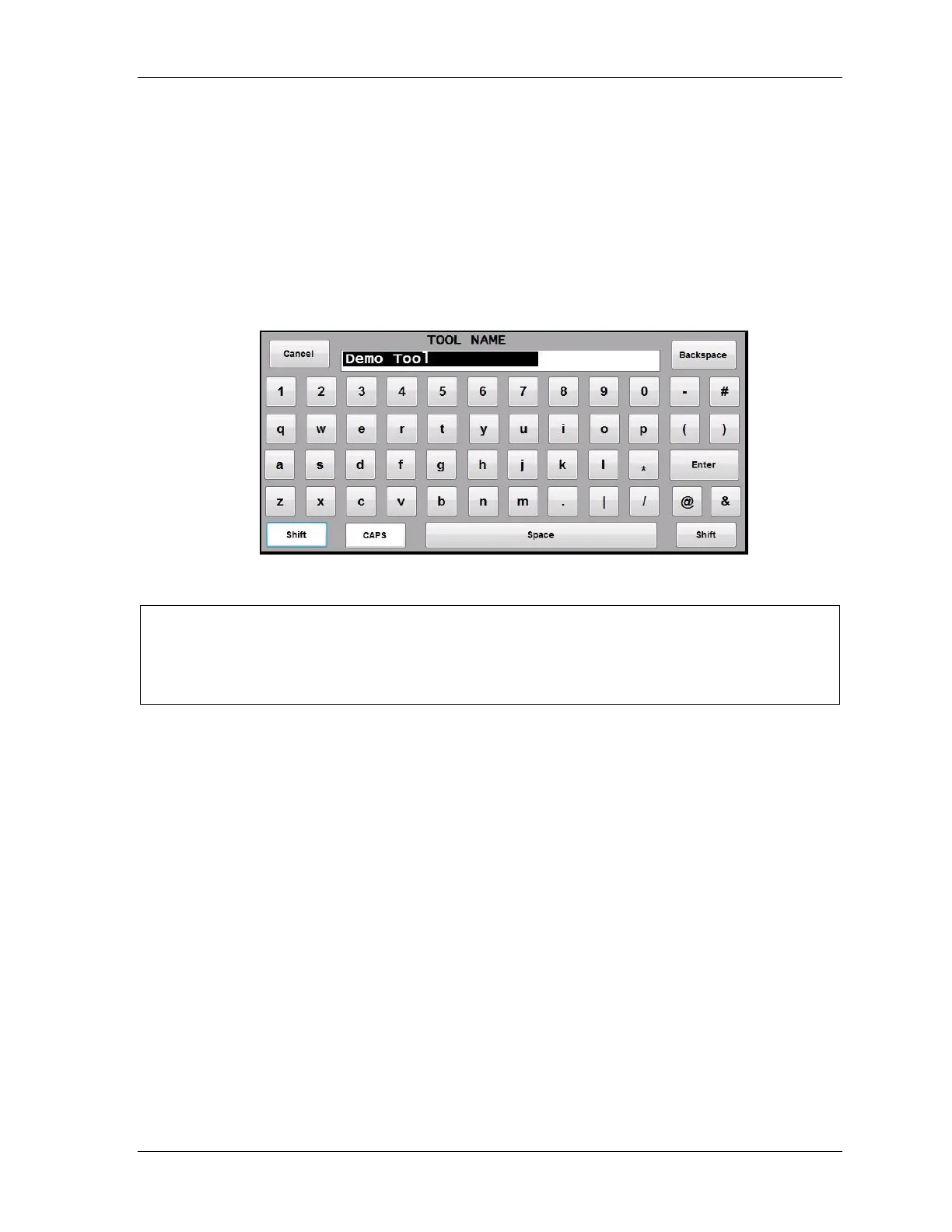
On-Screen Keyboard
Whenever you select a field that requires the input of a combination of letters, numbers, and/or
symbols, SmartPAC PRO displays its on-screen keyboard. (see Figure 1-4).
Backspace key clears the value. Cancel closes the numeric keypad without making any changes, and
Enter accepts the value entered into the field. Shift capitalizes the next character, CAPS functions like
a Caps Lock key.
When a USB keyboard is used, the ESC key acts as the Cancel button, while the other keys match
their counterparts.
Figure 1-4. SmartPAC PRO On-screen Keyboard
NOTICE
When the on-screen keypad or keyboard is displayed, Exit or Back button on the screen is
disabled. The keypad or keyboard value must be entered or cancelled before you can access any
other buttons on the screen.


 To Next Page