1143100 SmartPAC PRO User Manual
76 Chapter 2 – Installing SmartPAC PRO
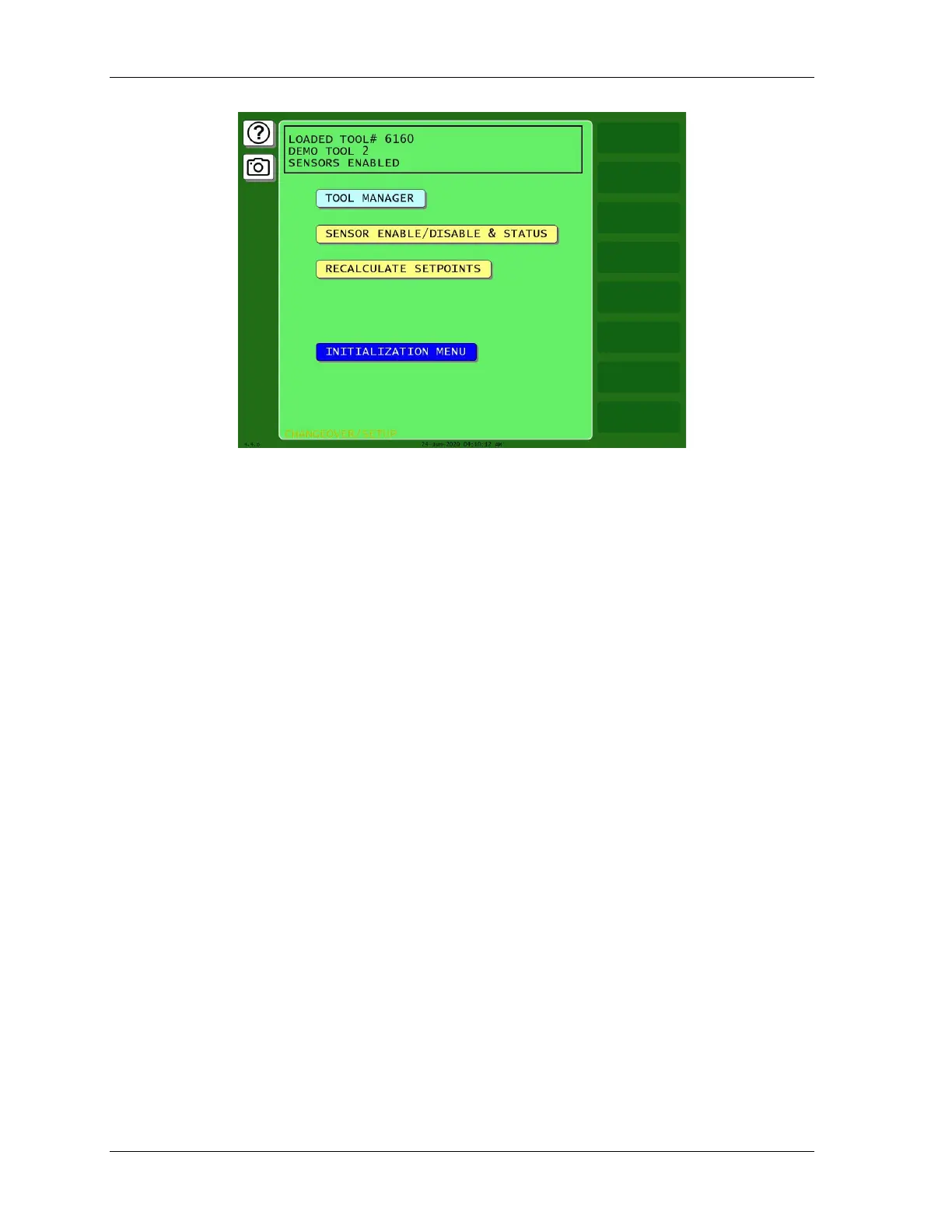
Figure 2-18. Main Program Menu
4. If the SmartPAC PRO display remains off, do the following:
• If the green Power light on SmartPAC PRO does not illuminate
Turn off power to SmartPAC PRO, and recheck all power connections. Check that the
connectors are correctly seated on both ends of the cables between the SmartPAC PRO board
and the display. Power up SmartPAC PRO again. If the display remains off, contact Wintriss
Tech. Support.
• If the green Power light illuminates, but the display remains off
Power down SmartPAC PRO, and check that the connectors are correctly seated on both ends
of the cables between the SmartPAC PRO board and the display. Power up SmartPAC PRO
again. If the display remains off, contact Wintriss Tech. Support.
Verifying Installation of DiProPAC and/or ProCamPAC
(Optional)
If you installed DiProPAC and/or ProCamPAC on SmartPAC PRO, you need to verify that the
installation was done correctly and that the option is available. Do the following:
1. On the SmartPAC PRO Main Program Menu, select INITIALIZATION MENU; then press
INSTALLED OPTIONS. The Installed Options screen, shown in Figure 2-19 displays.
Check to see that DiProPAC and/or ProCamPAC is on the list.
• If it is on the list, go to the next section.
• If DiProPAC is not on the list, go to Adding or Upgrading DiProPAC or ProCamPAC
Option, page 60, and verify that you performed the installation properly. Check that the
option board is plugged into the correct connector. If you still cannot fix the problem, call
Wintriss Tech Support.



 To Next Page