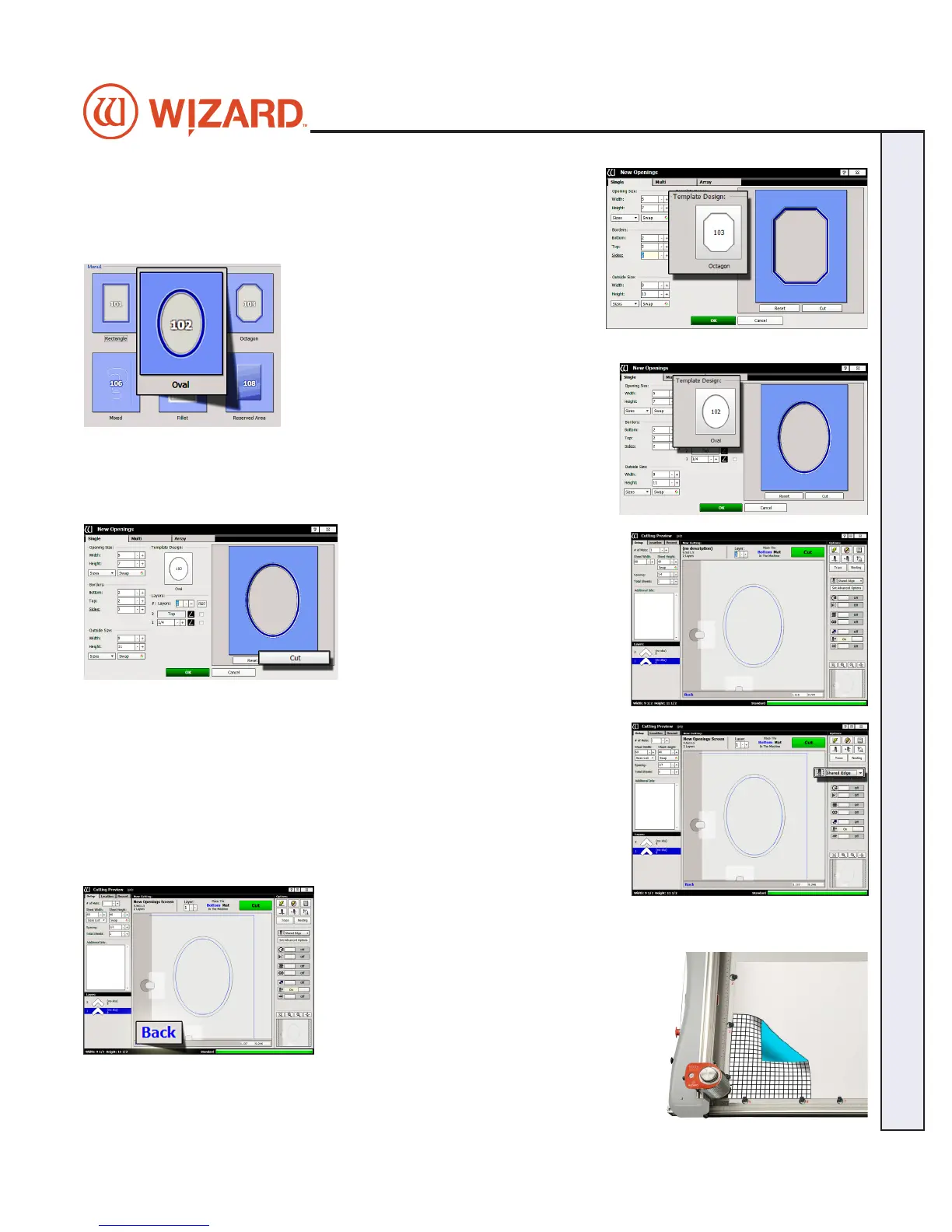
2. Click on the template thumbnail under template design.
3. Template Library opens.
4. Click on new template thumbnail to select it.
5. The new template is displayed.
Go to Cut Preview
6. Click Cut to go to the Cut Preview
screen.
Cutting the Outside
7. Click on the Outside Cut Options dropdown control and select Shared
Edge. If cutting one design, it will cut only the top and right lines of the
outside cut. If cutting a tiled mat, this will cut the shared outside lines as
one cut, rather than cutting each design’s outside cut individually.
If you have Remnant Trimming on, located under Set Advanced Options,
it will also cut o the scrap edge.
Put Matboard on the CMC
8. Make sure there are two layers of disposable
slipsheets of adequate size underneath the
matboard to be cut. This design is cut from
the back.
9. Place the matboard face down onto the CMC (facing away from the operator).
Make sure the matboard nestles tightly under the horizontal and vertical clamps
of the CMC.
20-34304-1A GettingStartedManual9000zFrameShop
04/05/19
23
Wizard CMC Model 9000z Hardware and Software Getting Started Manual
Wizard™ CMC Model 9000z Hardware and Software Getting Started Guide



 To Next Page