Function Settings
1. Initialization
Insert a SIM card in the SIM card slot in the back of the unit.
Note: SIM card must not have a password set, please use a cellphone to remove the password
from the sim card if password protected.
The system must be completely switched of when inserting the SIM card, the SIM card is only
initialized when the unit is powered on. Inserting a new SIM card or inserting the SIM card after
power on the SIM card will not be registered.
Once the SIM card is inserted, plug the power adaptor in, and switch the power switch in the back
of the unit to the on position.
Note: The power switch is used to power on the system's internal backup battery supply. In the
“off” position the backup batteries can not charge and the system can not use the battery backup in
case of power outage.
When switching the alarm system on all the LED lights will go on for 2 seconds by a long beep to
indicate the system is ready.
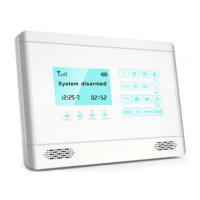
The time clock will then displays on the LCD screen and the alarm system will connect to the
cellular network. While connecting to your cellular network the [GSM] icon on the LCD screen
will be flashing. When the unit detect the GSM network a long beep will indicate successful
detection. When the [GSM] indicator goes out the system will be in disarm status and ready to use
or program.
2. Enter alarm settings
Note: Settings on the system can only be performed while it is not armed.
The 2 password types
Two different passwords are used to control the alarm unit.
1. The operations/user password: is used to arm or disarm the alarm system from a cellphone
or from the keypad if remote controller is not used.
2. The programmer/settings password: is used to put the alarm in settings mode to change
alarm settings
Entering settings mode
To change the settings of the alarm you need to first go into settings mode
While the alarm system is disarmed, input the 4-digit settings password using the keypad on the
alarm unit and press [#] button to confirm. You will hear a voice prompt: please enter instruction.
Note: The system default password is [8888].
Page 8 Wolf Secure http://www.wolfsecure-gsmalarms.co.za


 To Next Page