19
5.2 Cashier: manual recording of the card data
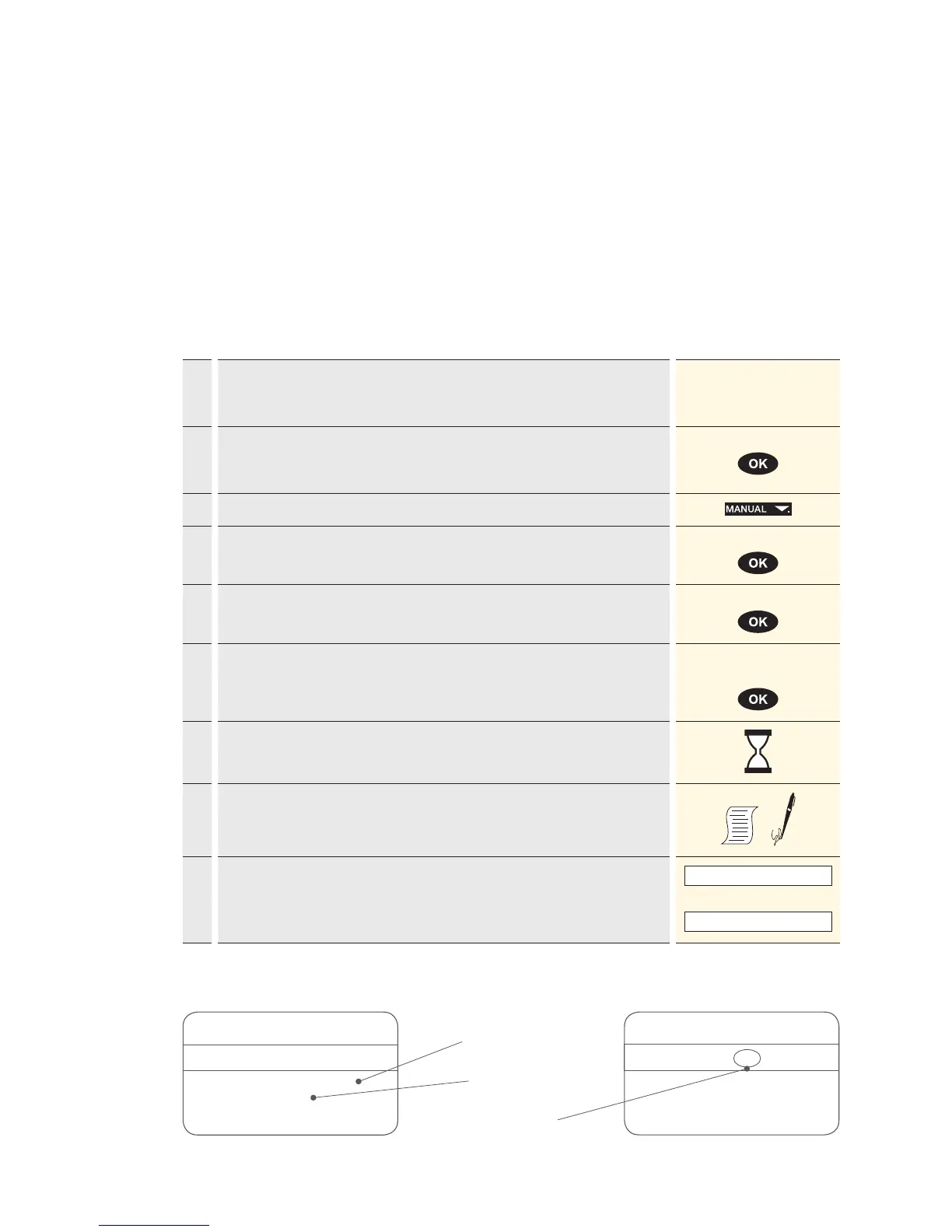
Example:
Credit card
5404 3521 4589 5038
09-09
John Example
Reverse side of card
1234 567
Manual recording of the card data
Should a credit card be unreadable, the card
data can be recorded manually.
To do so, you need the card number, the expiry
date, and for newer cards, the CVC/CVV (Card
Verication Code/Card Verication Value). This
3-digit code is printed on the reverse side of the
card (the last three numbers).
After you have chosen the transaction mode and
conrmed this by pressing <OK>, manual record-
ing can be activated using the corresponding
function button.
Card number
Expiry date
CVC2/CVV2
Cashier handling
1.* If the “foreign currency” function is activated on your terminal, you must
select the desired currency.
* Menu appears only if two or more currencies are activated.
<Currency>
2. Enter the amount and confirm with <OK>.
The amount must be separated with a decimal point.
For amounts below 1, a zero “0.” must be entered first.
Amount
3. Press the “Manual” button for manual recording.
4. Enter the card number and press <OK>. Card number
5. Enter the card expiry date and confirm with <OK>. Expiry date
6. Enter the CVC2 respectively CVV2 and confirm with <OK>.
Tip! For cards without a CVC, press <OK> without entering the CVC.
CVC2/CVV2
if present
7. Payment is recorded and authorised online, if this function is activated.
8. A sales slip is printed out.
The sales slip must be signed by the customer.
9.
If a copy is desired → press 1.
If no copy is desired → press 2.
If no button is pressed, the copy will be automatically printed out after
10seconds.
1 : Copy
or
2 : No copy


 To Next Page