25
6.4 Reservation/Purchase reservation
<5> Reservation
An amount can be reserved on the credit card
using the “Reservation” function (e.g. for hotels,
rental cars, ight tickets, etc.). The entire amount
or even just a partial amount can be subsequently
posted.
<6> Purchase reservation
Posting a previously made reservation.
Cashier handling
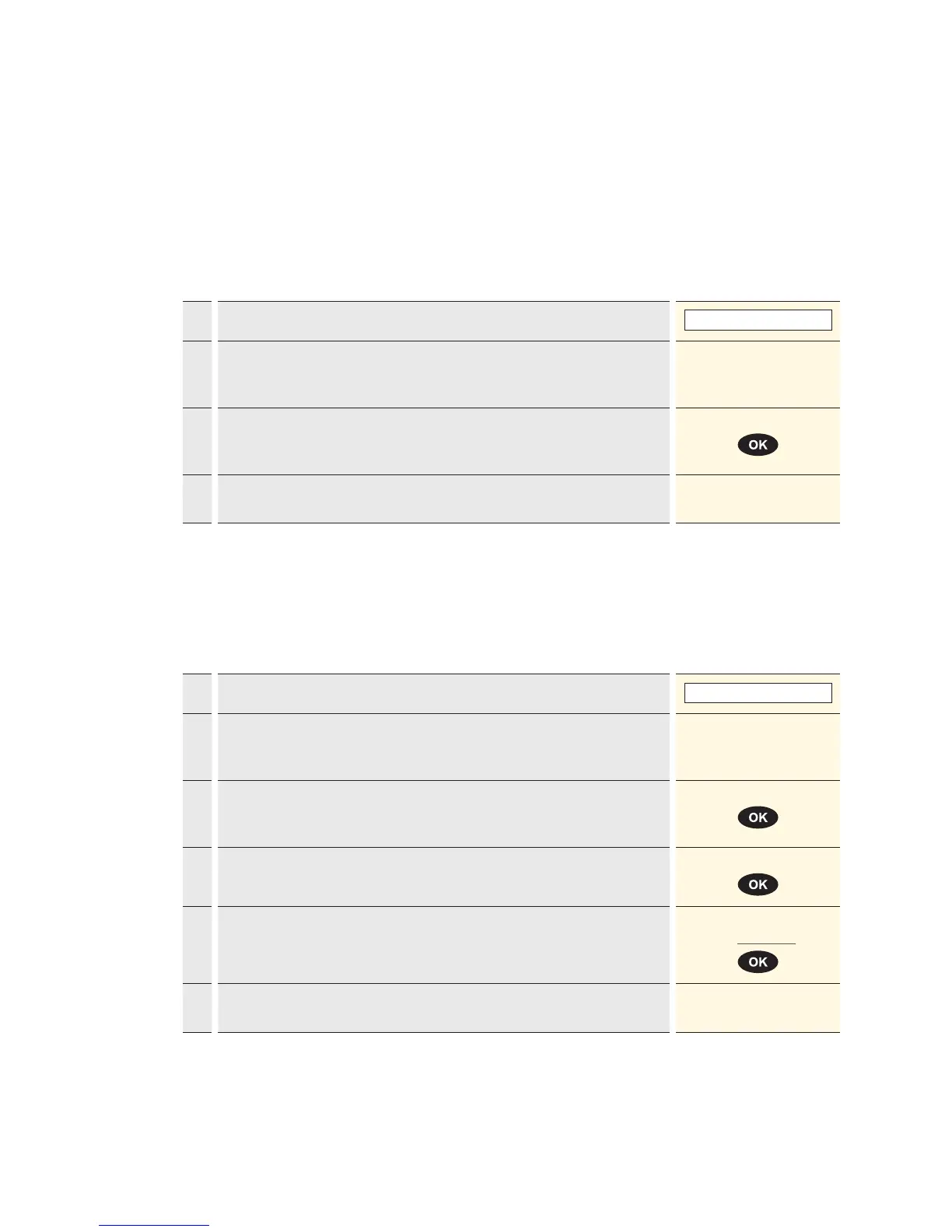
1. Press “6” to activate the “Purchase reservation” function.
6 : Purchase reserv.
2.* If the “foreign currency” function is activated on this terminal, then the
desired currency must be selected.
* Menu appears only if two or more currencies are activated.
<Currency>
3. Enter the amount and confirm with <OK>.
The amount must be separated with a decimal point.
For amounts below 1, a zero “0.” must be entered first.
Amount
4. Enter the reference number “Trx. Ref-No.” and confirm with <OK>. This can
be read from the reservation sales slip.
Trx. Ref-No.
5. Enter the original amount. Original reserv.:
CHF
?
6. Proceed with card processing as detailed on page 20 and 21, or record
manually as detailed on page 19.
Cashier handling
1. Press “5” to activate the “Reservation” function.
5 : Reservation
2.* If the “foreign currency” function is activated on this terminal, then the
desired currency must be selected.
* Menu appears only if two or more currencies are activated.
<Currency>
3. Enter the amount and confirm with <OK>.
The amount must be separated with a decimal point.
For amounts below 1, a zero “0.” must be entered first.
Amount
4. Proceed with card processing as detailed on page 20 and 21, or record
manually as detailed on page 19.


 To Next Page