EasyManua.ls Logo

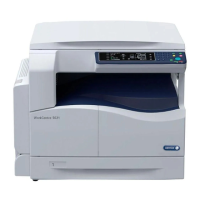
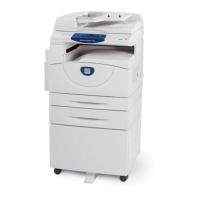
Xerox WorkCentre 5016 - User Manual

Xerox WorkCentre 5016
133 pages
Print Icon
To Next Page IconTo Next Page
Loading...
User Guide
www.xerox.com/support
WorkCentre 5016, 5020/B, 5020/DB
XE3025EN0-1
Downloaded From ManualsPrinter.com Manuals

Table of Contents

Other manuals for Xerox WorkCentre 5016

Questions and Answers

  • D
    Daniel WalkerAug 20, 2025
    Why is my Xerox WorkCentre 5016 saying 'Toner Out'?
    • C
      Carrie HallAug 20, 2025
      The Xerox All in One Printer indicates 'Toner Out' because the drum cartridge needs more toner. Add toner to the drum cartridge. The error code [J1] appears on the display.
  • S
    Shannon YoungAug 22, 2025
    What to do if my Xerox WorkCentre 5016 All in One Printer says 'Toner Low'?
    • J
      john03Aug 22, 2025
      If your Xerox All in One Printer displays a 'Toner Low' message, prepare a new toner bottle to be ready for replacement.
  • J
    Jenna MooreAug 25, 2025
    How to fix paper jam in Tray 1 of Xerox WorkCentre 5016?
    • J
      Jason LopezAug 25, 2025
      To fix a paper jam in Tray 1 of your Xerox All in One Printer, remove the jammed paper and check that the paper guides are adjusted correctly.
  • E
    Erica MasseyAug 26, 2025
    How to fix paper jam in Tray 2 of Xerox WorkCentre 5016?
    • J
      julia51Aug 27, 2025
      To resolve a paper jam in Tray 2 of your Xerox All in One Printer, remove the jammed paper. Also, ensure that the paper guides are correctly adjusted.
  • A
    Amy DiazAug 27, 2025
    How to fix paper jam in the Bypass Tray of Xerox All in One Printer?
    • K
      kennethsharpAug 28, 2025
      To clear a paper jam in the Bypass Tray of your Xerox All in One Printer, remove the jammed paper and check that the paper guides are adjusted correctly.
  • B
    bperryAug 30, 2025
    What to do if my Xerox All in One Printer displays 'Replace Drum Cartridge needed'?
    • H
      Hannah OrtegaAug 30, 2025
      If your Xerox All in One Printer displays 'Replace Drum Cartridge needed', prepare a new drum cartridge.
  • J
    James SmithAug 31, 2025
    What does it mean when my Xerox All in One Printer says 'Drum Cartridge needs immediate replacement'?
    • J
      Jason JohnsonAug 31, 2025
      If your Xerox All in One Printer shows 'Drum Cartridge needs immediate replacement', replace the drum cartridge with a new one. The error code [J6] will appear on the display.
  • A
    alison00Sep 2, 2025
    What to do if Xerox All in One Printer says 'Tray 1 is out of paper'?
    • H
      Hailey WilliamsSep 2, 2025
      If your Xerox All in One Printer indicates that 'Tray 1 is out of paper', load paper into Tray 1.
  • R
    ramirezjohnSep 4, 2025
    What to do if Xerox All in One Printer says 'Tray 2 is out of paper'?
    • L
      Lisa ElliottSep 4, 2025
      If your Xerox All in One Printer displays the message 'Tray 2 is out of paper', load paper into Tray 2.
  • P
    Philip SmithSep 6, 2025
    What to do if Xerox All in One Printer says 'Bypass Tray is out of paper'?
    • C
      Courtney GomezSep 6, 2025
      If your Xerox All in One Printer indicates that 'The Bypass Tray is out of paper', open and close the Left Side Cover once, and then load paper into the Bypass Tray.

Summary

Before Using the Machine

Safety Precautions

Covers general, electrical, laser, operational, and maintenance safety guidelines for safe operation.

Installing Drivers

Installing Print and Scan Drivers (TWAIN)

Step-by-step guide for installing TWAIN drivers for printing and scanning functionality.

Installing Scanner Application (Button Manager)

Procedure for installing the Button Manager software for enhanced scanning capabilities.

Copying

Basic Copying Procedure

Covers loading documents, clearing features, and canceling copy jobs for basic operation.

Managing Accounts

Printing

Printer Setup and Preferences

Guides on setting up printers, configuring preferences, and specifying custom paper sizes.

Scanning

Troubleshooting

Fault Clearance and Error Resolution

Covers fault clearance, machine diagrams, error codes, and troubleshooting tables for problem-solving.

Maintenance

Consumables Replacement and Management

Instructions for replacing consumables, adding toner, and replacing the drum cartridge.

Xerox WorkCentre 5016 Specifications

General IconGeneral
Print Resolution600 x 600 dpi
Copy Resolution600 x 600 dpi
Fax Transmission Speed33.6 Kbps
Duplex PrintingManual
FunctionsCopy, Print, Scan
Print TechnologyLaser
Print Speed16 ppm
Copy Speed16 cpm
Scan TypeFlatbed
Scan Resolution600 x 600 dpi
Paper Capacity250 sheets
ConnectivityUSB 2.0
Monthly Duty Cycle10, 000 pages
Operating System CompatibilityWindows, Mac, Linux

Related product manuals