VX-3R/E OPERATING MANUAL 15
AM AND FM BROADCAST RECEPTION
The VX-3R/E includes provision for reception of AM and FM broadcasts. FM broadcast
reception, utilizes a wide-bandwidth filter and stereo decoder which provides excellent
fidelity.
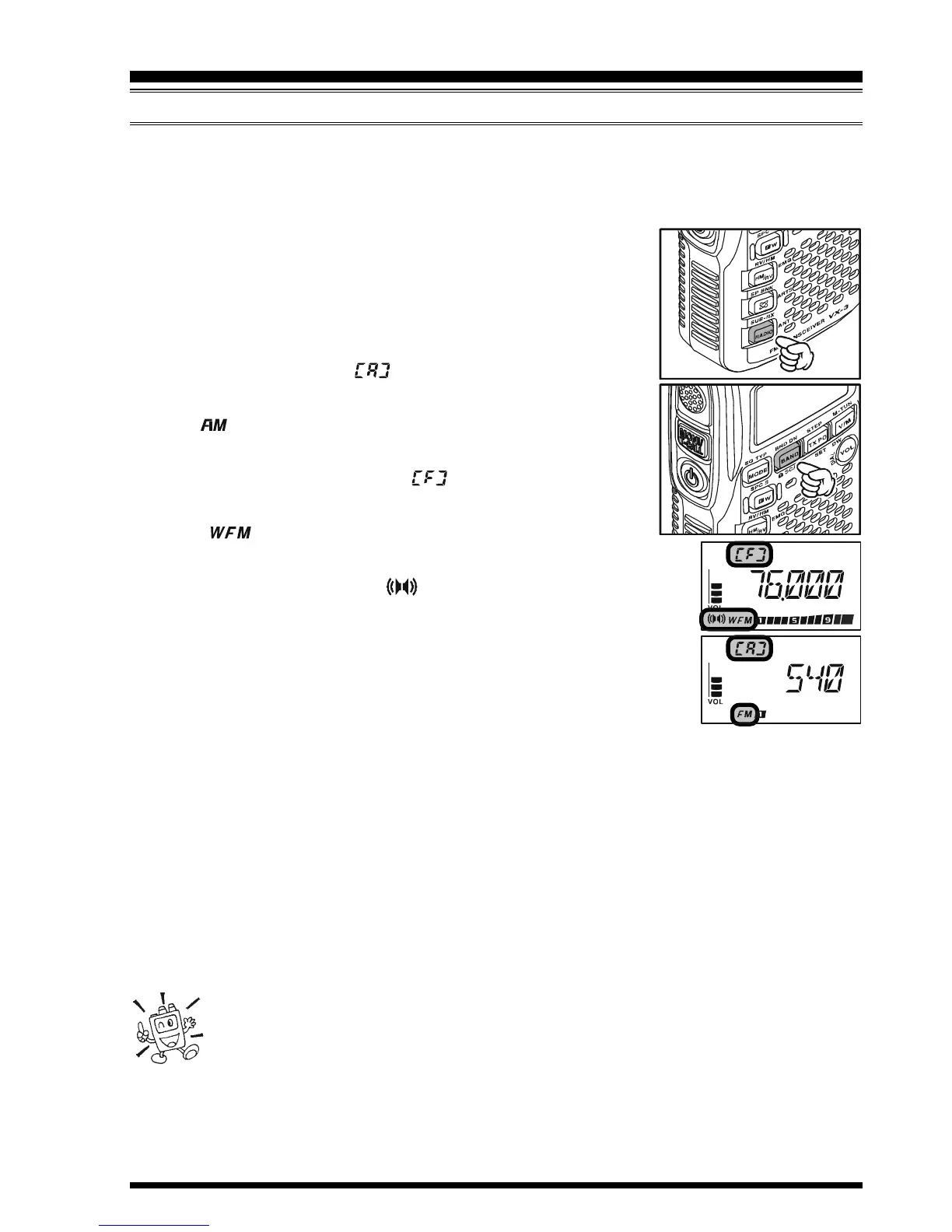
1. Press the
[
RADIO
]
key momentarily to enter the Broadcast
Reception mode.
2. Press the
[
BAND
]
key to toggle the receiving band between
“AM broadcast” and “FM broadcast”.
The AM broadcast coverage is 510 to 1790 kHz and uti-
lizes AM mode. The “ ” notation (which means AM)
appears in the Memory Channel Number display slot and
an “ ” icon appears on the bottom left of the LCD.
The FM broadcast coverage is 76.00 to 107.90 MHz and
utilizes Wide-FM mode. The “ ” notation (which means
FM) appears in the Memory Channel Number display slot
and “ ” icon appears on the bottom left of the LCD.
3. Rotate the DIAL knob to select the desired station. When receiv-
ing an FM stereo signal, “ “ icon will appear at the bottom
left of the display.
Note: Do not forget to pull the DIAL knob to rotate the DIAL
knob.
4. Press and hold the
[
RADIO
]
key for one second to enable the
antenna selection to be used by rotating the DIAL knob. Avail-
able selections are:
AM:“BARANT” (Uses the internal Bar Antenna) or “BAREXT” (Uses both the inter-
nal Bar Antenna and the Rubber Flex Antenna).
FM:“EXTANT” (Uses the Rubber Flex Antenna) or “EARPHO” (Uses the Earphone
Antenna).
5. When you finish the selection, press the
[
RADIO
]
key momentarily to exit from the
antenna selection mode.
6. Press the
[
RADIO
]
key momentarily again to exit from the AM and FM Broadcast
Reception mode and return to normal operation.
If you wish to output the audio of the FM Broadcast station to the VX-3R/E
internal speaker while using the earphone antenna, select Set Mode Item 77:
SP OUT to “SPKR”.
OPERATION


 To Next Page