38 Chapter 3—Operating Basics
DM2000—Owner’s Manual
Title Edit Window
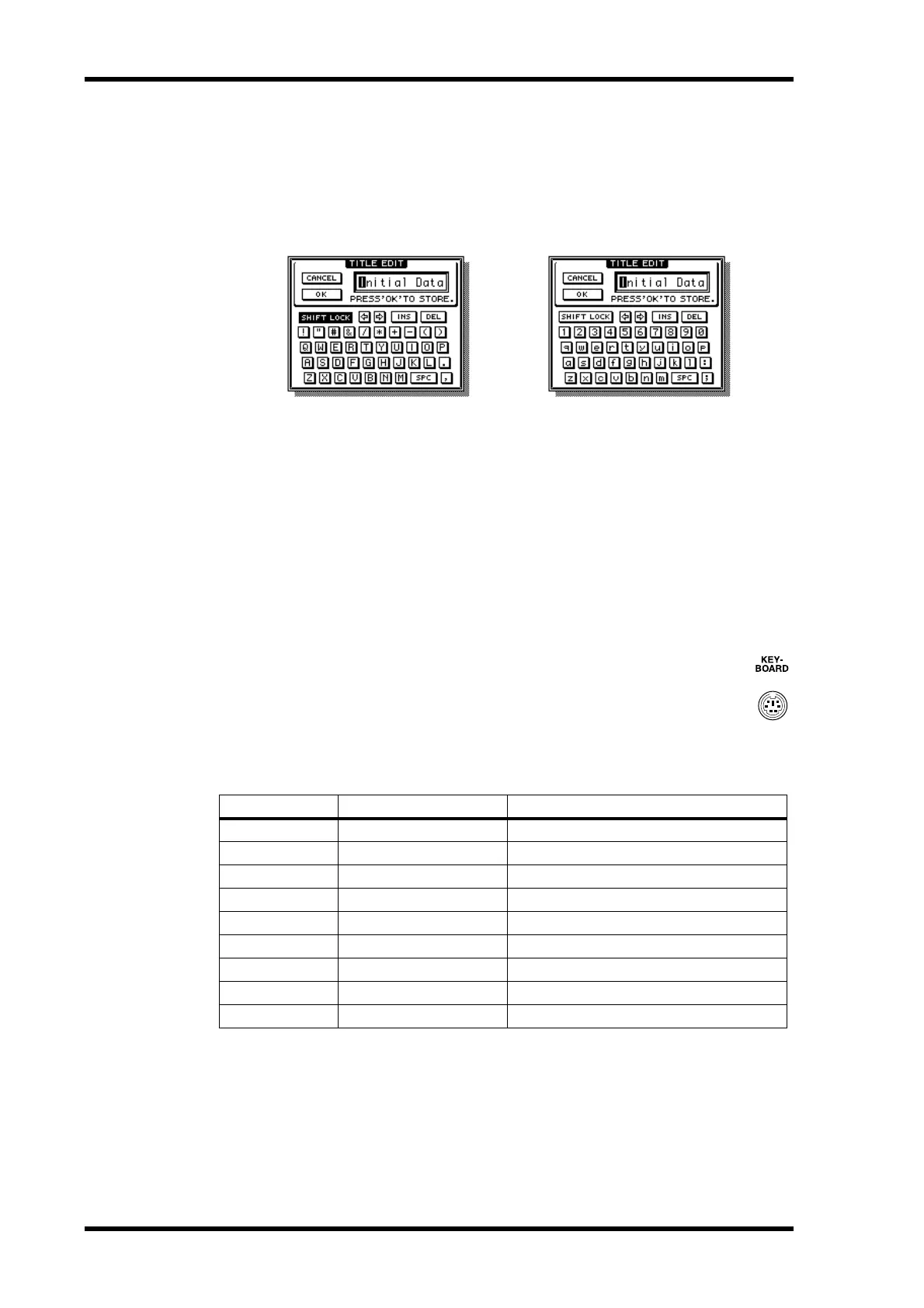
The Title Edit window is used to enter titles for Scene and library memories, automixes, and
so on. Depending on the item being titled, the number of characters that can be entered is
either 4, 12, or 16. The following screen shots show the available characters. The one on the
left shows uppercase characters and various punctuation marks. That on the right, lower-
case characters and numbers.
Use the cursor buttons to select characters, and the [ENTER] button to enter them into the
title. The cursor moves to the right automatically as each character is entered. The Param-
eter wheel or the arrow buttons can be used to move the cursor within the title.
Use the SHIFT LOCK button to select uppercase and lowercase characters, and use the SPC
button to enter a space. To insert a space at the cursor position and move subsequent char-
acters to the right, press the INS button. To delete the character at the cursor position, press
the DEL button.
When you’ve finished, press the OK button to enter the title, or press CANCEL to cancel
title entry.
Using a Keyboard
A PS/2 compatible keyboard can be connected to the KEYBOARD port and used
for quick title entry while the Title Edit window is displayed. Note that only 101
and 104-key U.S. keyboards are supported.
Characters, including letters, numbers, and punctuation marks, supported by the
DM2000 can be entered. Characters appear directly in the Title Edit window, the
same as when they are entered on the DM2000. The following table shows how
other keys correspond to Title Edit window functions.
Key Title Edit Window function Description
ESC
CANCEL Cancels title entry
RETURN/ENTER
OK Enters the specified title
CAPS LOCK
SHIFT LOCK Toggles between uppercase and lowercase
SHIFT
— Switches to uppercase characters
Backspace
— Deletes the character to the left
Cursor (left/right)
Left/right arrow buttons Moves the cursor within the title
INSERT
INS Toggles between insert and overwrite modes
DELETE
DEL Deletes the selected character
SPACE bar
SPACE Inserts a space at the current position


 To Next Page