Gating Input Channels 69
DM2000—Owner’s Manual
Gating Input Channels
Each Input Channel features a noise Gate for automatically shutting out unwanted noise.
Gate settings can be stored in the Gate library, which contains 4 preset memories and 88
user memories. See “Gate Library” on page 144 for more information.
Preset Gates & Types
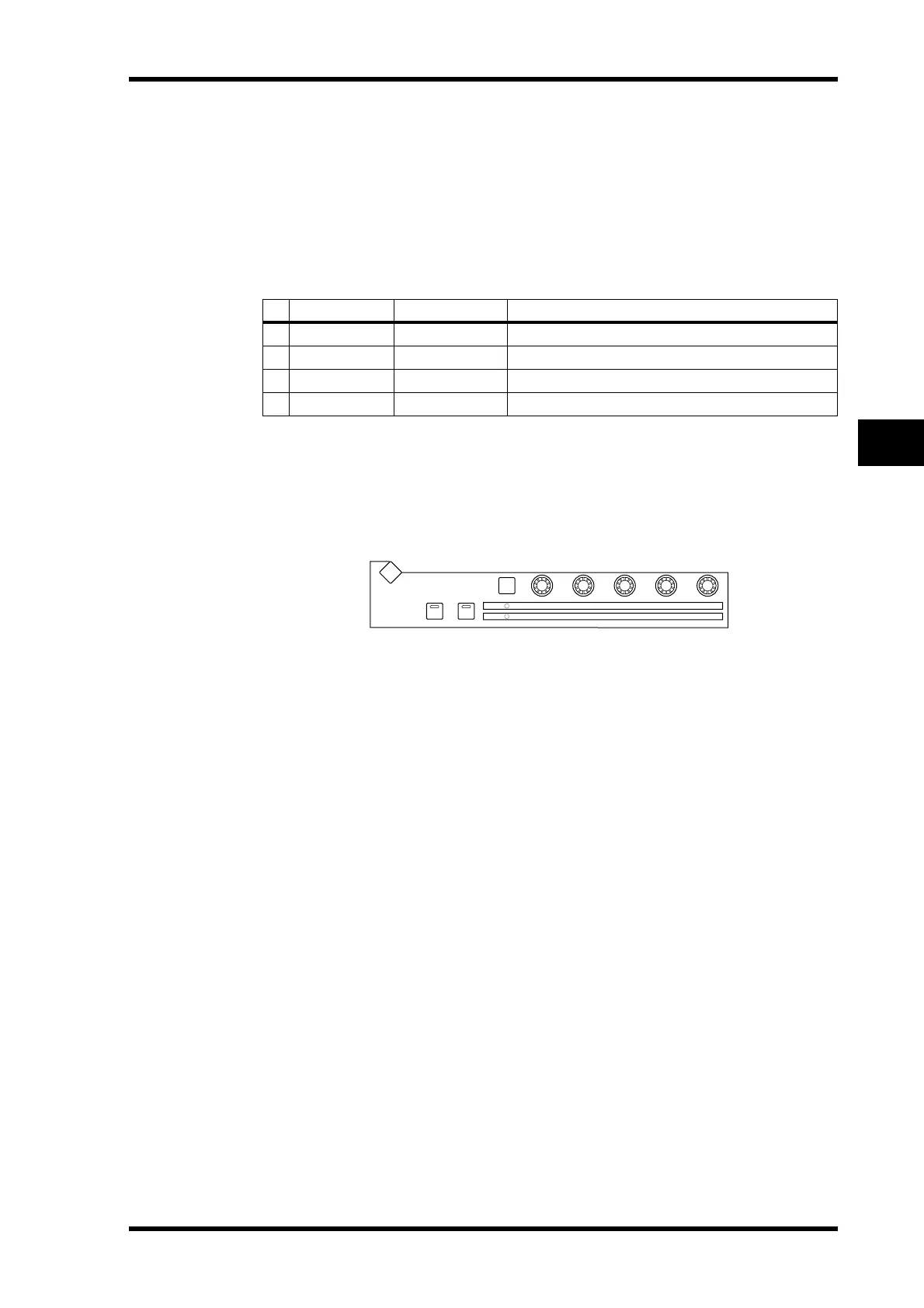
The following table lists the preset Gates and types. See page 296 for detailed parameter
information.
Using the SELECTED CHANNEL DYNAMICS Controls
1 Use the LAYER buttons to select Input Channel Layers, and use the [SEL] but-
tons to select Input Channels.
2 Use the [GATE ON] button to turn the currently selected Input Channel’s
Gate on or off.
3 Use the [GATE/COMP] button to set the DYNAMICS controls to GATE (GATE
indicator lit), and use the THRESHOLD, RANGE, ATTACK, DECAY, and HOLD
controls to set the Gate.
Gate Edit Page
Gate settings can be viewed and set on the Gate Edit page. If the Auto DYNAMICS Display
preference is on, this page appears automatically when a gate control in the SELECTED
CHANNEL DYNAMICS section is operated.
1 Use the LAYER buttons to select Input Channel Layers, and use the [SEL] but-
tons to select Input Channels.
2 Use the SELECTED CHANNEL DYNAMICS [DISPLAY] button to locate the
Gate Library page, and then recall a Gate preset that contains the gate type
that you want.
See “Gate Library” on page 144 for more information.
# Preset Name Type Description
1
Gate
GATE Gate template
2
Ducking
DUCKING Ducking template
3
A. Dr. BD
GATE Gate preset for use with acoustic bass drums
4
A. Dr. SN
GATE Gate preset for use with acoustic snare drums
GATE ON COMP ON
GATE
COMP
RANGE
RATIO
ATTA CK
ATTA CK
DECAY
RELEASETHRESHOLD
THRESHOLD HOLD
DYNAMICS
GATE / COMP
GAIN
DISPLAY


 To Next Page