EasyManua.ls Logo

Yamaha DTX-PRO - User Manual

Yamaha DTX-PRO
80 pages
Print Icon
To Next Page IconTo Next Page
Loading...
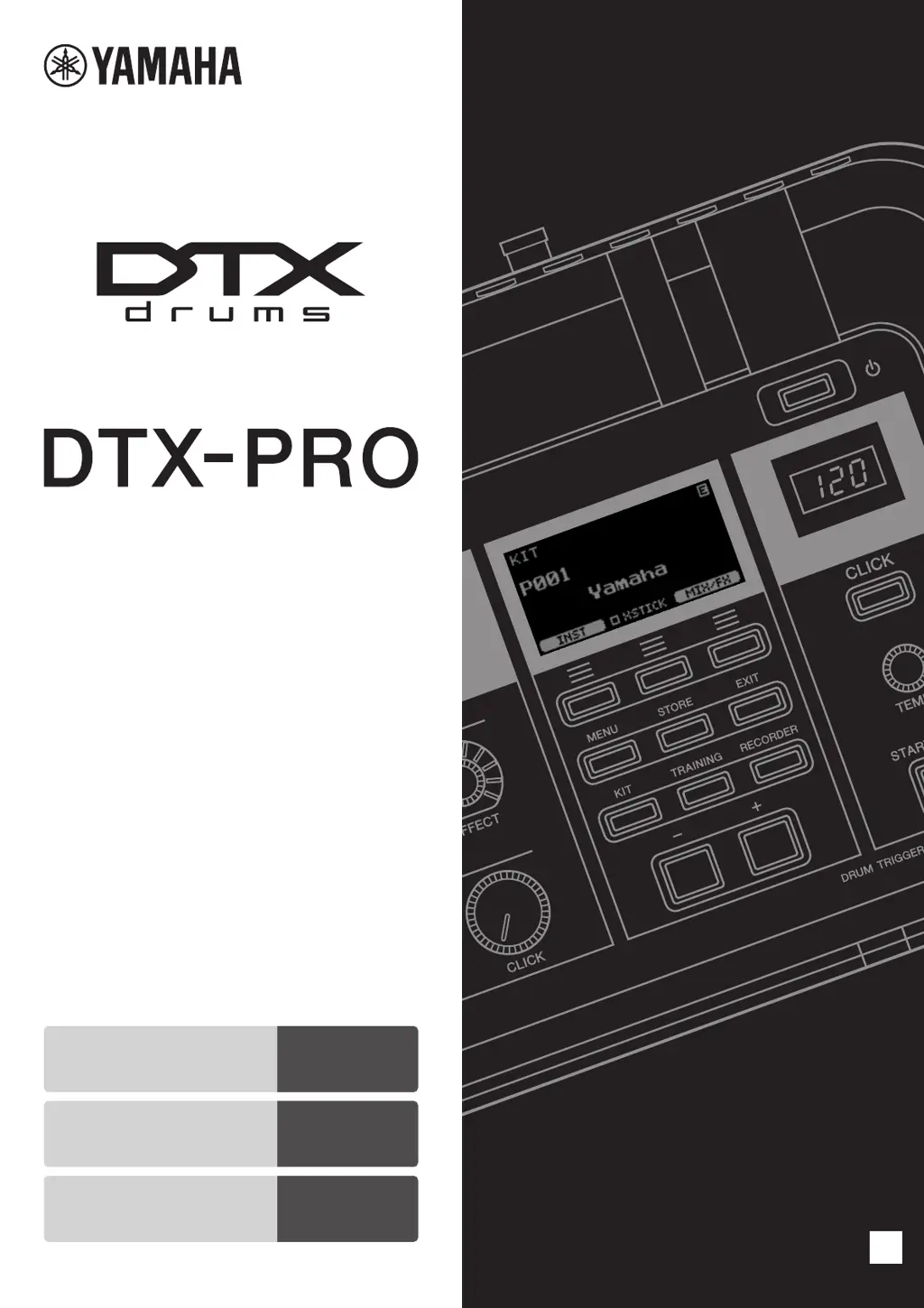
Owner’s Manual
Drum Trigger Module
EN
Contents
Specifications
page 9
page 66
Features of the
DTX-PRO
page 8

Other manuals for Yamaha DTX-PRO

Questions and Answers

  • J
    Jaime RuizNov 22, 2025
    How to fix Yamaha Drums when there is no sound or it's out of balance?
    • K
      kevindeckerNov 22, 2025
      If your Yamaha Drums have no sound or are out of balance, check these potential causes: * Ensure the DTX-PRO is properly connected to headphones or an external audio system (amplifier and/or speakers) and that the cables are in good condition. * Verify volume levels on amplifiers/speakers, the DTX-PRO's [MASTER VOLUME] knob, sliders on the MIXER screen, metronome volume, and trigger output level of pads with adjustable dials. * Adjust sliders on the MIXER screen to correct volume balance between pads. * Adjust output volumes of the DTX-PRO and external audio devices individually, or use the [AUDIO VOL- UME] knob to balance their volumes. * Confirm that the Pad Type parameter is set correctly. Also, check the direction of the cymbal pad and ensure you are using pads with position...
  • J
    Janet HuntAug 25, 2025
    What to do if Yamaha DTX-PRO sensitivity is too low during performance?
    • M
      Marcus RodriguezAug 26, 2025
      If you're experiencing low sensitivity (volume) with your Yamaha Drums during performance, consider these points: * Check the direction of the cymbal pad. An improper direction can affect functionality. * Regularly tighten the hi-hat stand shaft to prevent the hi-hat pad from rotating and malfunctioning. * Make sure that the Pad Type parameter is set correctly. * Adjust the trigger output level of pads with a dial if it is too low. * Ensure the slider for the pad is set high enough on the mixer.
  • M
    mlangAug 26, 2025
    What to do if cymbal/hi-hat sounds are too soft on Yamaha Drums?
    • K
      Keith WagnerAug 27, 2025
      If your cymbal and hi-hat sounds are too soft on your Yamaha Drums, here are some potential solutions: * Check the orientation of the cymbal pad. * Tighten the shaft on the hi-hat stand to prevent the hi-hat pad from rotating. * Remove any extra felt under the cymbal pad. * Ensure that the Pad Type and trigger parameters are set correctly, verifying the “Pad Type” parameter in MENU/Trigger/Pad Type. * Make sure the slider is not set to the minimum. * Ensure that the slider on the MIXER screen for the pad is set high enough. * Ensure that the drumstick is parallel to the pad surface when striking the pad.
  • A
    Amber SteinAug 27, 2025
    What to do if I hear double triggers on my Yamaha Drums?
    • R
      rosschapmanAug 27, 2025
      If you are experiencing double triggers on your Yamaha Drums, ensure that trigger setups have been configured correctly. If the pad or drum trigger has a controller for adjusting output or sensitivity, turn it down. Also, ensure that the “Gain” parameter from MENU/Trigger/Pad Type is not set too high.
  • C
    Cindy ButlerAug 28, 2025
    What to do if Yamaha DTX-PRO Drums pads are only producing sounds at very high volumes?
    • G
      Gabriella GreenAug 29, 2025
      If your Yamaha Drums pads are only producing sounds at very high volumes, ensure that the “Gain” parameter from MENU/Trigger/Pad Type is not set too high. Also, adjust the “Velocity Curve” parameter from MENU/Trigger/Curve and check the “TrgVel” setting in MENU/Kit Edit/Kit Modifier/Voice/MessageType. Ensure that you are using only the recommended Yamaha pads.
  • L
    linda52Sep 18, 2025
    What to do if Yamaha DTX-PRO Drums connected external device does not produce sound?
    • R
      Robert ChristensenSep 18, 2025
      If a connected external device does not produce sound with your Yamaha Drums, ensure that the MIDI cable has been correctly connected and that the MIDI channels match. Set the “Pad Function” in MENU/Utility/Pad to “off.” Ensure that the “MessageType” parameter from MENU/Kit Edit/Voice is set to “note.” Sounds will not be produced if this is not set to “note.” Ensure that the “VelLo” parameter from MENU/Kit Edit/Voice/MessageType is not set too high. Ensure that the “Minimum Level” parameter from MENU/Trigger/Pad Type has not been set too high.
  • C
    Carmen BurnettSep 14, 2025
    Why data cannot be saved on a USB flash drive on Yamaha Drums?
    • A
      Alex SinghSep 14, 2025
      If data cannot be saved on a USB flash drive with your Yamaha Drums, ensure that the USB flash drive has been formatted using the DTX-PRO. Also, ensure that the USB flash drive has not been write-protected and that there is sufficient free space on the drive to save the data. Check the free space from “Memory Info” in MENU/File.
  • G
    Glen ChenSep 16, 2025
    Why cannot load audio files from a USB flash drive on Yamaha DTX-PRO Drums?
    • R
      Robin FarrellSep 16, 2025
      If you cannot load audio files from a USB flash drive on your Yamaha Drums, ensure that there is sufficient free space on the DTX-PRO and format the USB flash drive with the DTX-PRO. Also, ensure that the file to be read is located within the root directory of the USB flash drive.
  • A
    Alexander PatrickSep 7, 2025
    What to do if effects cannot be applied to Yamaha DTX-PRO Drums?
    • H
      hector33Sep 7, 2025
      If effects cannot be applied to your Yamaha Drums, ensure that the [EFFECT] knob is not turned down to minimum. Also, ensure that the effect type is not set to “THRU” or “NO EFFECT.” Finally, ensure that the InstSend value is high enough for Effect 1 or Effect 2.
  • T
    Toni ShieldsSep 4, 2025
    What to do if Yamaha DTX-PRO sounds play endlessly and do not stop?
    • F
      fullertimothySep 4, 2025
      If the sounds on your Yamaha Drums play endlessly and do not stop, ensure that the hold function is not turned on. Press [EXIT] while on the kit screen to stop the KIT sounds.

Summary

Special Message Section

Battery and Disposal Notices

Safety and disposal instructions for batteries and product.

Important Safety Instructions

Explanation of Graphical Symbols

Defines warning symbols used in the manual.

Precautions

AC Adaptor and General Unit Precautions

Essential safety guidelines for operation.

Notice

Handling, Maintenance, and Data Saving

Advice for proper care and data management.

Welcome and Setup Overview

Included Accessories and Module Holder Attachment

Package contents and unit mounting.

About the Manuals

Printed and Digital Manual Resources

Information on available documentation.

Features of the DTX-PRO

Key Features and Functionality Overview

Highlights the product's main capabilities.

Panel Controls and Functions

Top Panel Layout and Controls

Description of controls on the top surface.

Display and Navigation Button Functions

Explanation of screen elements and operation buttons.

Rear Panel Connections

Details trigger inputs, USB, MIDI, and outputs.

Setup Guide

Initial Setup Workflow and Installation

Steps for preparing and physically setting up the unit.

Turning On and Initial Setup Wizard

Powering up and first-time configuration.

Using a USB Flash Drive

Connecting and utilizing USB storage for data.

Basic Guide

Structure of a Kit and Instruments

Explains sound sets and individual sounds.

Playing the Pads: Sound Variations

How pad strikes create different sounds.

Basic Operation: Selecting a Kit

How to choose and change drum kits.

Adjusting Sound Effects (Kit Modifiers)

Modifying ambience, compression, and effects.

Using the Mixer for Volume Balance

Adjusting individual pad volume levels.

Using the Click (Metronome)

How to utilize the metronome feature.

Recording Your Performance

Overview of performance recording functions.

Practicing with the Training Feature

Training Types Overview and Session Control

Lists training modes and how to start/end them.

Details on TRAINING SONG

Explains the use of pre-set songs for practice.

Details on PART MUTE

Explains muting specific parts in training songs.

Details on SONG PART GATE

Explains practicing individual song sections.

Application Guide

Connecting Separately Sold Add-ons and External Devices

Expanding functionality with accessories.

Using Smart Devices

Connecting and using smartphones/tablets.

Troubleshooting

Troubleshooting Sound and Pad Issues

Diagnosing and resolving common problems.

Specifications

Tone Generator and Connectivity Specifications

Technical details on sound engine and ports.

Drums Limited Warranty

Warranty Coverage and Limitations

Explains warranty terms and conditions.

Yamaha DTX-PRO Specifications

General IconGeneral
ModuleDTX-PRO
Polyphony128 voices
Preset Drum Kits50
User Drum Kits200
Training FunctionsYes
Click/MetronomeYes
ConnectivityUSB, MIDI, Bluetooth
BluetoothYes
DisplayLCD
Power SupplyAC adapter
TypeDrum Module
Sounds1, 000 sounds
EffectsReverb, EQ, Compressor
RecorderYes
Audio InterfaceUSB
MIDI ConnectivityMIDI In/Out
USB ConnectivityUSB to Host
PadsRubber pads
Inputs10 (8 trigger inputs + 2 AUX inputs)

Related product manuals