EasyManua.ls Logo

Yamaha RX21 - Pattern Copy

Yamaha RX21
59 pages
Print Icon
To Next Page IconTo Next Page
To Previous Page IconTo Previous Page
Loading...
eR
%
Pattern
Copy
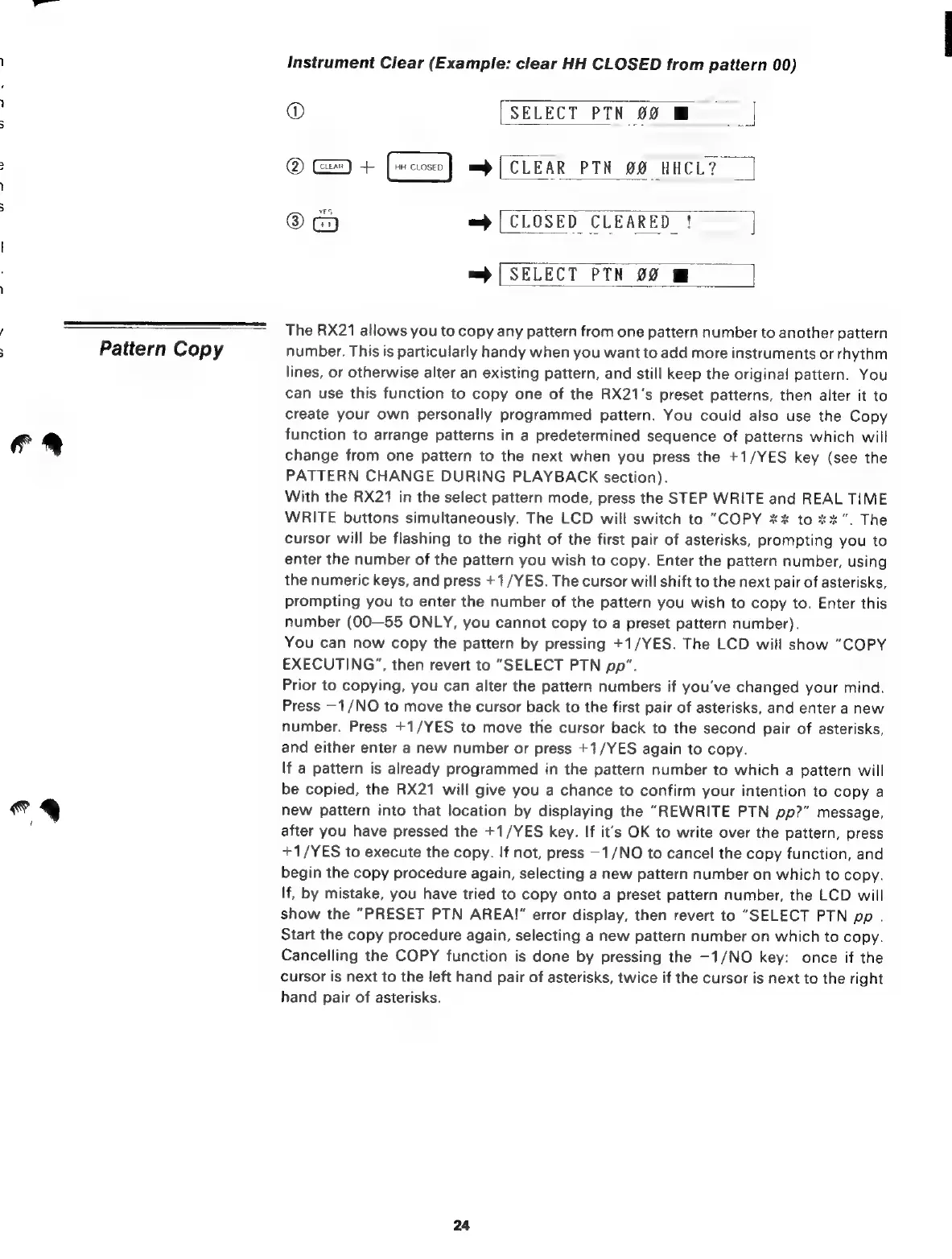
Instrument
Clear
(Example:
clear
HH
CLOSED
from
pattern
00)
®
[SELECT
РТМ
00
B
©
+
=
|
CLEAR
РТН
00
HHCL?
|
©
=
[CLOSED
CLEARED
!
=
|
SELECT
PTN
00
The
RX21
allows
you
to
copy
any
pattern
from
one
pattern
number
to
another
pattern
number.
This
is
particularly
handy
when
you
want
to
add
more
instruments
or
rhythm
lines,
or
otherwise
alter
an
existing
pattern,
and
still
keep
the
original
pattern.
You
can
use
this
function
to
copy
one
of
the
RX21's
preset
patterns,
then
alter
it
to
create
your
own
personally
programmed
pattern.
You
could
also
use
the
Copy
function
to
arrange
patterns
in
a
predetermined
sequence
of
patterns
which
will
change
from
one
pattern
to
the
next
when
you
press
the
+1/YES
key
(see
the
PATTERN
CHANGE
DURING
PLAYBACK
section).
With
the
RX21
in
the
select
pattern
mode,
press
the
STEP
WRITE
and
REAL
TIME
WRITE
buttons
simultaneously.
The
LCD
will
switch
to
"COPY
xx
to
xx".
The
cursor
will
be
flashing
to
the
right
of
the
first
pair
of
asterisks,
prompting
you
to
enter
the
number
of
the
pattern
you
wish
to
copy.
Enter
the
pattern
number,
using
the
numeric
keys,
and
press
+1/YES.
The
cursor
will
shift
to
the
next
pair
of
asterisks,
prompting
you
to
enter
the
number
of
the
pattern
you
wish
to
copy
to.
Enter
this
number
(00—55
ONLY,
you
cannot
copy
to
a
preset
pattern
number).
You
can
now
copy
the
pattern
by
pressing
+1/YES.
The
LCD
will
show
"COPY
EXECUTING",
then
revert
to
“SELECT
PTN
pp”.
Prior
to
copying,
you
can
alter
the
pattern
numbers
if
you've
changed
your
mind.
Press
—1/NO
to
move
the
cursor
back
to
the
first
pair
of
asterisks,
and
enter
a
new
number.
Press
+1/YES
to
move
the
cursor
back
to
the
second
pair
of
asterisks,
and
either
enter
a
new
number
or
press
+1/YES
again
to
copy.
If
a
pattern
is
already
programmed
in
the
pattern
number
to
which
a
pattern
will
be
copied,
the
RX21
will
give
you
a
chance
to
confirm
your
intention
to
copy
a
new
pattern
into
that
location
by
displaying
the
"REWRITE
PTN
pp?"
message,
after
you
have
pressed
the
+1/YES
key.
If
it's
OK
to
write
over
the
pattern,
press
*
1/YES
to
execute
the
copy.
If
not,
press
-
1/NO
to
cancel
the
copy
function,
and
begin
the
copy
procedure
again,
selecting
a
new
pattern
number
on
which
to
copy.
If,
by
mistake,
you
have
tried
to
copy
onto
a
preset
pattern
number,
the
LCD
will
show
the
“PRESET
PTN
AREA!”
error
display,
then
revert
to
"SELECT
PTN
pp
.
Start
the
copy
procedure
again,
selecting
a
new
pattern
number
on
which
to
copy.
Cancelling
the
COPY
function
is
done
by
pressing
the
—1/NO
key:
once
if
the
cursor
is
next
to
the
left
hand
pair
of
asterisks,
twice
if
the
cursor
is
next
to
the
right
hand
pair
of
asterisks.
24

Related product manuals