PATTERN MODE
Settings: Source pattern number: 000 . . . 199
Destination pattern number: 000 . . . 099
Voice: Any voice used in the source pattern —
I00 . . . I95 (internal), C00 . . . C31 (card)
Procedure: Use the
and
keys to move the
cursor to the source or destination pattern num-
ber, or to the voice parameter (the voice number
appears on the top line of the display when the
voice parameter is selected). Use the [INC] and
[DEC] keys, the [DATA] slider, or the numeric
keys to set the parameters as required. The
instrument pads can be used to select the voice
to be copied.
Press the [ENTER] key — “Sure” will
appear on the display. Press the [ENTER] key
again to copy the voice or press [EXIT] to can-
cel the operation. “Complete!” will appear on
the display briefly when the voice has been
copied.
Notes: If, for example, you have a great hi-hat line
in one pattern that you want to use in a different
pattern, the PATTERN VOICE COPY function
lets you copy only the desired hi-hat part from
the original pattern to the new pattern.
The selected voice is copied to the destina-
tion pattern without altering the data already in
the destination pattern.
JOB 03: PATTERN INST CHANGE
If you specify a source pattern that does not
contain the selected voice, the “!No Data Con-
verted!” error message will appear on the display
when the operation is executed, and the opera-
tion will be cancelled.
if- there is not enough pattern memory available
to complete the operation. If the pattern pro-
duced by the copy operation is too large, “! Too
Large Pattern!” will appear on the display.
“! Memory Full !” will appear on the display
Procedure: Use the
and
keys to move the
cursor to the pattern number or voice parameter
(the voice number appears on the top line of the
display when the voice parameter is selected).
Use the [INC] and [DEC] keys, the [DATA]
slider, or the numeric keys to set the parameters
as required. The instrument pads can be used to
select the voice to be cleared.
Press the [ENTER] key — “Sure” will
appear on the display. Press the [ENTER] key
again to clear the voice or press [EXIT] to can-
cel the operation. “Complete!” will appear on
the display briefly when the voice has been
cleared.
Notes: Although you could use the [CLEAR] key to
remove all occurrences of the same instrument
from a pattern (see page 23), this job makes
clearing an entire instrument much easier.
If you specify a pattern that does not contain
the selected voice, the “!No Data Converted!”
error message will appear on the display when
the operation is executed, and the operation will
be cancelled.
Summary: Allows a voice used in the selected pat-
tern to be changed to any other voice.
Settings:
Pattern number: 000 . . . 099
Old voice: Any voice used in the source pattern
— I00 . . . I95 (internal), C00 . . . C31 (card)
New voice: I00 . . . I95 (internal), C00 . . . C31
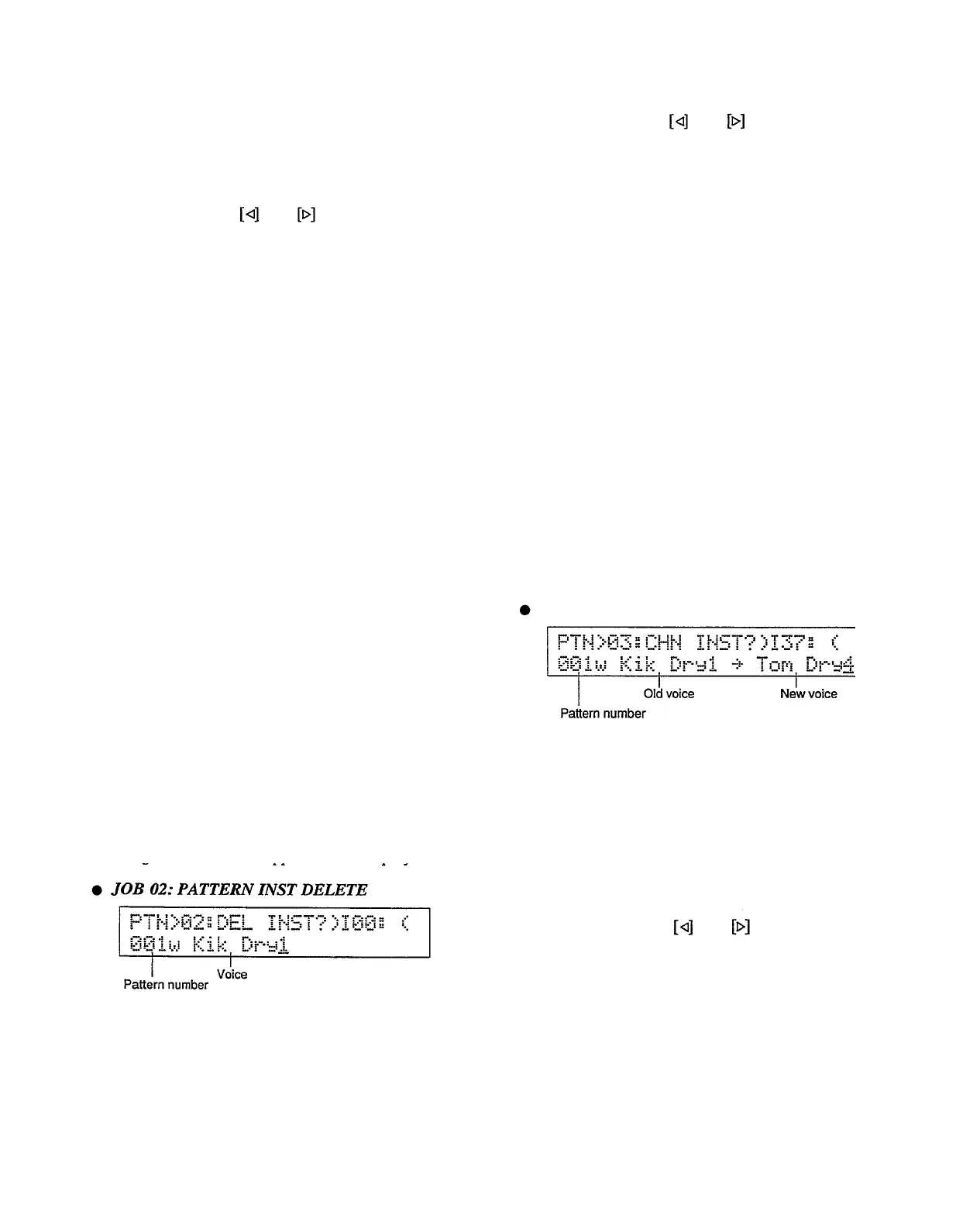
JOB 02: PATTERN INST DELETE
(card)
Summary:
Clears (erases) the selected voice from
the specified pattern.
Settings:
Pattern number: 000 . . . 099
Voice: Any voice used in the source pattern —
I00 ... I95 (internal), C00 . . . C31 (card)
Procedure: Use the
and
keys to move the
cursor to the pattern number or voice parameter
(the voice number appears on the top line of the
display when the voice parameter is selected).
Use the [INC] and [DEC] keys, the [DATA]
slider, or the numeric keys to set the parameters
as required. The instrument pads can be used to
select the old and new voice.
56


 To Next Page