13
Zaxis Inc. LLC
801.264.1000
2442 South 2570 West
West Valley City, UT 84119
4.1
Pressure.
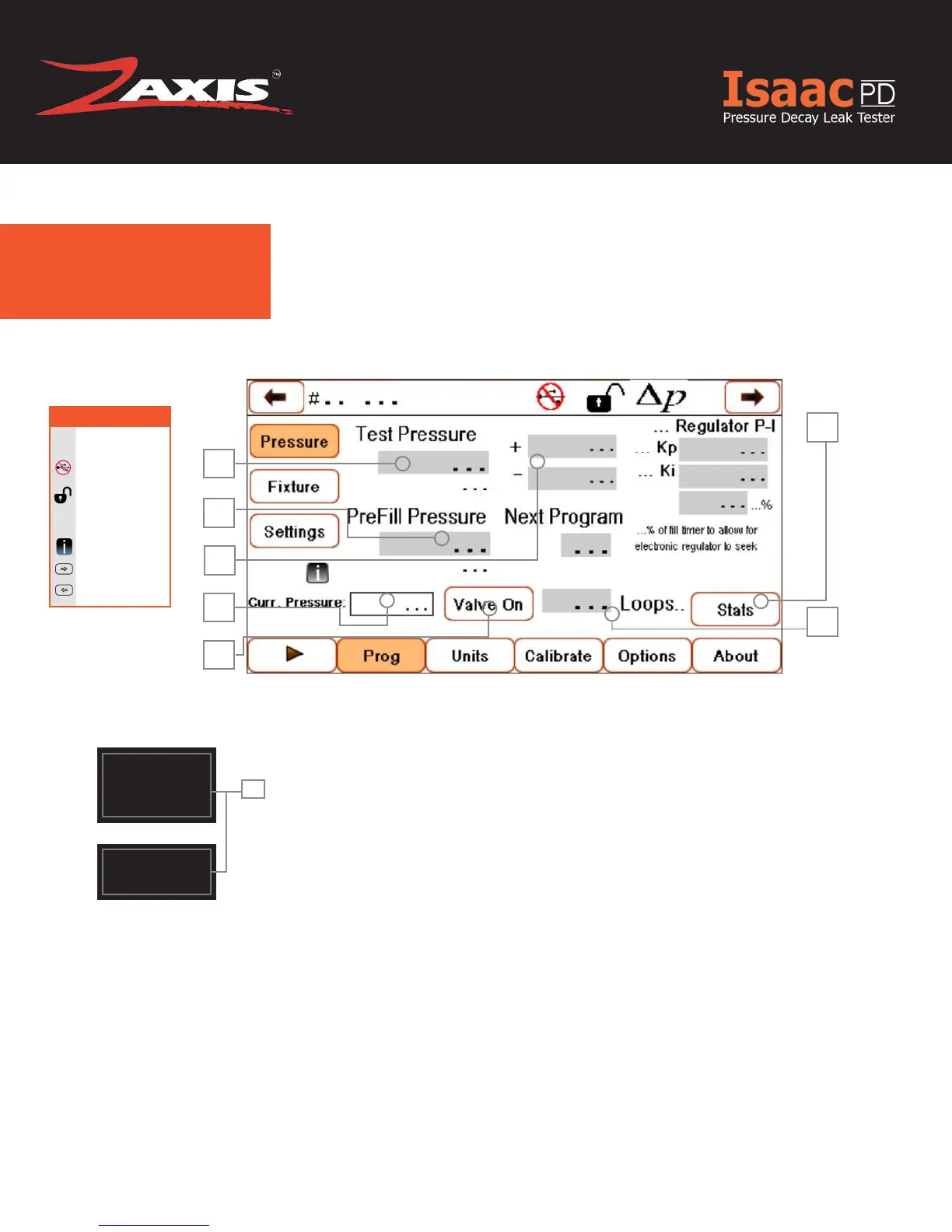
1. Test Pressure — Press the Test Pressure data eld and
enter desired test pressure on the numeric keypad screen.
2. Next Program — Link programs together by entering the
number of the next program (upper left corner) in the Next
Program data eld. This allows the tester to jump to the de-
sired next program upon a pass result in the current test.
3. Pressure Tolerance ± — The amount of tolerance on the
test pressure. Enter positive (+) and negative (-) limits in the
data eld to the right of the Test Pressure data eld.
4. Current Pressure — Displays the current pressure when
Valve On is check and test port is capped.
5. Valve On — Check box the opens the test port valve.
6. Stats —
7. Loops — Loops programs however many times
1
2
3
4
5
6
LEGEND
Positive/Negative
±
USB not plugged in
Tester unlocked
Δ
P
Test type: Pressure
Decay
More Info
Next Program
Previous Program
Fig. 6. Pressure Settings Screen.
!
Entering the same
number as the
current test will not
loop tests.
!
A test failure will
cancel the jump to
the next program
7


 To Next Page