Controlling the Front Panel Lights
Th ere are four dif fe rent f ro nt p anel li ghting mo des availab le on t he
MA S7 .1. They are:
Fro nt pane l lights au to matical ly fade f ro m br ight to d im
after 4 seconds of inac tivit y.
Fro nt pane l lights are al ways at the b right l evel.
Fro nt pane l lights are al ways at the d im level.
Fro nt pane l lights are tu rned of f.
Note: Th e intensi ti es of t he both t he brig ht a nd di m leve ls ca n be
adjusted as well. T hi s is ex pl ained o n the n ex t p ag e.
To change t he front pa nel lig ht in g mod e...
Step 1: Enter the Setup Mode
Th e MA S7.1 is p laced i nt o the set up mode by pr es sing an d
holding t he Po wer bu tton for ab ou t 4 secon ds .
Step 2: Select the Light Mode option
Press th e ‘3 ’ bu tt on to sel ec t t he “ Li ghting Mo de” option .
Th e front pan el selection L ED s now i nd icate the c urrently
selec te d light m ode as foll ows:
If th e ‘1’ LED is l it, t he n front pan el lights a re a lway s off.
If th e ‘2’ LED is l it, t he n front pan el is alw ays di m.
If th e ‘3’ LED is l it, t he n front pan el is alw ays br ight.
If th e ‘S1 ’ LED is lit, t hen front p an el ligh ts auto -f ade f rom
bright to d im af te r 4 s ec on ds of i na cti vi ty.
Step 3: Choose a new light mode
Choose a new lig ht control mode b y pressing th e butto n as-
sociated wi th the de sire d ope ra ti ng mode.
Press th e Power Bu tt on to save the ne w mode an d retur n
to norm al operatio ns, or continue o n to th e ne x t page to
adjust th e DIM a B RIGHT l eve ls.
Note: The l ighting m od e set ti ng is s aved in no n-vo latile me m-
ory a nd is n ot affected by a p ower f ai lure.
•
•
•
•
•
•
•
•
•
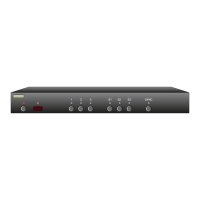
After ‘3’ is pressed, the standby
LED continues to flash, and the
front panel will display the cur-
rent Light Mode settings.
Step 3: Choose a new lighting mode


 To Next Page
