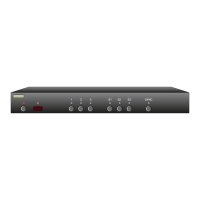
Use S2 and S3 to dim and brighten LEDs
S2 = Dim LEDs.
S3 = Brighten LEDs.
Adjusting the Front Panel Intensity
Continued from previous page...
If you ha ve n ot already do ne so, perform S te ps 1 an d 2 on th e previ-
ous pag e.
Step 4: Toggling between Bright and Dim Settings
Th e 'SYNC' LE D indic at es the front pa nel i nten si ty se ttings:
If li t, then t he BRIG HT level is b eing ad ju sted.
If of f, then t he DIM le ve l is be in g adjus te d.
Us e the ' SY NC ' butto n to toggle b et ween br ight an d dim
setting s.
Step 5: Adjust Front Panel Intensities
Us e the ‘S2’ button t o de crease th e intensity of t he fro nt
panel l ig ht s.
Us e the ‘S3’ button t o in crease th e intensity of t he fro nt
panel l ig ht s.
Us e the ' SY NC ' butto n to toggle b et ween th e brigh t and
dim set ti ngs.
Yo u canno t make th e DIM level b righter t ha n the B RIGHT
leve l, and you ca nnot ma ke the BR IG HT le vel di mmer th an
the DIM l evel .
Step 6: Use the Power Button to Exit
Once the fr on t panel i nt en sities ar e acce ptabl e, p ress t he
Powe r but to n to save the n ew settin gs and ex it the se tup
mode.
Note: The n ew intensit y setti ng s are save d in no n- vo la ti le
memor y and a re not af fe cted by a p ower f ailure.
•
•
•
•
•
•
•
Use the SYNC button to toggle between
the BRIGHT and DIM settings.


 To Next Page
