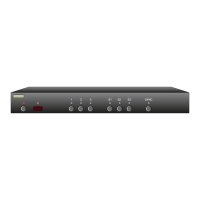
Front Panel Controls:
Powe r toggl e button.
Pr im ary switch b uttons.
Seconda r y switch bu tt on s.
To ggle th e SYNC LE D. (Sy nchronizes th e Pr imary an d Sec -
ondar y s wi tc hes whe n lit).
e Dual Switch Design of the MAS7.1
With t he SYNC L ED lit, t he MAS7.1 i s simpl y a Mul ti - ch an nel 7 .1 Au -
dio/Digit al Au dio/H DM I switch. Press in g eithe r '1'-'3' o r 'S1 '- 'S3' wi ll
selec t bet we en the th re e inputs.
Wh en the SY NC LED is unlit, t he MAS7.1 o perates as two indep en -
dent swit ch es . A Pr imary sw it ch (but to ns '1'-'3 ') and a Seconda r y
switch (b ut to ns 'S 1' -'S3). Or you can th ink of th e Sec on da r y swi tc h
as a very ea sy to use a udio brea kaway feature.
Wh en the SY NC LED is off, p re ss in g a Prima r y button (' 1' -'3') , will
switch on ly the 5. 1 Multi -ch an nel aud io paths (L F,RF,SU B,CE N, LR
& RR), wh ile press in g a S ec on dar y but to n ('S1' -' S3) wil l switch th e
Stere o Audio p at hs (L & R ), the Di gi tal a ud io, a nd the HD MI signal.
Howe ve r this de fa ult beh av io r can b e easil y changed.
For inst an ce if you wou ld pre fe r the Prima r y switch to c on tr ol all
7.1 Ana lo g Au dio c ha nnels, whil e allowin g the S ec on dar y swi tc h to
co nt ro l the rem ai ning ch an nels, thi s is easi ly done.
Th e Pr imary an d Secon da r y switche s are easi ly configured t o switch
any combinat io n of th e 5.1 Ana lo g Audio, S te re o Analo g Au dio,
Digital Audio, and HD MI. S ee the se cti on on "Primar y / Second ar y
Mapping s".
Even t he sp li t bet we en Multi- cha nn el 5.1 an d Stereo An al og Audio
channel s can be ch anged b y using a s imple s er ial p or t command.
For more i nfor ma tion on c hanging t he Anal og Au dio s pl it, downl oa d
the "MA S7 .1 Supp le menta l Manual".
1.
2.
3.
4.


 To Next Page
