EasyManua.ls Logo

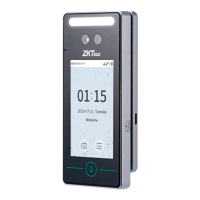
ZKTeco SpeedFace M4 - User Manual

ZKTeco SpeedFace M4
82 pages
Print Icon
To Next Page IconTo Next Page
Loading...
ProFace X [TD] User Manual
Page | 1 Copyright©2020ZKTECO CO., LTD. All rights reserved.
Thank you for choosing our product. Please read the instructions carefully
before operation. Follow these instructions to ensure that the product is
functioning properly. The images shown in this manual are for illustrative
purposes only.
For further details, please visit our Company’s website
www.zkteco.com.
User Manual
SpeedFace M4
Date: August 2021
Doc Version: 1.0
English

Other manuals for ZKTeco SpeedFace M4

Question and Answer IconNeed help?

Do you have a question about the ZKTeco SpeedFace M4 and is the answer not in the manual?

Summary

Trademark

Disclaimer

ZKTeco Headquarters

About the Company

About the Manual

Introduces the manual's content and scope for SpeedFace M4.

Document Conventions

GUI Conventions

Defines conventions for buttons, window names, and menu paths.

Symbols

Explains the meaning of various icons and symbols used throughout the document.

1 Instructions to Use

1.1 Standing Position, Facial Expression and Standing Posture

Guidelines for user posture and facial expression for optimal performance.

1.2 Palm Registration

Step-by-step instructions for registering palm biometrics on the device.

1.3 Face Registration

Procedures and tips for registering facial data accurately on the device.

1.4 Standby Interface

Description of the device's main interface after power connection.

1.5 Virtual Keyboard

Details on using the on-screen keyboard for text input on the device.

1.6 Verification Mode

Explains different verification methods like 1:N and 1:1 for various biometrics.

2 Main Menu

3 User Management

3.1 Add Users

Step-by-step guide to register new users with their biometric data and details.

3.2 Search for Users

How to find specific users within the device's database using search criteria.

3.3 Edit Users

Procedures for modifying existing user information and settings.

3.4 Delete Users

Instructions on how to remove user data and profiles from the device.

3.5 Display Style

Options to customize the visual appearance of the user list on the device.

4 User Role

5 Communication Settings

5.1 Network Settings

Settings for Ethernet connectivity, IP address, subnet mask, and gateway.

5.2 Serial Comm

Configuration for serial communication ports (RS232/RS485) and baud rates.

5.3 PC Connection

Setup for connecting the device to a PC, including Comm Key and Device ID.

5.4 Wireless Network

Steps for connecting the device to a Wi-Fi network and managing connections.

5.5 Cloud Server Setting

Configuration for connecting to ADMS server, including domain name and server address.

5.6 Wiegand Setup

Settings for Wiegand input and output parameters, including formats and bits.

5.7 Network Diagnosis

Tools for diagnosing network connectivity issues and performing tests.

6 System Settings

6.1 Date and Time

Setting the device's date, time, and time format for accurate logging.

6.2 Attendance Parameters

Adjusts settings related to attendance recording, photo capture, and user display.

6.3 Face Parameters

Fine-tunes parameters for face recognition accuracy, including thresholds and angles.

6.4 Palm Parameters

Adjusts parameters for palm recognition accuracy, including matching thresholds.

6.5 Factory Reset

Restores device settings to factory defaults, excluding user data.

6.6 Device Type Setting

Configures the device role as a time attendance or access control terminal.

6.7 Detection Management

Manages detection features like mask detection, unregistered person access, and alarms.

7 Personalize Settings

7.1 Interface Settings

Customizes wallpaper, language, timeouts, and screen styles.

7.2 Voice Settings

Configures voice prompts, touch sounds, and volume for device feedback.

7.3 Bell Schedules

Sets up scheduled bell alarms for specific times and repetitions.

8 Data Management

8.1 Delete Data

Options to delete specific data types like access records, attendance photos, or all data.

9 Access Control

9.1 Access Control Options

Sets parameters for gate control, lock delays, door sensor types, and verification modes.

9.2 Time Rule Setting

Defines time periods and zones for granting access based on schedules.

9.3 Holiday Settings

Configures special access times for holidays, applying to all users.

9.4 Combined Verification Settings

Sets up multi-factor verification combinations for enhanced security.

9.5 Anti-Passback Setup

Implements anti-passback to prevent tailgating and ensure sequential check-ins/outs.

9.6 Duress Options Settings

Configures duress password to trigger alarms under coercion during verification.

10 Attendance Search

11 Autotest

12 System Information

13 Connect to ZKBioAccess IVS Software

13.1 Set the Communication Address

Configures IP address, gateway, server address, and port for software communication.

13.2 Add Device on the Software

Process of searching and adding the device to the ZKBioAccess IVS software.

13.3 Add Personnel on the Software

Steps to add and synchronize user data to the device via the software.

Appendix 1

Requirements for Live Collection and Registration of Visible Light Face Images

Guidelines for optimal environment, lighting, and user positioning for face registration.

Requirements for Visible Light Digital Face Image Data

Specifies image format, quality, and data requirements for digital face photos.

Appendix 2

Privacy Policy

Details ZKTeco's practices for collecting, using, and securing personal information.

Eco-friendly Operation

Summary

Trademark

Disclaimer

ZKTeco Headquarters

About the Company

About the Manual

Introduces the manual's content and scope for SpeedFace M4.

Document Conventions

GUI Conventions

Defines conventions for buttons, window names, and menu paths.

Symbols

Explains the meaning of various icons and symbols used throughout the document.

1 Instructions to Use

1.1 Standing Position, Facial Expression and Standing Posture

Guidelines for user posture and facial expression for optimal performance.

1.2 Palm Registration

Step-by-step instructions for registering palm biometrics on the device.

1.3 Face Registration

Procedures and tips for registering facial data accurately on the device.

1.4 Standby Interface

Description of the device's main interface after power connection.

1.5 Virtual Keyboard

Details on using the on-screen keyboard for text input on the device.

1.6 Verification Mode

Explains different verification methods like 1:N and 1:1 for various biometrics.

2 Main Menu

3 User Management

3.1 Add Users

Step-by-step guide to register new users with their biometric data and details.

3.2 Search for Users

How to find specific users within the device's database using search criteria.

3.3 Edit Users

Procedures for modifying existing user information and settings.

3.4 Delete Users

Instructions on how to remove user data and profiles from the device.

3.5 Display Style

Options to customize the visual appearance of the user list on the device.

4 User Role

5 Communication Settings

5.1 Network Settings

Settings for Ethernet connectivity, IP address, subnet mask, and gateway.

5.2 Serial Comm

Configuration for serial communication ports (RS232/RS485) and baud rates.

5.3 PC Connection

Setup for connecting the device to a PC, including Comm Key and Device ID.

5.4 Wireless Network

Steps for connecting the device to a Wi-Fi network and managing connections.

5.5 Cloud Server Setting

Configuration for connecting to ADMS server, including domain name and server address.

5.6 Wiegand Setup

Settings for Wiegand input and output parameters, including formats and bits.

5.7 Network Diagnosis

Tools for diagnosing network connectivity issues and performing tests.

6 System Settings

6.1 Date and Time

Setting the device's date, time, and time format for accurate logging.

6.2 Attendance Parameters

Adjusts settings related to attendance recording, photo capture, and user display.

6.3 Face Parameters

Fine-tunes parameters for face recognition accuracy, including thresholds and angles.

6.4 Palm Parameters

Adjusts parameters for palm recognition accuracy, including matching thresholds.

6.5 Factory Reset

Restores device settings to factory defaults, excluding user data.

6.6 Device Type Setting

Configures the device role as a time attendance or access control terminal.

6.7 Detection Management

Manages detection features like mask detection, unregistered person access, and alarms.

7 Personalize Settings

7.1 Interface Settings

Customizes wallpaper, language, timeouts, and screen styles.

7.2 Voice Settings

Configures voice prompts, touch sounds, and volume for device feedback.

7.3 Bell Schedules

Sets up scheduled bell alarms for specific times and repetitions.

8 Data Management

8.1 Delete Data

Options to delete specific data types like access records, attendance photos, or all data.

9 Access Control

9.1 Access Control Options

Sets parameters for gate control, lock delays, door sensor types, and verification modes.

9.2 Time Rule Setting

Defines time periods and zones for granting access based on schedules.

9.3 Holiday Settings

Configures special access times for holidays, applying to all users.

9.4 Combined Verification Settings

Sets up multi-factor verification combinations for enhanced security.

9.5 Anti-Passback Setup

Implements anti-passback to prevent tailgating and ensure sequential check-ins/outs.

9.6 Duress Options Settings

Configures duress password to trigger alarms under coercion during verification.

10 Attendance Search

11 Autotest

12 System Information

13 Connect to ZKBioAccess IVS Software

13.1 Set the Communication Address

Configures IP address, gateway, server address, and port for software communication.

13.2 Add Device on the Software

Process of searching and adding the device to the ZKBioAccess IVS software.

13.3 Add Personnel on the Software

Steps to add and synchronize user data to the device via the software.

Appendix 1

Requirements for Live Collection and Registration of Visible Light Face Images

Guidelines for optimal environment, lighting, and user positioning for face registration.

Requirements for Visible Light Digital Face Image Data

Specifies image format, quality, and data requirements for digital face photos.

Appendix 2

Privacy Policy

Details ZKTeco's practices for collecting, using, and securing personal information.

Eco-friendly Operation

ZKTeco SpeedFace M4 Specifications

General IconGeneral
Face Capacity3, 000
Operating SystemLinux
Power Supply12V DC
Fingerprint Capacity10, 000
Logs Capacity100, 000
CommunicationTCP/IP
Operating Temperature0°C to 45°C
Operating Humidity20% to 80%
Access Control InterfaceRelay output
Standard FunctionsFace recognition, fingerprint recognition, card recognition
CameraDual-lens camera (RGB + IR)

Related product manuals