EasyManua.ls Logo

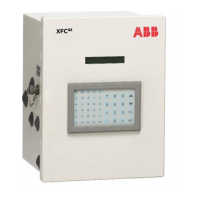
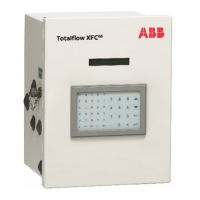
ABB XFC G5 - User Manual

ABB XFC G5
145 pages
Print Icon
To Next Page IconTo Next Page
Loading...
ABB M EAS UREM EN T & ANALYTICS | 21 0 602 6 M NAA
XSeries
G5
User Manual
XFC
G5
/XRC
G5
Accurate, reliable,
capable of measuring
and monitoring gas flow
to AGA, it is API, and
ISO standard.
Measurement made
easy.

Table of Contents

Other manuals for ABB XFC G5

Questions and Answers

  • J
    Jack TorresAug 6, 2025
    What to do if I have remote communication issues with my ABB Measuring Instruments?
    • D
      david13Aug 7, 2025
      If you're experiencing remote communication issues with your ABB Measuring Instruments, consider the following steps: * Ensure the symbol flashes in the A8 display position. * Set the port Listen Cycle to zero. * Select Totalflow Remote Protocol in the port configuration. * Increase the cutoff voltage value specified in Station Setup > Remote Comm Cutoff Voltage. * Check the communication port wiring on both the flow computer and the radio. * Confirm that all communication cables are intact and undamaged. * Verify the antenna is properly installed. * Check that the base radio (host device, typically running WinCCU) is working at other locations. * Verify the configuration of the host communication application (typically WinCCU).
  • B
    brookeestradaAug 23, 2025
    How to fix screen lock up during startup on ABB Measuring Instruments?
    • B
      brittney83Aug 23, 2025
      If the screen locks up during startup, try the following: 1. Attach the lithium battery to the board. 2. Perform a warm boot by locating RESET (XFC[G5] S2 and XRC[G5] S6) on the electronic board, then press and hold for 10 seconds. 3. If the warm boot doesn't work, perform a cold boot. Locate the COLDBOOT button (S9) and the RESET button (XFC[G5] S2 and XRC[G5] S6) on the electronic board. Press and hold the COLDBOOT button and at the same time press and hold the RESET button for 10 seconds.

Summary

System Description

User Interface Software: PCCU32

Explains the PCCU32 software for configuration, monitoring, and troubleshooting.

Power Supply Equipment

Covers 12V battery, solar panel, or external DC power supply options for device operation.

Site Planning and Requirements

Download PCCU

Instructions for downloading the PCCU software for device configuration.

Install Battery and Charger

Install the Battery

Instructions for mounting the battery inside the enclosure.

Install the Solar Panel

Steps for mounting the solar panel outdoors for charging.

Powering the Device

Basic Configuration and Startup

Configure Communication

Enable and Configure Ethernet

Enables and configures the Ethernet interface with IP addressing.

Enable Wi-Fi

Enables Wi-Fi Access Point functionality and security settings.

Enable Bluetooth

Enables onboard Bluetooth for wireless local access.

Commission the Device

Validate Device Measurement

Verifies measurement accuracy by performing pressure checks.

Place the Device in Service

Provides guidelines for putting the XFCG5 into operational service.

Configure Security

Security Guidelines

Recommends guidelines for securing the XSeriesG5 devices.

Configure Bi-Level Security with Security Switch

Activating secured access via the onboard security switch.

Configure Role-Based Access Control (RBAC)

Setting up RBAC to designate roles and control access levels.

Enable RBAC Authentication on Communication Ports

Securing access by enabling RBAC authentication on ports.

Secure SSH;SFTP Service

Implementing Secure Shell and SFTP for secure access.

Update Default SSH;SFTP Keys

Procedure for generating and updating SSH/SFTP keys.

Service and Maintenance

Preserve Data and Configuration

Procedures to backup data and configuration files for restoration.

Collect Data

Steps to collect measurement and log data using PCCU.

Save Device Configuration

Guides on saving device configuration for backup purposes.

Restart the System

Overview of different restart options and their procedures.

Restart Using Factory Configuration

Restoring the device to factory default startup configuration.

Calibration

Measurement Pressure Checks and Calibration

Enables calibration and checking of static and differential pressure.

Static Pressure Checks

How to perform static pressure calibration checks.

Differential Pressure Checks

Procedure for performing differential pressure calibration checks.

Calibrating Static Pressure

Detailed steps for calibrating the static pressure cell.

Calibrating Differential Pressure (DP)

Steps for calibrating the differential pressure cell.

RTD Calibration

Steps to calibrate the RTD input for temperature measurement.

Analog Input Calibration

Calibrating analog inputs for voltage or current signals.

Analog Input Calibration (Voltage Mode)

Performing a 3- or 5-point calibration for voltage analog inputs.

Analog Input Calibration (Current Mode)

Performing a 3- or 5-point calibration for current analog inputs.

Verify Analog Input Calibration

Steps to verify the accuracy of the calibrated analog input.

Repeat Calibration in Case of Errors

Procedure to repeat calibration if errors occur.

Troubleshooting

LCD Visual Alarm and Status Codes

Explains LCD indicators for alarms and system status codes.

Failure to Start

Troubleshooting steps for issues when the device fails to start.

Screen Locked-Up

Procedure to correct a locked-up screen or unresponsive display.

Remote Communication Failure

Steps to troubleshoot and resolve remote communication issues.

Appendix B Cyber Security

ABB XFC G5 Specifications

General IconGeneral
BrandABB
ModelXFC G5
CategoryMeasuring Instruments
LanguageEnglish

Related product manuals