6-2 The Accutech Software U
Login
A valid login is required to open the Accutech 7.0 User Interface for a
specified server. Valid logins (User Name and Password combinations)
are created within Accutech 7.0 from the Operators menu. The options
available to each Operator within the Accutech 7.0 User Interface are
determined from the Operator Privileges menu.
These instructions assume the Database Server and Comm Server
Windows Services are installed and running.
To login the Accutech Software, use the following instructions:
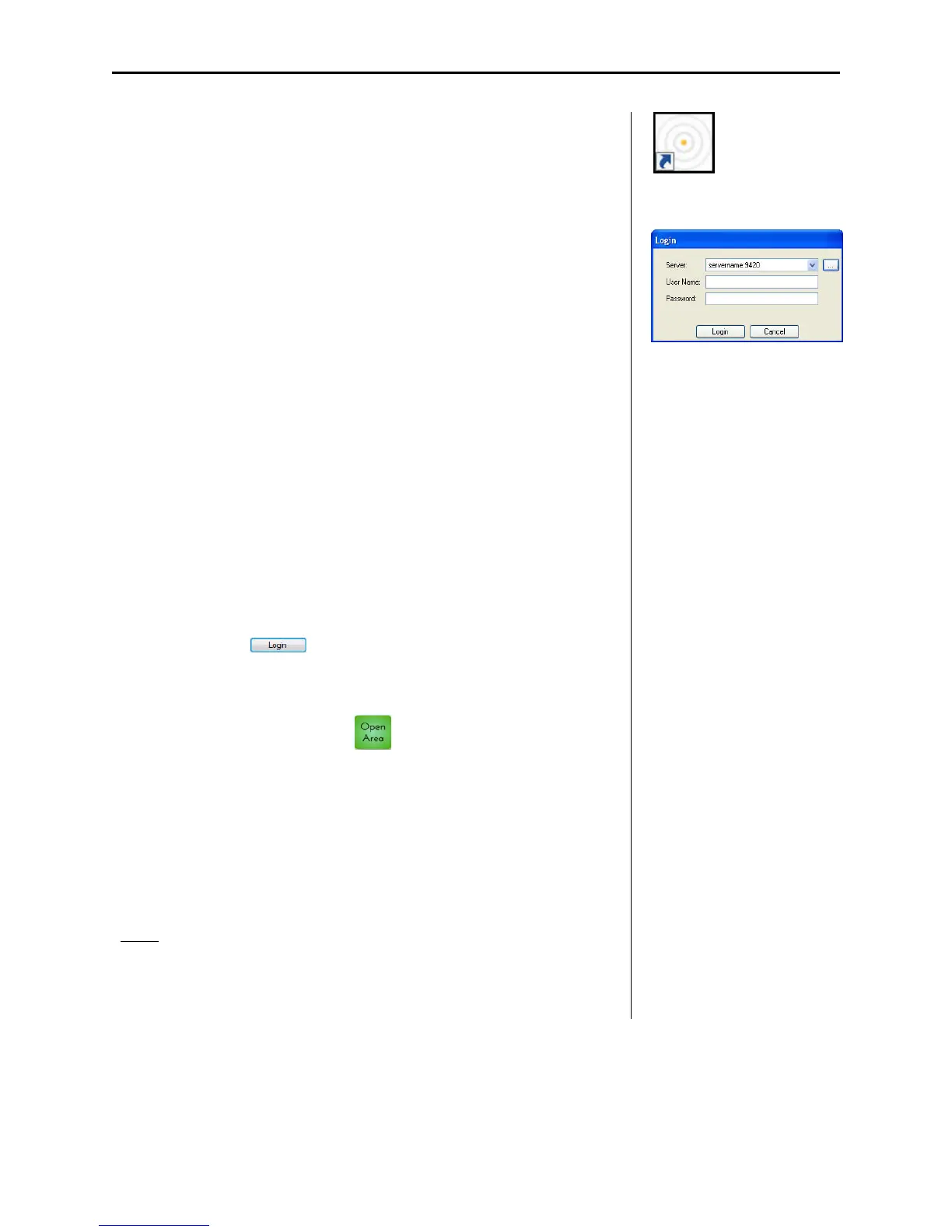
1. Double-click the Accutech icon (1) on the Desktop.
The Login dialog appears.
2. Select the desired server from the Server pull-down list (2)
The Server is the name of the computer where the SQL database
resides.
3. Complete the User Name and Password text fields (2) then select
the Login button.
Default User Name is admin
Default Password is admin
4. Select the button.
The Accutech 7.0 user interface appears.
5. For view additional servers, from inside the Accutech software
user interface, select the button and repeat the process.
6. When viewing multiple areas, areas will be displayed in a tabbed
view.
Logout
For security reasons, it is strongly advised that the Accutech Software
never be closed (or minimized). Closing the Software in no way disables
the system or alarms. However, alarm events will not be logged when
the software is closed.
1
Accutech 7.0 icon
2



 To Next Page