User Manual The Accutech Software 6-13
Tag Transfer
Tag Transfer is the process of transferring Tag Details between two
server databases. At no time is the protection of the system
compromised. Any alarm event will register and display before, during,
or after a Tag Transfer. In installations with multiple servers
(i.e., multiple protected areas or floors), due to floor-to-floor
discrimination and potential global band removal lockdown protocol,
the Accutech Software requires Tags to be designated in their respective
databases where they are in use and physically reside. Utilize Tag
Transfer for staff escorted transfer of currently assigned Tags. Use Quick
Transfer for transfer of unassigned Tag inventory.
These instructions assume Suite Control settings are already established.
To Transfer an assigned Tag, use the following instructions:
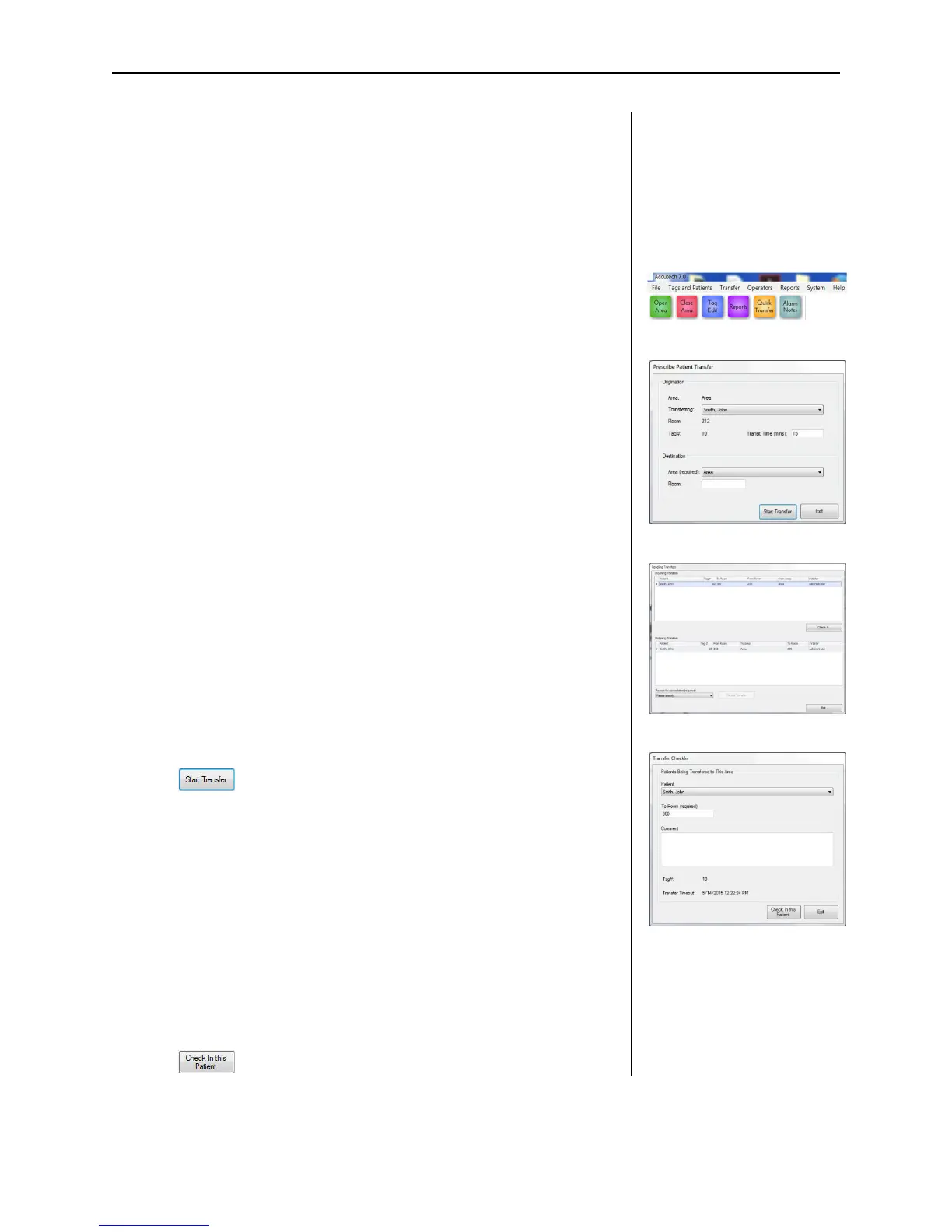
1. From the Transfer file menu (1), select CheckOut (2).
The Prescribe Patient Transfer dialog box appears.
2. From the Transferring pull-down list, select the desired assigned
Tag.
3. Adjust the Transfer Time (mins) text field as desired to allot
enough time to complete the transfer. If the Transfer time is
exceeded, a Transfer Timeout dialog box will appear. Once the
Transfer Timeout dialog box appears, the user will need to
cancel or extend the Transfer Time.
4. From the Destination Area pull-down list, select the desired area.
5. Once all Check Out parameters are set as desired, select the
button.
6. The transfer is started and moved to Pending Transfers
(Transfers file menu > Pending). The Pending Transfer dialog
box (3) displays all current Incoming and Outgoing Transfer in
progress, allows transfer cancellation, and allows transfer Check
In.
7. Once the staff escort arrives at the destination area, from the
Transfer file menu, select Check In. The Transfer CheckIn
dialog box (4) appears.
8. From the Patient pull-down list, select the desired Tag, edit the
Room and Comments text fields as desired, and select the
button to complete the transfer.
1
2
3
4



 To Next Page